
MKV Player Online: Watch and Convert MKV Files in Your Browser
You downloaded an MKV file. Your phone won't play it. Your TV doesn't recognize it. Your default media player either freezes or refuses to open it. If you've searched for an mkv player online to bail you out, you've already discovered the next problem: most options demand you upload the entire file to a stranger's server before you can press play.
This isn't user error. It's a known compatibility gap between how MKV files are built and how mainstream devices decode video. The good news: you have two clean paths. Play the file directly in a browser tab right now, or convert it to a universal format in under two minutes. Both methods work entirely inside your browser — no installs, no accounts, no files leaving your device.
Table of Contents
- Why MKV Files Break Playback — The Container-vs-Codec Mismatch Nobody Explains
- Play MKV Directly vs. Convert to MP4 — Which Path Actually Saves Time
- Three Ways to Play MKV Online — Ranked by What Actually Works
- Converting MKV to MP4 in Your Browser — The Five-Step Local Workflow
- Picking the Right Output Format for Your Device
- Local Browser Processing vs. Cloud Converters — Privacy, Speed, and the Real Reason It Matters
- When Conversion Still Doesn't Work — Five MKV Problems and Their Fixes
- Convert Your First MKV in Under Two Minutes — Quick-Start Action Checklist
Why MKV Files Break Playback — The Container-vs-Codec Mismatch Nobody Explains
The single most useful concept for anyone troubleshooting an MKV file is this: MKV is not a codec. It's a container. As technology journalist Chris Hoffman puts it in his How-To Geek explainer, "MKV isn't itself a codec; it's a container format." Think of MKV as a shipping box. The codec inside — H.264, HEVC, VP9, AV1 — is the actual product. Two MKV files can hold completely different products. That's why one plays fine on your laptop and the next one refuses to open on the same machine.
The Matroska specification, hosted at Matroska.org, defines MKV as an open, royalty-free container built on EBML. It can carry multiple video tracks, multiple audio tracks (think: original language plus dub plus director's commentary), soft subtitles in several languages, and chapter markers — all in a single file. That flexibility is exactly why Blu-ray rippers and archivists love it. It's also exactly why mainstream playback chokes on it.
Now look at what an mkv player online is actually competing against in terms of native support. HTML5's interoperable media set, according to MDN Web Docs, centers on three containers: MP4 (typically carrying H.264), WebM (carrying VP8, VP9, or AV1), and Ogg/Theora. MKV is not in that core interoperable set. It exists at the edge of partial Chromium support, which is why behavior changes between Chrome, Edge, Firefox, and Safari for the same file.
The iOS gap is even sharper. Apple's developer documentation lists supported video formats as H.264 and HEVC inside .mp4, .mov, and .m4v containers. MKV is absent. With iOS holding roughly 25–30% of global mobile OS market share according to StatCounter, that single gap blocks about one in four mobile playback attempts before the file even opens. There's no toggle in iOS Settings that fixes this. The container itself isn't on the supported list.
Desktop isn't safe either. Windows Media Player and QuickTime do not support MKV out of the box on most installations, according to the Tipard MKV Player guide (a vendor-published explainer — weigh accordingly, but the failure pattern matches independent reporting). Symptoms include missing audio when the MKV carries AC-3 or DTS, dropped subtitles when soft subs are stored in ASS format, or files that refuse to open entirely.
This is where conversion stops being a workaround and starts being the reliable fix. MP4 with H.264, according to Can I Use and MDN, is supported by over 90–95% of current desktop and mobile browsers. Convert once, play everywhere. The roulette ends.
That's the strategic frame for the rest of this article: play in-browser when it works, convert in-browser when it doesn't, and never upload your file to anyone's server in the process.
Play MKV Directly vs. Convert to MP4 — Which Path Actually Saves Time
Before you pick a tool, pick a path. The decision isn't about which option is "better" — it's about whether you need a one-time view or a portable file.
| Criterion | Direct In-Browser Playback | Convert to MP4/WebM First |
|---|---|---|
| Setup time | ~5 seconds (drag file) | ~10 seconds (drag + pick format) |
| Success rate across devices | Variable — depends on internal codec | ~95%+ once MP4 is produced |
| File leaves your device? | No (with WASM-based player) | No (with WASM-based converter) |
| Subtitle preservation | Yes — soft subs render | Sidecar .srt or burn-in needed |
| Output you can share/re-use | No — playback only | Yes — portable MP4 file |
| Works offline after load | Yes | Yes (after WASM loads) |
| Best for | One-time viewing | Repeat viewing, sharing, mobile, TV |
The real tradeoff hides in row two. Direct in-browser playback works if the MKV's internal codec is H.264 with AAC audio — common for recent web rips. If the file contains HEVC video, AC-3 audio, or older niche codecs, browser playback either fails outright or plays video without sound. You won't know which scenario you're in until you try. That's fine for a one-time curiosity check. It's not fine if your goal is to watch the file on a phone tonight.
Conversion is slightly slower but produces a portable artifact. Once you have an MP4 in hand, you can AirDrop it, attach it to an email, drop it into Google Drive, or stream it from a USB stick to a smart TV. The iOS constraint reinforces this: if your destination is iPhone or iPad, conversion is mandatory regardless of what the MKV contains, because the container itself isn't on Apple's supported list.
Encoding consultant Jan Ozer has long argued, across his work at the Streaming Learning Center, that H.264 in MP4 remains the "lowest common denominator" — the format that plays on virtually every device sold in the last decade. That's not a fashion statement. It's the practical reality of hardware decoder support.
The verdict in plain language: try playback first for one-off curiosity. Convert for anything you'll watch again, share, or move to a different device.
Three Ways to Play MKV Online — Ranked by What Actually Works
Not every "online MKV player" is built the same way. The architectural differences matter more than the UI.
1. WebAssembly-based browser players (most reliable, local processing). Tools that compile FFmpeg to WebAssembly — the open-source ffmpeg.wasm project is the reference implementation — can decode dozens of codecs locally inside a browser tab without uploading a single byte. Chrome Developer Advocate Surma has publicly demonstrated transcoding video this way, processing files "without sending any bytes to a server." Throughput on a modern desktop CPU approaches roughly 0.5–1× real-time for 1080p H.264 content. This is the approach the Online Video Trimmer and the rest of Media Tools Suite uses. It handles any MKV, any codec inside, on any modern Chrome, Edge, or Firefox build.
2. Server-upload online players (Jumpshare, VEED-style). Players like Jumpshare and VEED require uploading the full MKV to a remote server before playback begins. The tradeoffs are concrete. Upload time scales with file size and your upstream bandwidth — typically 10–50× slower than local processing for large files on consumer connections. Your file then lives on a third-party server for an unspecified retention period, which triggers GDPR data-processing concerns the moment the footage contains identifiable people. Best for small files when privacy isn't a factor.
3. Native HTML5 <video> tag (rarely works for MKV). Drag-drop the file into a blank browser tab, or wire up a basic HTML5 video element. This works only if the browser happens to support the MKV's internal codecs — typically Chromium-based browsers with H.264 inside. It fails silently on Safari (iOS and macOS) and on most Firefox builds, per the MDN media format support matrix. Best reserved for tech-savvy users testing a known-good file against a known browser.
Method 1 is the only one that reliably handles arbitrary MKV files without privacy compromise. The remaining sections show how to use it for both playback and conversion.
Converting MKV to MP4 in Your Browser — The Five-Step Local Workflow
The full conversion takes between 30 seconds and 5 minutes on typical hardware. Here's the workflow end to end.
Step 1 — Open the converter, no signup. Navigate to media-tools.online and choose the Video Converter tool. No account, no email, no card. The WebAssembly bundle — FFmpeg compiled to WASM — loads once and caches in your browser for future visits. After the first load, subsequent conversions start almost instantly.
Step 2 — Drop your MKV file into the browser tab. Drag-and-drop, or click to browse. The file is read directly by JavaScript and handed to FFmpeg.wasm in memory. It never travels over the network. The practical proof is direct: you can disconnect your Wi-Fi after the page loads and the conversion still completes. That's not a marketing claim — it's a verifiable architectural fact about how WebAssembly executes locally.
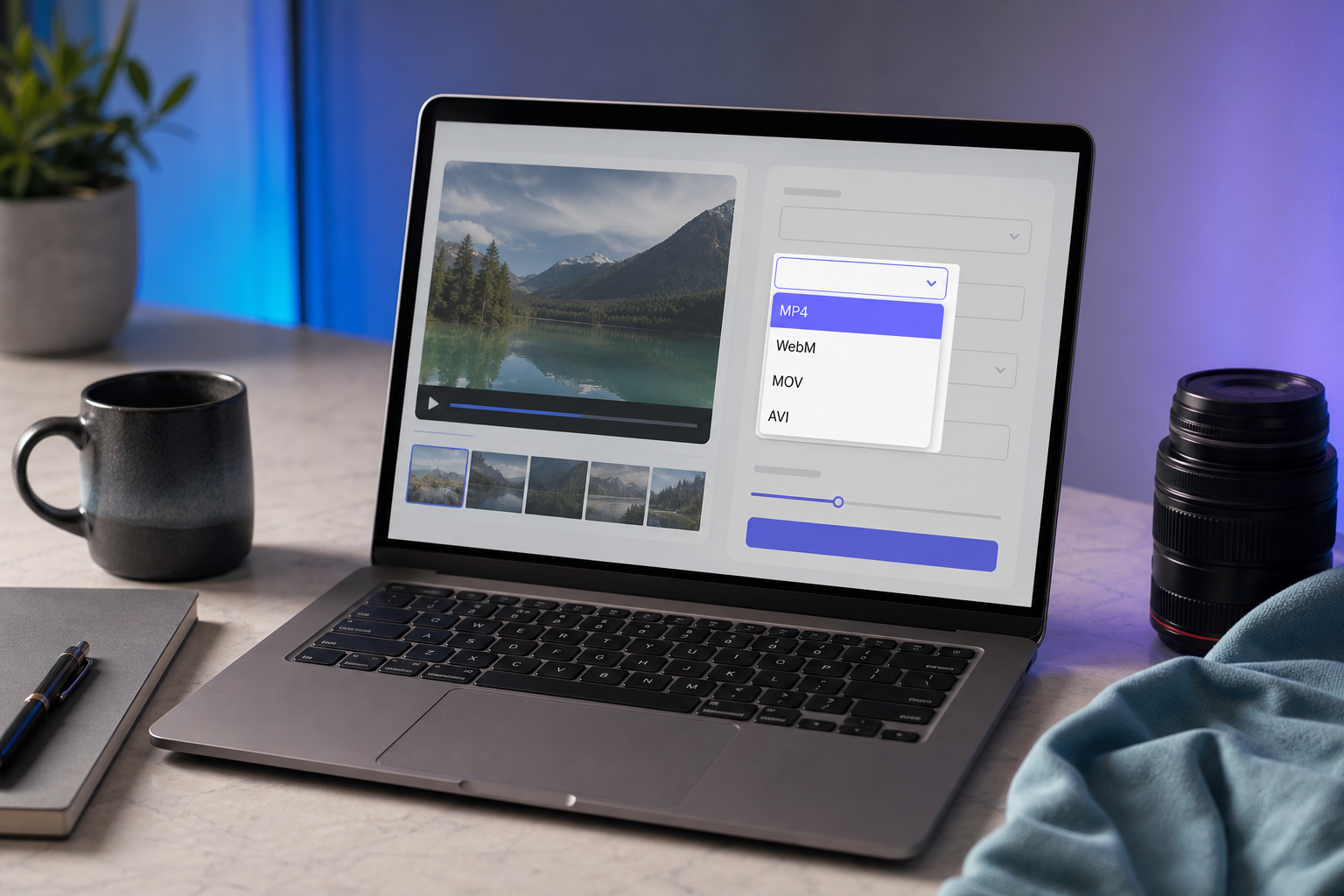
Step 3 — Choose your output format. Four practical picks:
- MP4 — the universal default, plays everywhere
- WebM — smaller files, native HTML5 web playback
- MOV — Apple ecosystem if your editor expects it
- AVI — legacy Windows hardware
The decision matrix in the next section walks through which to pick by destination device.

Step 4 — Pick a quality preset. Four presets, tied to concrete bitrate math derived from YouTube's published encoding recommendations:
- Original — stream copy where possible (no quality loss; only changes container)
- High — 1080p at ~8 Mbps, roughly 3.6 GB per hour
- Balanced — 720p at ~5 Mbps, roughly 2.25 GB per hour
- Compressed — 480p at ~2.5 Mbps, roughly 1.1 GB per hour
Jan Ozer's cautionary note applies here: re-encoding lossy to lossy (H.264 MKV to H.264 MP4) introduces some generational quality loss even at high bitrates. If your only goal is compatibility — not a different resolution — choose Original to trigger a stream copy (remux) where the codecs allow. This swaps the container without re-encoding the video stream, preserving quality bit-for-bit.
Step 5 — Start conversion and download. Expect 30 seconds to 5 minutes for typical 1–4 GB MKV files on modern hardware, based on ffmpeg.wasm benchmarks. Keep the browser tab in the foreground — background tabs are CPU-throttled by every major browser, which can extend conversion time substantially. The download begins automatically when conversion completes. The file lands in your downloads folder. No server holds a copy.
This same workflow handles audio-only extraction (output as MP3 or WAV) and clip trimming if you only need a portion of the source — the underlying FFmpeg engine supports both natively. If you want to trim a clip before converting, the Online Video Trimmer runs on the same local architecture. The same applies to audio-only extraction using the Online Audio Cutter. Privacy-conscious workflows — journalism, legal evidence, medical recordings — should prefer this local approach over any free online converter that requires upload.
Picking the Right Output Format for Your Device — MP4, WebM, MOV, or Keep MKV
Format selection collapses to a small number of real-world choices once you know the destination.
| Format | Best Use Case | Device Support | Size vs. Source | Subtitles |
|---|---|---|---|---|
| MP4 (H.264 + AAC) | Universal sharing, mobile, TV | 95%+ browsers, iOS, Android, smart TVs | Similar if remuxed; ~5–15% smaller if re-encoded | Sidecar .srt |
| MP4 (HEVC/H.265) | 4K, smaller files at equal quality | iOS 11+, recent Android, Safari, Edge | 25–50% smaller than H.264 | Sidecar .srt |
| WebM (VP9/AV1) | HTML5 embedding, royalty-free workflows | Chrome, Firefox, Edge; not Safari iOS | 20–40% smaller than H.264 | WebVTT sidecar |
| MOV | Final Cut, iMovie ingest, ProRes archival | macOS, iOS, Adobe tools | Often larger if ProRes | Embedded supported |
| Keep MKV | Archival with multiple audio/sub tracks | Limited; needs VLC or WASM player | No change | Soft subs preserved |
Three personas cover roughly 95% of real decisions.
The Phone Watcher. You want to watch the file on your iPhone or Android phone tonight. MP4 with H.264. End of decision. Apple's developer documentation confirms H.264 in .mp4, .mov, and .m4v as the supported set; Android handles the same combination on every device shipped in the past decade. Don't reach for HEVC unless you've confirmed your phone is iOS 11+ or a recent Android — older devices choke.
The Web Embedder. You're a developer putting video on a website. If Safari support isn't critical (internal tool, Chrome-first audience), WebM with VP9 or AV1 cuts file size by roughly 20–40% at equivalent quality versus H.264. If you need to serve everyone — including iPhone Safari users — fall back to MP4/H.264. Monty Montgomery of Xiph.org has consistently argued that WebM with AV1 represents the open, royalty-free path that Chrome, Firefox, and Edge all support fully. The constraint isn't technical merit — it's Safari's codec roadmap.
The Archivist. You're working with Blu-ray rips, multi-track audio, foreign-language subtitle bundles. Keep MKV as the master. Matroska.org's documentation is clear about its strengths here: multiple audio tracks, soft subtitles, chapters, all in one file. Produce an MP4 derivative for daily viewing on phones and shared screens, but don't discard the source. Converting to MP4 discards none of that richness as long as you keep the original.
MP4 with H.264 plays nearly everywhere on Earth. Choose anything else only when you know exactly why.
The rule of thumb: MP4 with H.264 unless you have a specific reason to choose otherwise. WebM if your audience is non-Safari. MOV if you're editing in Final Cut. Keep MKV when you're preserving an archive.
Local Browser Processing vs. Cloud Converters — Privacy, Speed, and the Real Reason It Matters
The architectural choice between local WebAssembly conversion and cloud upload isn't just about privacy theater. It changes timing, throughput, and legal exposure.
- Zero server upload, by architecture. Files are processed by FFmpeg.wasm running inside your browser tab. No bytes leave your device. You can verify this by disconnecting your network after the page loads — conversion still completes. The ffmpeg.wasm README and Surma's Chrome DevRel demos both walk through the underlying mechanism.
- No account, no metadata logging. No email, no IP-linked file history, no analytics tied to your file contents. The contrast with upload-based converters is structural, not cosmetic. Per EU GDPR guidance, any service that processes personal data — including video that contains identifiable people — takes on data-controller obligations including breach notification, retention limits, and subject access rights. Local processing avoids that entire vector because the data never reaches a processor at all.
- Faster on large files than cloud converters. The cloud workflow is upload plus queue plus process plus download. On a typical 20–50 Mbps consumer upload speed, a 4 GB MKV needs 10–25 minutes just to upload before processing even begins. Local FFmpeg.wasm conversion of the same file completes in roughly 3–8 minutes on a modern laptop, according to ffmpeg.wasm benchmarks. The bottleneck moves from your ISP to your CPU — and your CPU is faster.
The fastest video converter is the one that never leaves your device.
- Aligned with widespread privacy concern. Pew Research found that 79% of U.S. adults are concerned about how companies use the data they collect. For sensitive footage — medical recordings, legal evidence, family video, internal corporate material — local processing isn't a premium feature. It's the baseline a serious workflow demands. The same logic applies when you're trimming audio-only files like meeting recordings or podcasts with the Online Audio Cutter: the moment a file leaves your device, you've created a legal and reputational surface area you didn't need.
- No file size cap, no watermark, no daily limit. Server-based converters cap free tiers to keep infrastructure costs survivable — usually 500 MB to 1 GB per file, with daily conversion limits. Local processing has no such constraint. The only ceiling is your CPU and RAM. A 10 GB MKV is fine if your machine can hold it; processing time scales linearly, not exponentially.

When Conversion Still Doesn't Work — Five MKV Problems and Their Fixes
Even with a clean local workflow, MKV edge cases produce predictable failures. These are the five most common, with fixes.
1. "The converted MP4 is huge — how do I shrink it?"
Re-convert at a lower bitrate preset. The math is direct: at 8 Mbps (1080p), one hour ≈ 3.6 GB; at 2.5 Mbps (480p), one hour ≈ 1.1 GB (derived from YouTube's encoding recommendations and standard bitrate math). For sharing over email or messaging, target the Compressed preset. For YouTube upload, use the High preset to match the platform's recommended 8 Mbps for 1080p30. Don't go higher than your destination needs — extra bitrate produces extra file size with no visible quality gain on the target device.
2. "MKV has subtitles that won't carry over."
MKV stores soft subtitles internally — typically SRT or the more expressive ASS format. MP4's subtitle support is fragmented across players. Two reliable fixes. First, export the subtitles as a sidecar .srt file alongside the MP4; most players auto-load a subtitle file that shares the video's filename. Second, hard-burn the subtitles into the video pixels — universal compatibility, but you lose the ability to toggle them off. Matroska.org's subtitle documentation covers the source format details if you need to inspect what's actually inside the MKV.
3. "My phone still won't play the MP4."
Almost always a codec issue, not a container issue. Your output may be HEVC (H.265) while your phone is an older model that decodes only H.264. Re-convert with H.264 explicitly selected. iOS 11+ supports HEVC; Android HEVC support is fragmented across manufacturers and chipsets. When in doubt, H.264 plus AAC inside MP4 plays on essentially every consumer device sold in the last decade — Jan Ozer's "lowest common denominator" rule, applied directly.
4. "Conversion is slow or my browser tab froze."
The ffmpeg.wasm maintainers note in their GitHub issues that bundle sizes are large and CPU usage is high on low-end devices. Three fixes that work in practice: close other tabs to free RAM; keep the converter tab in focus (background tabs are CPU-throttled); or split a very large MKV into segments and convert separately. For phones and Chromebooks with constrained CPUs, conversion of multi-gigabyte files may be impractical — use a desktop or laptop and AirDrop the result.
5. "Video plays but there's no audio (or vice versa)."
The MKV likely contains an audio codec your target container can't carry — commonly AC-3 or DTS inside an MP4 destined for web playback. Re-convert and explicitly select AAC as the audio codec; AAC is universal inside MP4. If your converter exposes track selection, also check that the right audio track is selected — some MKVs contain three or more language tracks, and the default isn't always the one you want.
Convert Your First MKV in Under Two Minutes — Quick-Start Action Checklist
One browser tab. No account. No watermark. Your file never leaves your device.
Use this as your literal do-now checklist. If you're reading on the same device that holds the MKV file, you can finish before your coffee gets cold. Average completion time on modern hardware: 90 seconds to 4 minutes depending on file size.
- Open media-tools.online in Chrome, Edge, or Firefox (Safari works but is slower for WASM workloads)
- Click Video Converter from the tool grid
- Drag your MKV file onto the upload zone (or click to browse) — confirm the "Processed locally" indicator appears
- Set Output Format to MP4 (or MOV if your destination is exclusively Apple devices)
- Leave Quality on Balanced — change only if you need a smaller file (Compressed) or maximum fidelity (Original / stream copy)
- If your MKV has subtitles you want to keep, check the Export subtitles as .srt option
- Click Convert — keep this tab in the foreground; expect 30 seconds to 5 minutes depending on file size and CPU
- Download the MP4 when it appears, then test playback on your target device (phone, TV, browser)
Two follow-up moves worth knowing. If you only need a slice of the video — a single scene, a clip for social — trim it down to just the part you need before converting; processing time drops in direct proportion to length. If you only want the audio (a lecture, a podcast cut, a music track from a video file), pull just the audio track and export to MP3 or WAV. Both tools share the same local-only architecture as the converter, so the same privacy guarantee carries through end to end.