

How to Convert a GIF to Video: Free Online Methods That Actually Work
How to Convert a GIF to Video: Free Online Methods That Actually Work
You have a 5MB reaction GIF that plays beautifully in your browser. You drag it into TikTok's upload dialog and the platform rejects it. Same story on Instagram Reels, YouTube Shorts, and LinkedIn — none of them accept GIF as a primary video upload, because their published specs require MP4 or MOV containers. So you search for a gif to video converter and hit three familiar dead ends: a tool that uploads your file to an unknown server, a tool that stamps a watermark across your output, or a desktop app that wants an install and a credit card before it does anything.
There's a fourth option that most search results bury. Modern browsers can run FFmpeg compiled to WebAssembly, which means the conversion happens locally — no upload, no watermark, no account. The output is typically smaller than the source by a wide margin: in Google's published benchmark, a 3.4MB animated GIF compressed to a 486KB MP4 at equivalent visual quality — roughly 86% smaller. By the end of this guide, you'll know which output format fits your destination, what frame rate and bitrate to pick, and how to dodge the six conversion mistakes that ruin most outputs when you convert GIF to MP4.

Table of Contents
- Why GIF-to-Video Conversion Is Suddenly Non-Optional
- GIF vs. MP4 vs. WebM vs. MOV: Picking the Right Output Format
- Converting a GIF to MP4 in Your Browser: The 4-Step Workflow
- Preserving Quality While Cutting File Size 80%
- The Six GIF-to-Video Mistakes That Ruin Output (and the Fix for Each)
- When a GIF-to-Video Converter Is the Right Tool (and When It Isn't)
Why GIF-to-Video Conversion Is Suddenly Non-Optional
The reason a gif to video converter has moved from "nice to have" to "required tool" isn't fashion — it's the convergence of four hard constraints that the GIF format simply cannot meet.
The format ceiling. The GIF89a Specification locks the format to 8-bit indexed color — a maximum palette of 256 colors per frame — and defines no audio stream at all. MDN's format guide confirms both limits. By contrast, MP4 and WebM containers carry 24-bit color (16.7 million colors) and full audio tracks. That's not a marginal difference; it's the gap between a 1990s-era technical artifact and a modern media container.
Platform gatekeeping. The four platforms most creators care about have all explicitly drawn the line at video formats:
- TikTok accepts MP4 and MOV with frame rates up to 60 fps, per the TikTok Help Center upload requirements. GIF is not on the list.
- Instagram Reels requires MP4 or MOV with H.264 video and AAC audio, according to Meta's published video specs.
- YouTube Shorts uploads must be MP4, MOV, or similar video containers, per YouTube's encoding settings page.
- LinkedIn video posts accept MP4 and WebM, per the LinkedIn video file requirements.
If your final asset is a GIF and your distribution channel is one of these four, conversion isn't optional — it's the only path forward.
The performance penalty. Ilya Grigorik, writing for Google Developers, puts it bluntly: "Animated GIFs are a terrible format for animation… By simply converting existing GIFs to video, we can often save more than 80% of the bytes." Addy Osmani's web.dev guide reinforces the point — MP4 and WebM encodings of animated content are "typically 5–20× smaller than equivalent GIFs." On a marketing page where every kilobyte affects Largest Contentful Paint, a 3MB GIF replaced with a 400KB MP4 is the difference between a passing and failing Lighthouse score.
Most online converters assume your GIF is a temporary artifact. The best ones treat it as a finished asset and preserve every frame without loss.
The audio opening. A GIF is silent by spec. A video container can carry a synchronized audio track — narration, music, sound effects, ambient noise. Once you've converted to MP4 or WebM, you can layer in a music bed using an Online Audio Cutter to trim the clip to length first, then mux it with your converted video in a lightweight editor. That single capability unlock — adding sound — is often the reason teams convert in the first place, especially for social distribution where silent autoplay is the exception rather than the rule.
Reframe the whole exercise: GIF conversion isn't a downgrade or a workaround. It's the step that turns a legacy asset into something the modern web actually wants.
GIF vs. MP4 vs. WebM vs. MOV: Picking the Right Output Format
Your output format choice is dictated by where the video will play, not by which sounds most professional. The comparison below lays out every dimension that actually matters when you convert GIF to MP4 or one of its alternatives.
| Criterion | MP4 (H.264) | WebM (VP9) | MOV |
|---|---|---|---|
| Size from 3.4MB GIF source | ~486 KB (~86% smaller) | ~341 KB (~90% smaller) | ~500–600 KB |
| Color depth | 24-bit / 16.7M colors | 24-bit / 16.7M colors | 24-bit / 16.7M colors |
| Audio support | AAC | Opus / Vorbis | AAC |
| Browser compatibility | ~95–98% | ~90%+ (older Safari limited) | Apple ecosystems |
| Loop behavior | Requires loop attribute | Requires loop attribute | Requires player config |
| License status | Licensed via MPEG LA | Royalty-free | Licensed via MPEG LA |
| Best use case | Social uploads, universal web | Modern web embeds, open projects | Apple-only editing pipelines |
File-size figures come from the Google Developers benchmark cited above. Browser-compatibility percentages reflect the Can I use video element support tables. License rows reference the MPEG LA AVC licensing program and the WebM Project technology overview.
Why MP4 dominates. H.264 inside an MP4 container hits roughly 95–98% of global users on Can I use's support table, and every major social platform listed in the previous section accepts it as a primary upload format. The ISO/IEC 14496-14 standard defines MP4 as an ISO base media container, which is why it's the safe default — your file will play on a 2014 Android phone and a 2024 MacBook with equal reliability. If you only learn one output format, learn this one.
Why WebM is the developer's choice. WebM's container guidelines describe an open, royalty-free format built specifically for web streaming. On Google's own benchmark, WebM at VP9 came in at 341KB versus MP4's 486KB for the same 3.4MB source GIF — roughly 30% smaller again. The catch: older Safari versions either lack WebM playback or implement it incompletely. Use WebM as a secondary <source> inside a <video> tag, with MP4 as the fallback, and you get the best of both worlds.
Why MOV exists in this list. MOV is essentially MP4 with Apple-specific metadata extensions. Use it only when the destination is Final Cut Pro, QuickTime, or another Apple-ecosystem editing pipeline. For social or web upload, MP4 is functionally identical and more broadly supported.
The licensing footnote. H.264 is patent-encumbered through MPEG LA; WebM is royalty-free. For most users, this never matters — your browser handles licensing transparently. For open-source projects, large-scale commercial redistribution, or anyone shipping software that decodes video at scale, the distinction can mean real money. GIF conversion outputs almost never trigger MPEG LA licensing obligations, but if you're publishing a tool that re-encodes at scale, read the program details before scaling up.
Converting a GIF to MP4 in Your Browser: The 4-Step Workflow
A browser-based gif to video converter built on ffmpeg.wasm — FFmpeg compiled to WebAssembly — performs every encoding step locally in the browser tab. No upload, no server processing, no privacy policy to read. The workflow breaks into four discrete steps.
Step 1 — Load the GIF into the Converter
Drag-and-drop the GIF onto the drop zone, or use the file picker. There's no account, no email confirmation, and no upload progress bar — because no upload is happening. The file moves from your disk into browser memory and stays there. WebAssembly-based converters comfortably handle GIFs up to roughly 100MB on modern desktop browsers; mobile browsers may cap lower because of stricter memory limits. If a large file fails to load on mobile, switch to a desktop browser rather than a different tool.
Step 2 — Select Output Format
This is the decision that follows directly from the previous section. To convert GIF to MP4 is the universal default — TikTok, Reels, YouTube, and LinkedIn all accept it per the specs cited earlier. Choose WebM when the destination is a <video> tag on a web page and you want the smallest possible file (and Safari fallback isn't critical or is handled separately). Choose MOV only when the workflow downstream is Final Cut or another Apple-pipeline editor. If you're unsure, choose MP4. It works everywhere the others do, plus places they don't.
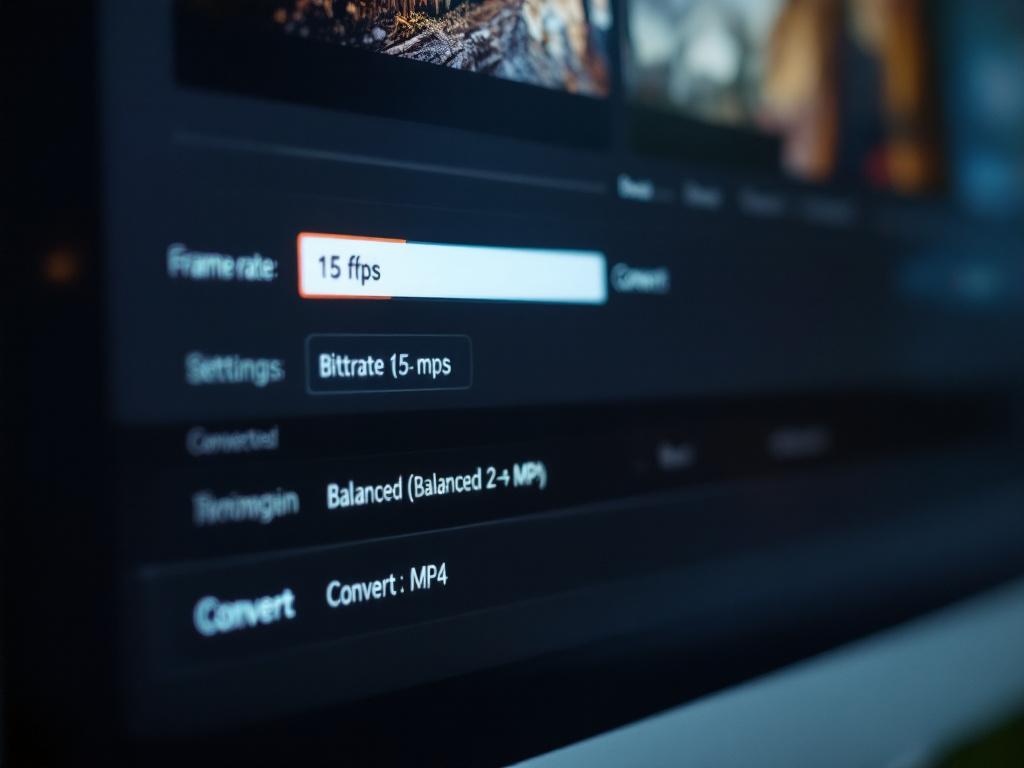
Step 3 — Set Frame Rate and Bitrate
Most web GIFs are authored at 10–15 fps with variable per-frame delays, according to Addy Osmani's animated images guide. Match the source frame rate. Do not upconvert a 10 fps GIF to 60 fps — there are no additional frames hiding inside the file, so all you'll get is duplicate frames and a roughly 20–40% larger output for zero perceptual benefit.
For bitrate, default to "balanced" (2–4 Mbps), which aligns with YouTube's recommended 720p upload bitrate of 2.5–5 Mbps. Move to "high quality" (5–8 Mbps) only when the output is archival or you're targeting 1080p+ delivery. Drop to "compressed" (under 1 Mbps) for mobile-first messaging contexts where size matters more than fidelity.
Step 4 — Download and Verify
Encoding completes locally and the download triggers automatically. Play the downloaded file once before uploading it anywhere — that single check catches loop misbehavior, audio desync (if you've added audio), and color-shift artifacts before they embarrass you in a public post. If the destination is a webpage and the video needs to repeat indefinitely, the <video> tag requires loop muted autoplay playsinline attributes per the WHATWG HTML video element specification.

If the GIF itself needs to be cut down before conversion — say, trimming a 10-second loop to the 3-second segment that actually matters — handle that as a separate task with a dedicated Online Video Trimmer rather than re-encoding the full clip repeatedly. Each re-encode introduces incremental quality loss; one trim plus one conversion preserves more than two conversions ever will.
Preserving Quality While Cutting File Size 80%
The anxiety question every first-time converter asks: will my video look as good as the original GIF? Yes — and frequently better. Here's why, broken into the six factors that actually move the needle.
Why GIFs Look Deceptively Good. The 256-color palette limit masks compression banding because the eye has less detail to compare against. Small dimensions hide pixelation. Infinite looping draws attention away from stutters and dropped frames. When you convert to a 24-bit color container, banding disappears and color reproduction improves. The MDN GIF format guide and the WebM Project technology overview both document the color-depth differential explicitly. Side-by-side, a properly converted MP4 of a gradient-heavy GIF often looks smoother than the source.
The 80% Savings Are Real, Not Marketing. Google's published benchmark is unambiguous: 3.4MB GIF → 486KB MP4 (86% reduction) → 341KB WebM (90% reduction). Osmani's 5–20× guidance covers the wider range across content types. The reason this works is codec architecture, not file-format trickery. H.264 uses motion compensation and interframe prediction — a moving block in frame N+1 can reference a similar block in frame N rather than encoding fresh pixel data — concepts documented in Iain Richardson's H.264 reference text. GIF has no equivalent mechanism. Every frame is essentially a fresh indexed-color bitmap.
File size shrinks 80 to 90 percent when you move from GIF to video, and quality stays the same or improves because modern video codecs are simply better at compression than GIF ever was.
Frame Rate: Match the Source, Don't Inflate It. Most web GIFs run at 10–15 fps. Upconverting creates duplicate frames and inflates file size 20–40% without adding visual smoothness — there's no new motion information to encode. Only increase frame rate when the original source (before it was GIF-encoded) was high-fps video, like a screen recording or exported animation clip, and the GIF you have is itself a downconverted artifact. Even then, recovering the original is impossible; you're better off finding the source video.
Bitrate Presets: The Three That Cover 95% of Cases. Using a gif to video converter with three preset tiers handles nearly every practical scenario:
- High (5–8 Mbps): Archival, broadcast prep, 1080p+ delivery. Matches YouTube's 1080p recommendation.
- Balanced (2–4 Mbps): Default for social uploads and web embeds. Aligns with YouTube's 720p range and Meta's 3–6 Mbps Reels guidance.
- Compressed (under 1 Mbps): Mobile-only delivery, messaging app attachments, email-embed scenarios where file size strictly trumps quality.
Generation Loss: The Honest Limit. A GIF is already a degraded artifact — frames have been quantized to 256 colors and often decimated to 10–15 fps before you ever opened the file. Converting that degraded source to a lossy video at aggressive bitrates can introduce mild additional artifacts. As Osmani puts it, you can't recover quality that was never there. At balanced bitrate, the additional loss is imperceptible. At sub-1 Mbps, watch for blocking artifacts on high-motion sections — that's where aggressive compression visibly breaks down.
Aspect Ratio: Don't Stretch. If your GIF is 480×270 (16:9) and the target platform expects 9:16 (TikTok, Reels), letterbox or crop. Never stretch. Stretching introduces obvious geometric distortion that platform algorithms can detect and de-prioritize. TikTok's upload requirements recommend 1080×1920 vertical at 9:16; YouTube Shorts supports aspect ratios between 9:16 and 4:5, with full-screen behavior assuming 9:16. Match the target shape at conversion time, not by relying on platform-side cropping.
The Six GIF-to-Video Mistakes That Ruin Output (and the Fix for Each)
Most failed GIF conversions trace to one of six errors. The table below pairs each with its root cause and a concrete fix. If your converted video looks wrong, start here before blaming the tool.
| Mistake | Why It Happens | How to Fix It |
|---|---|---|
| Video plays once, won't loop | MP4 has no intrinsic loop flag; GIF's Netscape loop extension doesn't transfer | Add loop muted autoplay playsinline to the <video> tag |
| File is larger than the source GIF | Bitrate preset set to "high" or frame rate upconverted | Drop to balanced bitrate; keep source frame rate |
| Won't autoplay on iPhone | Safari blocks unmuted autoplay per browser policy | Add muted and playsinline; some Safari versions need user gesture |
| Colors look washed out | Indexed 256-color palette didn't map cleanly to RGB | Use a converter that handles palette-to-RGB explicitly |
| Motion looks sped up | Source GIF had variable frame delays; converter assumed 30 fps | Match output fps to source (often 10–15 fps) |
| WebM won't play on older iPhones | Older Safari lacks WebM support | Use MP4 as primary; offer WebM as secondary <source> |
Three of those six trace to the same family of root causes, and they're worth understanding rather than just memorizing.
The loop trap. GIFs encode looping behavior inside the file via the Netscape Application Extension — a block defined in the GIF89a specification that tells decoders "play this animation N times" or "infinite." MP4 has no equivalent concept. Looping is a player concern, handled by the HTML video element's loop attribute or by a checkbox in a desktop media player. If you publish to a destination that doesn't expose loop controls — certain CMSs, most email clients, some legacy embed widgets — you may need a different delivery method entirely, or you may need to keep the GIF for that specific channel and use video everywhere else.
The color-space gotcha. Older GIFs use indexed color mode, where each pixel is a lookup into a 256-entry palette. Video pipelines work in RGB or YUV color spaces. A naive converter can produce shifted hues — particularly visible on skin tones, sky gradients, or branded color blocks — when it skips the explicit palette-to-RGB conversion step. The MDN GIF guide documents the color-mode difference. If a converted file looks "off" but you can't pinpoint why, test a single-frame export against the source GIF in an image viewer.
The frame-rate myth. GIFs don't advertise a single fps value. Each frame carries its own delay value in 1/100s units, as defined in the GIF89a spec. A converter that assumes a constant 30 fps misinterprets slower delays as missing frames and either drops frames or compresses time, producing the "sped up" effect users notice immediately. A good converter reads the per-frame delays and outputs at an appropriate constant rate. When you convert GIF to MP4 and the result looks frantic, this is almost always why.
When a GIF-to-Video Converter Is the Right Tool (and When It Isn't)
A gif to video converter is a specialist tool. It does one transformation — container and codec change — exceptionally well, and nothing else. If you need to crop the GIF, trim a section out, add overlay text, layer audio in sync, or extract individual frames as still images, you need a different tool entirely. Knowing the boundary saves you the time of fighting one tool to do another tool's job.
Use a GIF-to-Video Converter When
- The GIF is your finished asset. No edits remain — you just need a different container.
- You need multiple output formats. MP4 for social distribution, WebM for web embedding, from a single source.
- File size matters. The 80–90% reduction documented in Google's benchmark translates directly to faster page loads and lower bandwidth bills.
- Speed matters. Browser-based processing finishes in seconds with zero upload wait. Server-based tools spend most of their time on the upload, not the conversion.
- The content is sensitive. Local processing via WebAssembly means the file never leaves your device. No third-party server sees it, caches it, or logs metadata about it.
A GIF-to-video converter is a specialist tool. It does one thing exceptionally well — knowing when to use it and when to reach for a full editor instead is half the skill.
Don't Use a Converter When
- You need to trim or crop first. Use a video trimmer, then convert the trimmed result.
- You want to add a synchronized audio track. Convert first, then layer audio in a video editor where you can see the waveform.
- The GIF is corrupted. Conversion won't repair damaged frames — it'll faithfully reproduce the corruption in a new container.
- You need individual frames as still images. Use a frame-extraction tool, not a video converter.
- The pre-GIF source file is available. Export from the original source directly to MP4 — don't round-trip through GIF and lose quality twice.
Persona-Based Workflows
The Social Video Creator. Pulls a reaction GIF from a meme library, runs it through the converter to produce MP4, and uploads to Reels or TikTok within the platforms' published specs. Total time: under a minute. The alternative — recording a screen capture of the GIF playing — wastes time and degrades quality.
The Web Developer. Has an animated GIF placeholder on a marketing page that's torpedoing Lighthouse scores. Converts to MP4 + WebM dual-source, embeds with a <video loop muted autoplay playsinline> tag using both as <source> elements. Page weight drops roughly 85% on that asset; LCP improves measurably; visual fidelity stays identical.
The Privacy-Conscious Designer. Working with an unreleased product mockup encoded as a GIF for stakeholder review. Uses a browser-based converter specifically because the file can't touch a third-party server under NDA terms, then trims the final clip with an Online Video Trimmer to isolate the segment going into the pitch deck. Both operations happen entirely in-browser.
Why Local Processing Matters Concretely
Local browser processing via WebAssembly — the architecture documented in the ffmpeg.wasm project and implemented in parallel by tools like Kommodo's video tools — means the file stays on your device throughout the conversion. No upload, no server cache, no privacy policy to read. This matters concretely for internal mockups, watermarked client work, embargoed footage, anything covered by an NDA. Server-based converters — even reputable ones — require you to trust that the file is deleted after processing and that no copy persists in logs, backups, or cache layers. Local conversion eliminates the trust requirement entirely. You don't need to trust the tool's deletion policy because the tool never had your file.
Before You Convert: The Final Checklist
- Confirm the GIF is your final asset, not a draft you'll still edit
- Choose output format: MP4 for universal compatibility, WebM for web-only, MOV for Apple pipelines
- Match output frame rate to the source — never upconvert
- Set bitrate to balanced (2–4 Mbps) unless the use case is archival or mobile-only
- Enable loop output if the video must repeat on its destination
- Preserve aspect ratio — letterbox or crop, never stretch
- Play the downloaded file once locally before uploading anywhere