
Enhancing Video Game Streaming with Online Tools
When Your Stream Hits 50 Viewers and Your Setup Starts Showing Cracks
You're three hours in. Chat just exploded after a clutch play, your Discord party is yelling, the alert sound stacked twice because two follows landed in the same second, and you just realized your game audio has been 6 dB hotter than your voice for the entire session. You're alt-tabbing between OBS, the moderation dashboard, and a browser overlay editor while trying not to die in-game. This is the moment most streamers learn that their video game streaming tools stack was built reactively — one alert plugin here, one chatbot there — until the whole thing became a fragile chain of dependencies that breaks the night you finally get traction.
The difference between streamers who plateau at 20-50 viewers and those who break past it is rarely talent or game choice. It's tool stack discipline. The ones who climb have made deliberate decisions about software, audio routing, visual hierarchy, encoding budgets, and what to do when something fails on air. The ones who stall keep adding tools until their machine can't keep up.
This article delivers a layered framework: software selection, audio architecture, visual hierarchy, engagement automation, encoding economics, platform ecosystems, and live troubleshooting. It does not chase the "best tool of 2026" treadmill. Tools change quarterly; the decision criteria don't. One detail worth flagging upfront — OBS includes an auto-configuration wizard that benchmarks your PC and connection before suggesting settings, as walked through in this OBS setup guide. Most streamers skip it and copy a YouTuber's settings instead. That's the first mistake.
Table of Contents
- Choosing Your Streaming Software Foundation
- Audio Routing Architecture
- Building Visual Hierarchy
- Engagement Automation
- Encoding Economics
- Twitch, YouTube, and Multi-Platform Streaming
- Live Diagnostic Workflow
- The 14-Point Pre-Stream Checklist
Choosing Your Streaming Software Foundation: OBS vs. Streamlabs vs. Native Platform Tools
Treat this as a hosting-layer decision, not a brand preference. All three options share the same underlying job — capture, encode, transmit — but they differ sharply in CPU overhead, customization ceiling, and onboarding cost. Picking wrong wastes weeks of your time learning a tool you'll abandon, or burns CPU cycles you can't spare on encoding.
Here's what each option actually is at a technical level, and which streamer stage each fits:
| Criterion | OBS Studio | Streamlabs Desktop | Native Platform Tools |
|---|---|---|---|
| Setup approach | Auto-config wizard benchmarks PC + connection | Bundled defaults, themed presets | Account-tied, minimal config |
| Bundled services | None — plugins added manually | Alerts, chatbot, themes, tipping built-in | Limited — platform-native alerts only |
| Customization ceiling | High | High | Limited |
| Best fit by stage | Past first 90 days, scaling toward affiliate | First 90 days through early growth | First 30 days, testing the activity |
| Source basis | OBS wizard walkthrough | Vendor-described feature set | Twitch Studio, YouTube Live Control Room |
OBS Studio is open-source and plugin-extensible. You configure scenes, sources, and audio manually. It carries a lower idle CPU footprint because it ships without bundled overlay or alert services running in-app. The auto-configuration wizard gives beginners a viable starting baseline by actually testing the machine — not guessing.
Streamlabs Desktop is built on the OBS codebase but ships with bundled alerts, themes, a chatbot, and tipping integrations, according to streaming tool overviews from creators reviewing the platform. Convenient. Also heavier — those integrated services run in-app and consume RAM and CPU even when idle. Note this is a vendor-adjacent description; specific overhead numbers aren't independently benchmarked in the sources reviewed.
Native platform tools — Twitch Studio, YouTube Live Control Room — carry the lowest setup friction and the lowest customization ceiling. They're best for streamers who want to test the activity for four to six weeks before committing to dedicated software.
The right choice depends on your growth stage. A streamer in their first 90 days should not be configuring Voicemeeter routing inside OBS. They should be on native tools or Streamlabs and learning what they actually want to customize before spending weekends rebuilding it from scratch. The reverse is also true: streamers approaching affiliate or partner thresholds benefit from OBS's lower overhead because they're often running the game, the encoder, a chatbot, and several browser sources on a single machine. At that stage, every percent of CPU matters. The bundled convenience that helped you start now costs you frame stability.
A practical migration path many streamers take: start on Twitch Studio or Streamlabs, then switch to OBS once you know which alert behavior, which overlay style, and which moderation tools you actually want. Migrating later is cheaper than learning OBS while also learning to stream. Don't burn both fuel tanks at once.
Audio Routing Architecture: Why Listeners Leave Before They Notice the Visuals
Audio is the most underestimated retention lever in streaming video tools. A viewer will tolerate 720p over 1080p. A viewer will tolerate a 200-millisecond delay. A viewer will not tolerate microphone clipping, game audio drowning out your voice, or Discord party chat leaking onto the broadcast. The eye forgives. The ear does not.
The Multi-Track Recording Principle
OBS supports advanced audio settings where each source — desktop audio, Discord, game capture audio, microphone — can be assigned to a separate recording track. This means you can record locally with isolated tracks and re-mix highlights later, instead of being stuck with whatever live mix went out, a workflow demonstrated in this OBS multi-track setup walkthrough.
Single-track recording is the OBS default. Most streamers never change it. This becomes a problem the first time you try to clip a moment for YouTube and the background music is too loud relative to your voice — there's no way to fix it because the audio is fused. Multi-track gives you separate channels per source in the recorded file, so when you cut a 45-second highlight you can drop the music 6 dB and lift the voice without touching the original mix that went to viewers.
Configure this once, in OBS Settings → Output → Recording, by enabling tracks 1-6 and assigning sources in the audio mixer. Five minutes of setup. Pays for itself the first time you make a Short.
Virtual Audio Routing
VB-Audio Voicemeeter is a virtual mixer that sits between your physical inputs (microphone, game audio, Discord) and OBS. It lets you monitor a different mix in your headphones than what goes out to viewers. This solves the "I can't hear my Discord friends but viewers can" problem — and its inverse, where you can hear chat TTS but viewers can't.
This is power-user territory. You don't need it in your first 90 days. You need it when you start co-streaming regularly with the same people, when you want a separate mix for capture-card recording, or when you want viewers to hear stream music that doesn't bleed into your party chat. Install it before you need it once and you'll spend three hours debugging routing instead of streaming. Install it the week you actually need it and the learning curve has a clear payoff.
Professional audio is the fastest way to appear professional — viewers forgive dropped frames, but they never forgive muddy sound.
Voice Processing Fundamentals
Three filters do most of the work, and all three are built into OBS. No paid plugins required.
Noise Gate cuts background hum below a threshold. Set the close threshold around -45 dB and the open threshold around -35 dB as a starting point, then adjust based on your room. You want the gate closed when you're not speaking and instantly open the moment you start.
Compressor evens out loud and quiet syllables. A ratio of 3:1 to 4:1 with a threshold around -18 dB and a 6 dB makeup gain gives you a controlled, broadcast-style level without sounding squashed. The goal is consistency — the listener shouldn't have to ride their volume knob.
EQ with a high-pass filter at roughly 100 Hz removes desk rumble, AC hum, and low-frequency mud that makes voices sound boxy. This single filter does more for perceived quality than a $300 microphone upgrade.
Apply them in this order: noise gate first (don't process silence), compressor second, EQ third. Reversing the order produces strange artifacts.
Local Highlight Editing Workflow
When you clip a moment for YouTube Shorts, TikTok, or Instagram Reels, you'll often need to isolate or trim audio quickly — separating a voice line from background music, cutting a 12-second laugh out of a 90-minute VOD, or trimming dead air. A browser-based Online Audio Cutter handles these jobs without installing Adobe Audition for a 30-second clip. The principle: match the tool to the task duration. Don't open a desktop DAW to trim ten seconds.
Building Visual Hierarchy: Webcam Placement, Overlay Zones, and Alert Choreography
Visual hierarchy is the discipline of telling viewers where to look. Bad streams have webcam, alerts, chat widget, recent follower, sub goal, and game capture all competing at equal visual weight — the eye has nowhere to rest. Good streams establish a primary focal point (the gameplay) and demote everything else into peripheral zones the eye can ignore until something changes.
- Pick one overlay framework and commit to it for 90 days. Don't mix StreamElements browser sources with Streamlabs alerts and a custom HTML widget. Each browser source is a separate Chromium instance eating CPU. Vendor-bundled overlay tools are commonly built into Streamlabs, as covered in tool roundups for streamers. Pick a framework, accept its compromises, and stop A/B-testing your overlay weekly — viewers don't care about your gradient choice as much as you do.
- Position the webcam relative to the game's UI, not the screen center. First-person shooters need the webcam in a top corner where the minimap isn't. MOBAs need it where the shop, item list, and minimap aren't. Strategy games can afford a side-by-side layout because the action is slower. Test in actual gameplay, not the menu screen — UI panels move during play.
- Define alert zones — don't let alerts spawn over gameplay. New follower, subscriber, raid, and bit alerts should appear in a fixed bottom-third strip or along one edge. When a sub alert covers the action during a clutch moment, viewers register it as amateur. The fix is a layout, not a smaller alert size.
- Decide on-screen vs. off-screen chat. On-screen chat works for variety and just-chatting streams where conversation IS the content. For competitive gameplay, off-screen chat respects the gameplay focus and forces engagement back to the platform's chat panel — where viewers spend longer per session.
- Lock brand consistency: two fonts maximum, three brand colors maximum, one alert animation style. Inconsistent overlays read as a streamer still figuring it out, even when the gameplay is excellent. Pick one alert sound. Use the same font in your "Starting Soon" scene as in your sub goal widget. Visual coherence signals professionalism faster than any single asset.
- Test at the resolution you stream at, not the resolution you design at. A 1080p overlay viewed at 720p downscaled becomes muddy text and unreadable usernames. Always preview at output resolution before going live. Browser sources especially suffer here — sub-pixel rendering that looks crisp in the editor goes mushy in the encoded broadcast.
Engagement Automation: Chat Bots, Polls, Channel Points, and the Tools That Actually Retain Viewers
Engagement tools fall into two categories: ones that REMOVE friction (moderation bots, autoresponders) and ones that ADD interactivity (polls, predictions, channel points). Both matter. They solve different problems. New streamers often install five interactive tools and zero moderation tools — then get overwhelmed the first time a raid brings 200 strangers into chat at once.
- Moderation bots (Nightbot, Moobot, StreamElements chatbot): Auto-delete spam links, blacklist phrases, time out users posting URLs, and answer FAQ commands so you don't have to. The single highest-ROI install for any streamer past 10 average viewers — moderating manually while playing a competitive game is impossible. Standard category in streaming tool reviews from creators covering the space.
- Polls and predictions: Twitch's native predictions (Channel Points wagering) drive engagement that third-party Strawpolls can't match because they're in-platform — viewers don't leave the page. Use polls for low-stakes choices ("which game next?"), predictions for in-game outcomes ("do we win this round?"). Predictions work because they invest viewers in the result.
- Text-to-speech alerts: Powerful when used as a tip incentive, dangerous when always-on. TTS becomes audience poison the moment trolls realize they can broadcast slurs through your speakers in front of every viewer. Always pair with a moderator approval queue or a strict word filter. The default permissive setting is a trap.
- Channel Points and custom redemptions: Gamify low-effort interactions — highlight my message, hydrate, change game category, song request — without giving away your time. Twitch-native; YouTube's rough equivalent is Super Chats and channel memberships. Set redemption costs high enough that they feel earned; low-cost spam-redeems train viewers to grind, not engage.
- Clip generation tools: AI-driven clip detection auto-flags exciting moments for repurposing, a category that's expanded significantly in recent tool roundups (vendor-adjacent commentary). In practice, manual clipping by viewers still produces the best clips because humans understand context — the AI flags the loud moment, the human flags the funny one.
- Discord integration: Sync stream-online notifications, automate role assignment for subscribers, bridge chat between Discord and your stream. The community lives in Discord between streams. Without that bridge, your audience evaporates the moment you go offline. Industry tool roundups consistently list Discord integration alongside core moderation and polling tools as foundational.
The engagement stack is where streamers most often over-tool. Pick one moderation bot, one interactivity tool (predictions or polls — not both at once), and one off-platform community hub. Add the fourth tool only when you've outgrown the first three. Over-stacking creates configuration debt: every tool is one more thing that breaks during your fastest-growing month.
Encoding Economics: Bitrate, Resolution, and Codec Trade-offs Under Real Network Conditions
This is the technical heart of live streaming enhancements. Treat encoding as a budget problem: every stream has finite upload bandwidth, finite GPU/CPU encoding capacity, and a fixed viewer-side decoding ceiling. Push one variable up and another has to come down. There are no free lunches in compression.
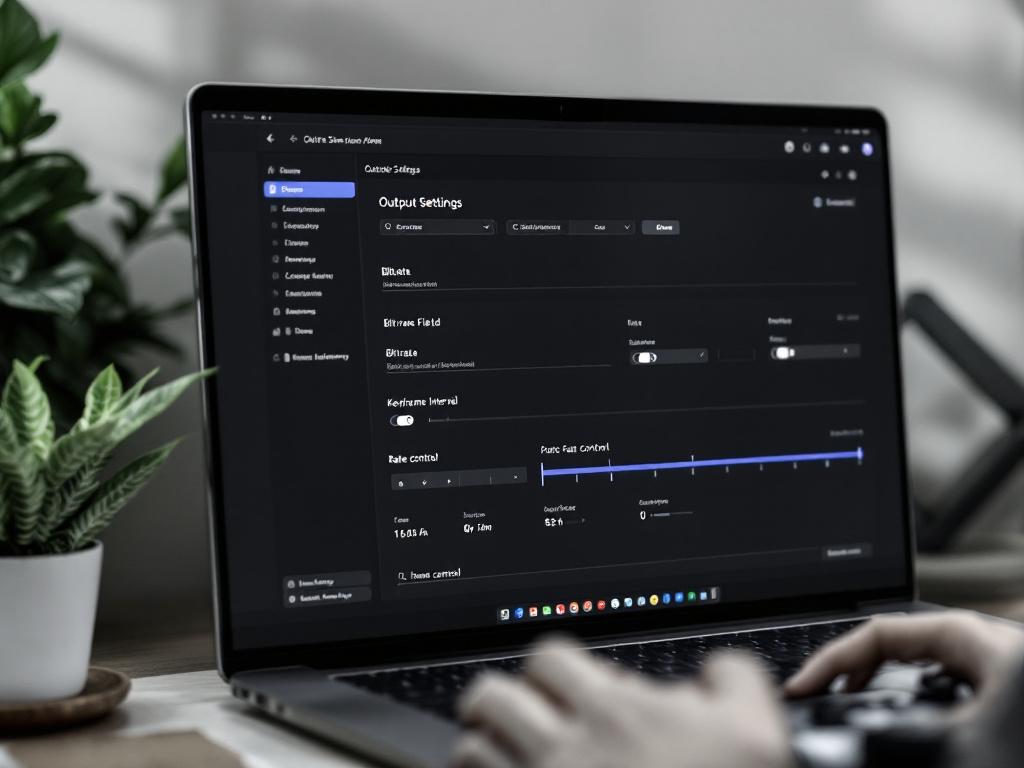
The Bitrate vs. Resolution vs. Framerate Triangle
720p60 generally produces a better viewing experience for action games than 1080p30 because motion clarity matters more than pixel count when the camera swings fast. Your eye tracks movement; smooth motion at lower resolution reads as "good" while choppy high-resolution footage reads as "broken."
1080p60 requires substantially more bitrate for acceptable quality, and platform-recommended ranges typically fall in the 4,500-6,000 kbps band — but check the platform's current broadcaster guidelines before locking settings, because these specifications shift. The OBS auto-configuration wizard tests your system and suggests a starting band rather than guessing. Use it. Then adjust based on observed stability over your first three streams.
Hardware vs. Software Encoding
NVENC (NVIDIA's hardware encoder) and QuickSync (Intel's) offload encoding to dedicated silicon on the GPU or CPU, freeing the main CPU cores for the game itself. x264 software encoding produces marginally better quality at the same bitrate but consumes a significant share of an 8-core CPU at 1080p60 — in practice, anywhere from 30% to 60% depending on the preset, which is why streamers running x264 often see frame drops in the game itself.
NVENC on recent NVIDIA GPUs (RTX 20-series and newer) is now the practical default. The quality gap to x264 has narrowed to the point where most viewers can't see it, while the CPU savings are immediate and obvious. Switch to NVENC unless you have a specific reason to use x264.
Upload Bandwidth Reality
Stream bitrate must sit at most 70-75% of measured upload speed — leaving headroom for chat traffic, notification packets, ISP variance, and the inevitable evening congestion when your neighborhood saturates the local node. A streamer with 10 Mbps measured upload should not configure 8 Mbps stream bitrate. Configure roughly 7 Mbps and accept the tradeoff.
When streams stutter, the fix is almost always network-side, not PC-side. Streamers spend hundreds on CPU upgrades to fix problems that were three-dollar Ethernet cable replacements all along.
Your stream's quality ceiling is set by your weakest link, and that link is almost always upload bandwidth — not your CPU, not your GPU, not your software choice.
Local Resource Monitoring
OBS displays a stats window (View → Stats) showing three counters that each tell a different story:
- Skipped frames = encoder overload. The encoder couldn't keep up. Lower bitrate, switch from x264 to NVENC, or close background apps.
- Lagged frames = rendering overload. Too many overlay browser sources, canvas resolution too high, or the game is starving OBS for GPU time.
- Dropped frames = network issue. Bitrate exceeds available upload, or the platform ingest server is unstable.
Conflating these three leads to wrong fixes. Streamers buy new CPUs to solve dropped-frame problems that were ISP issues. Read the counter that's climbing before changing anything.
Fallback Strategies
Save a 720p30 "panic preset" in OBS Profiles for nights when your connection is unstable. Switching to it takes about 5 seconds. Rebuilding settings live takes 5 minutes you don't have while 80 viewers watch your stream stutter. Pre-configure the escape route before you need it.
Highlights and VOD Trimming
When a stream finishes, exporting a 90-minute VOD into a 60-second YouTube Short requires trimming. Doing this in a desktop editor often means re-encoding the full VOD locally — an hour of CPU time for a 60-second clip. A browser-based Online Video Trimmer handles VOD-to-Short conversions without re-encoding the entire source file, saving roughly an hour per highlight clip and keeping the original quality intact.
Twitch, YouTube, and Multi-Platform Streaming: Tool Ecosystems Compared
Should you specialize on one platform or broadcast simultaneously to several? The strategic answer depends on stage, niche, and bandwidth — both the literal upload kind and the creative attention kind.
| Criterion | Twitch-Exclusive | YouTube-Exclusive | Multi-Platform Cloud Relay |
|---|---|---|---|
| Native engagement | Channel Points, predictions | Super Chat, memberships | Depends on platform reach |
| Discoverability | Categories, raids | Search + recommendations | Fragmented across both |
| Setup complexity | Single RTMP key | Single RTMP key | Multiple keys + routing |
| Bandwidth requirement | Single upload stream | Single upload stream | Single feed via cloud relay |
| Best fit | Live-first creators | VOD-first creators | Established dual audiences |
The bandwidth cost of multi-streaming is the variable most streamers underestimate. Broadcasting to Twitch and YouTube simultaneously from a single PC requires roughly double the upload — unless you use a cloud relay service that takes a single feed and re-broadcasts to multiple platforms server-side. According to Restream's own broadcaster guidance (vendor source), one benefit framed for multi-platform creators is the SEO compounding from YouTube VODs generated automatically from livestreams — the live broadcast becomes a searchable archive after the fact.
The exclusivity trade-off matters too. Twitch's affiliate and partner contracts have historically restricted simultaneous broadcasting at certain tiers. Always check current terms before committing to a multi-platform workflow — a contract violation can cost you the exact monetization you're trying to expand.
The community-fragmentation problem is the strategic reason most streamers under 200 average viewers should pick one platform. A 100-viewer audience split 60/40 across two platforms feels less alive than 100 viewers in one chat. Energy compounds in concentration. Two half-empty rooms feel emptier than one full one — and viewers feel that difference even if they can't articulate it. Pick one platform, build to roughly 200-300 average concurrent viewers, then experiment with multi-streaming when you have the audience density to survive the split.
For VOD-first creators who upload edited highlights as their primary growth lever, YouTube-exclusive often outperforms Twitch-first because the algorithm rewards the VOD content directly rather than treating it as an afterthought to live broadcasts. Match the platform to your content shape, not to where your friends stream.
Live Diagnostic Workflow: Isolating Lag, Audio Drift, and Bitrate Failures in Under Two Minutes
When something breaks mid-broadcast, you cannot debug calmly. You need a pre-rehearsed diagnostic sequence — a triage flowchart you've practiced cold so you can run it while 80 viewers wait and chat fills with "is the stream lagging for anyone else."

The Four-Domain Diagnostic Model
Is it the PC? Open the OBS stats window. Skipped frames climbing = encoder overload. Lower bitrate, switch to NVENC if you're on x264, close background applications hogging CPU. Lagged frames climbing = rendering overload. Reduce overlay browser sources (each is a Chromium instance), lower base canvas resolution, or check whether the game itself is GPU-saturated.
Is it the network? Run a speed test on a separate device — your phone on the same Wi-Fi works, though wired tests are more reliable. Stream bitrate should be at or below 70% of measured upload. If upload is normal but the stream still stutters, the problem is upstream — ISP routing, peering, or the platform's ingest server.
Is it the encoder configuration? Mismatched keyframe interval (should be 2 seconds for most platforms), wrong rate control mode (CBR is the standard for live; VBR causes platform-side issues with some ingest servers), or canvas resolution that doesn't divide cleanly into output resolution. Configuration errors produce intermittent symptoms — reliable enough to fool you into thinking the stream is stable, then breaking the moment you get a viewer surge.
Is it the platform? Check the platform's status page. Check Twitch or YouTube broadcaster status forums. If multiple streamers report the same issue at the same ingest server within the same hour, the answer is "wait it out, switch ingest server, or switch platform for tonight." You can't fix Twitch's edge servers from your bedroom.
The 7-Step Live Diagnostic Procedure
- Acknowledge the issue in chat. "Checking something, one moment." Buy yourself 30 seconds without viewers panicking. Silence makes things worse than admission.
- Open the OBS stats window. Read skipped, lagged, and dropped counters. Don't change anything yet — diagnose first.
- If dropped frames are climbing: It's network. Move to step 4. If skipped or lagged frames are climbing: It's PC. Move to step 5.
- (Network) Switch to your saved 720p30 panic preset. If the stream stabilizes, finish at lower quality. If it's still dropping, end the stream — your ISP or the platform ingest is the problem and no software setting will fix it.
- (PC) Close OBS browser sources one by one. Multiple overlay sources stack as separate Chromium processes eating CPU. Identify which one is the offender by removing or reloading them sequentially. Often it's the alert overlay that's been running 14 hours and accumulated a memory leak.
- (Audio drift) If audio leads or lags video, restart the audio source in OBS — don't restart the whole stream. Drift is almost always a sample-rate mismatch resolved by removing and re-adding the audio source. Takes 8 seconds. Saves a stream restart.
- (Last resort) End the stream, reboot the machine, restart in 10 minutes with a brief apology note. A clean restart is better than 90 minutes of degraded quality that trains viewers to expect mediocrity from your channel.
Keep a streaming notebook — a plain text file works fine — listing every issue encountered and the fix that worked. By month three, the notebook becomes your personal playbook, and it's often more useful than any tutorial video because it's matched to your specific hardware, your specific ISP, and your specific tool stack. The general advice gets you started; the notebook gets you stable.
The 14-Point Pre-Stream Checklist Before You Hit "Go Live"
Copy this into a sticky note, print it, or paste it on a second monitor. The discipline of running through it every session is what separates streams that build audience from streams that bleed it. Each video game streaming tools decision you've made up to this point only matters if the moment-of-truth setup is right.
Pre-Stream: PC + Software (10 Minutes Before Live)
- Close every Chrome tab unrelated to streaming — browser sources eat the same CPU pool as your personal browsing.
- Restart OBS fresh — overnight memory accumulation in OBS causes encoder hiccups during long sessions.
- Run an upload speed test on the streaming PC, not your phone — confirm bitrate is at or below 70% of the result.
- Verify all audio sources show levels in the OBS audio mixer — mic, game, Discord, alert sound. A silent meter at this stage means a silent meter on stream.
Pre-Stream: Scene + Visual (5 Minutes Before Live)
- Switch to your "Starting Soon" scene and confirm the music plays without clipping or copyright flags.
- Confirm your webcam shows you, not your desktop, in the live preview — webcam sources occasionally swap to screen capture after a driver update.
- Verify chat overlay (if on-screen) is loading current chat, not yesterday's frozen feed cached in the browser source.
- Send a test alert (a follow or sub trigger from the alert tool's test panel) to confirm the alert plugin is connected and the sound plays.
Live Phase: First 5 Minutes
- Greet the first 3-5 chatters by name — proves the stream is live and you're present, not AFK with a holding screen.
- Glance at the OBS stats window — skipped, lagged, and dropped should all be at zero or close to it.
- Confirm a test viewer (your phone, a second monitor) sees the stream within acceptable delay. Black screen at this stage means you're not actually broadcasting.
Post-Stream: Within 24 Hours
- Export at least one highlight clip. A browser-based Online Video Trimmer handles VOD-to-Short conversions without local re-encoding — turn the night's best moment into Shorts fuel before the memory fades.
- Trim a 30-60 second voice-only clip for podcast or audiogram reuse using Online Audio Cutter. Repurposable audio extends a single stream's reach across platforms that don't host video.
- Update your streaming notebook — what worked, what broke, what to try next time. The stream that just ended is the cheapest research data you'll ever get.