
How to Trim Videos in VLC (and a Faster Browser-Based Alternative)
If you came here to trim video in VLC, you've probably already opened the app, dropped your clip in, and gone hunting through the menus for a "Trim" or "Cut" command — only to find it isn't there. No timeline. No scissors icon. No obvious in/out fields. VLC can absolutely trim video, but it does it through a Record button buried in the Advanced Controls toolbar, not a real editor. Instead of slicing your file, it re-plays the segment you want and re-captures it as a new clip. Vendor tutorials say this outright. According to Movavi's VLC trim guide, VLC "doesn't exactly cut the file" and instead "records a clip from a video."
That one design detail explains everything that feels awkward about the workflow. Your trimmed clip is a second-generation re-encode, not a byte-for-byte copy of the source. And because the capture runs at playback speed, a 10-minute trim takes a real 10 minutes of waiting. This guide walks the exact VLC method step by step, marks precisely where it breaks down, and shows a browser-based alternative — local, no upload, frame-accurate — for when VLC's record workaround gets in your way.
Table of Contents
- How VLC's "Trim" Actually Works — It Records, It Doesn't Cut
- Trim a Video in VLC: The Complete Step-by-Step
- Where VLC's Trim Falls Short: Format, Precision, and Wait Time
- The Browser-Based Alternative: Trim Locally, Without Re-Encoding or Uploads
- Trim a Video in Your Browser: Step-by-Step
- VLC vs. Browser-Based Trimming: Which Should You Use?
- VLC Trimming FAQ: Quality, Save Locations, and Multi-Clip Limits
How VLC's "Trim" Actually Works — It Records, It Doesn't Cut
Before you touch a single button, understand the mechanism — because it explains why every step that follows feels backwards. VLC has no timeline-based, non-linear editor. There is no clip you drag, no in-point and out-point you type, no segment you delete. What VLC has is a Record function living in the Advanced Controls toolbar, and that function is what every "how to trim video in VLC" tutorial is really teaching you to use.
Here's the mechanic. VLC plays your source file back, and while it plays, the Record function captures the on-screen playback stream into a brand-new file. The output is a freshly encoded copy, not a slice of the original. GuideRealm's VLC trim walkthrough reinforces the same point the Movavi guide makes: trimming happens via the recording feature, not by editing the original file. You're not cutting — you're re-performing and re-capturing.
Technically, this matters because VLC's Convert/Save and record pipelines run through libavcodec and libavformat for transcoding. The output is re-encoded according to whatever profile is active, rather than stream-copied from the original container. So the codec, resolution, and bitrate of your trimmed clip are decided by the record settings — not inherited cleanly from your source.
Now contrast that with the approach you'll meet later. FFmpeg-style stream-copy trimming maps start and end timestamps and uses copy mode, cutting at the container level. According to the FFmpeg documentation, this preserves the original codec, resolution, and bitrate with no re-encode at all. The difference between these two methods is the difference between photocopying a photocopy and simply tearing a page out of the original book.
That one mechanism creates three downstream consequences, which the rest of this guide unpacks:
- Real-time speed. Capture runs at playback speed. A 10-minute segment takes 10 minutes, as the VLC trim tutorial demonstrates in real time.
- Generational quality loss. Re-encoding already-compressed H.264 footage compounds compression artifacts. Practicing video engineers in r/ffmpeg and r/VLC threads warn this is worst on footage that's already been compressed once.
- Manual, approximate timing. You start and stop the capture by hand while watching the playhead.
None of this is a bug. It's a design philosophy. VideoLAN president and lead VLC developer Jean-Baptiste Kempf has repeatedly framed VLC as "first and foremost a media player," not a non-linear editor — which is exactly why trimming is implemented as recording rather than timeline cutting. The tool is doing precisely what it was built to do. The mismatch is between that purpose and the editing job you're trying to force it into.

VLC doesn't cut your video — it re-records the part you want while it plays, which is why a quick trim can take as long as the clip itself.
Trim a Video in VLC: The Complete Step-by-Step
Here's the exact workflow, start to finish. Each step is short on purpose — this is the part you'll follow with VLC already open.
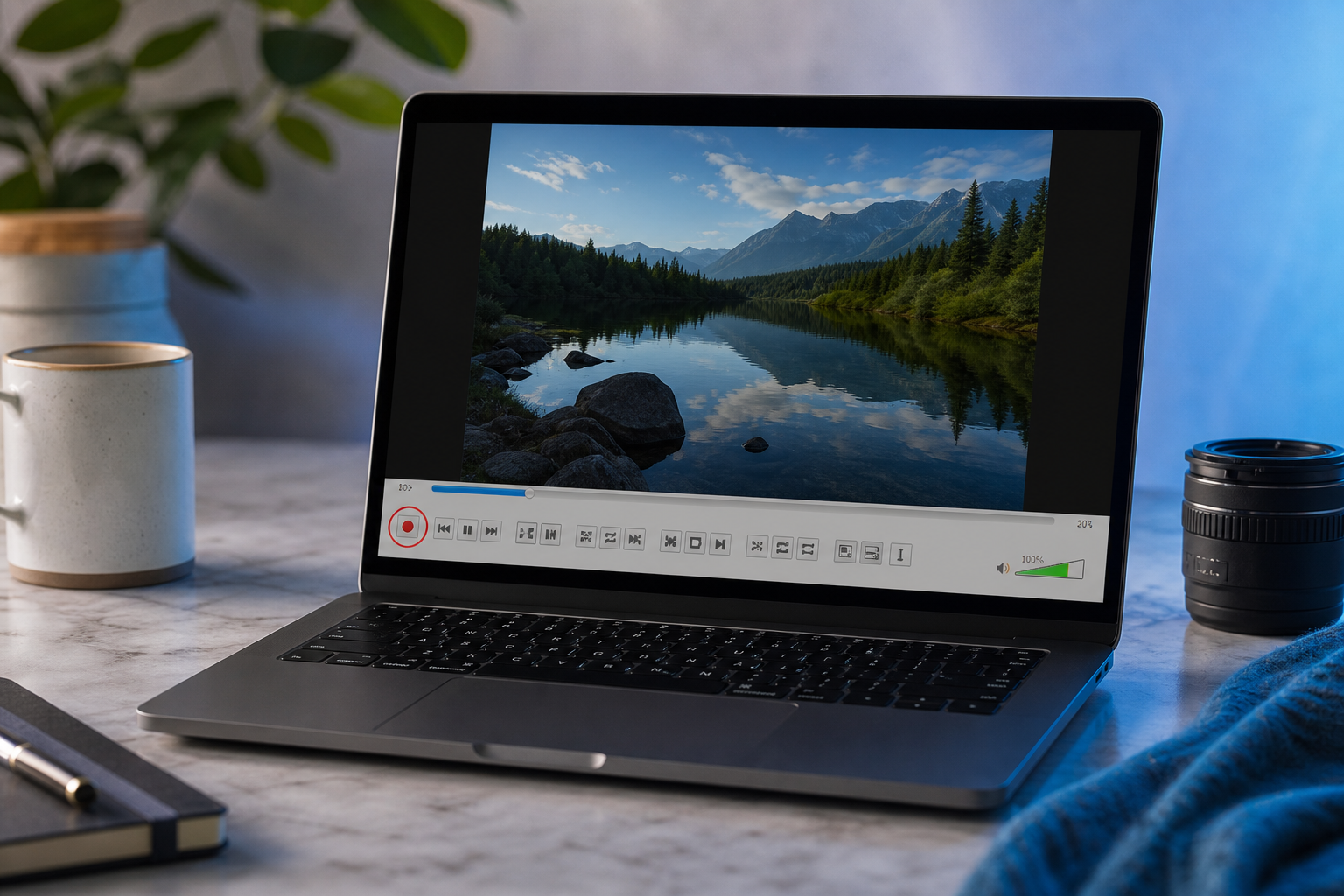
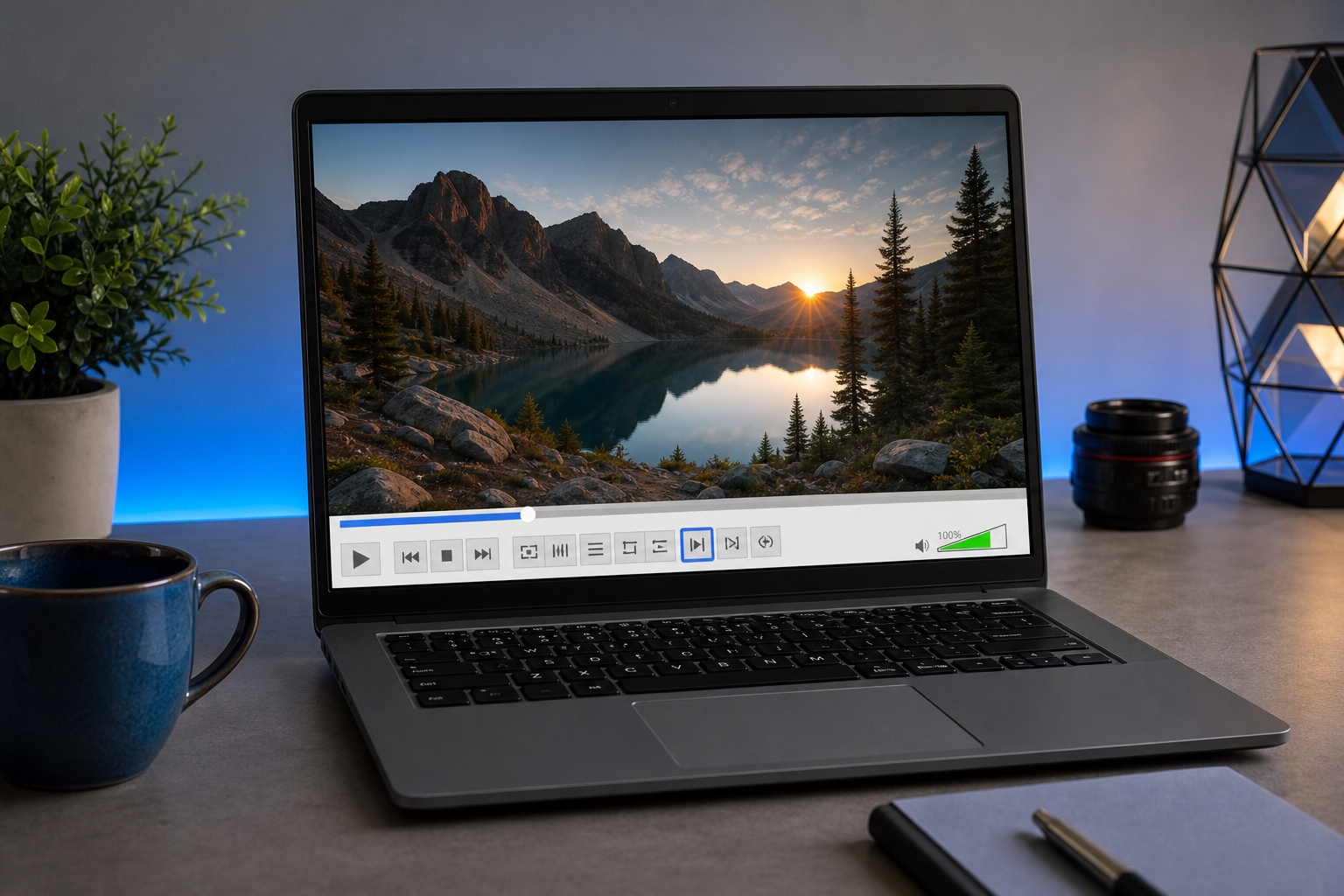
- Enable the Record toolbar. Open VLC, go to the menu bar, and select View → Advanced Controls. This adds an extra row of buttons — including the round red Record button — above the standard playback controls. The Record button is hidden by default, which is the single reason most users never find a way to trim video in VLC at all. The Movavi guide opens its instructions on this same step.
- Open your video file. Go to Media → Open File, or simply drag the file straight into the VLC window.
- Navigate the playhead to your start point. Scrub the seek bar to just before where you want the clip to begin. For tighter accuracy, pause and use the Frame by Frame button (or press
e) to step forward one frame at a time until you land exactly on your start frame. This single-frame walking is how VLC tutorials, including the cut/split/trim walkthrough, recommend hitting a precise edit point. - Press Record, then press Play. The instant you hit Record and playback begins, VLC starts capturing. This is the real-time part — it captures at exactly playback speed, no faster.
- Let it play to your end point, then press Record again to stop. For a clean out-point, pause slightly before your end and frame-step to the exact final frame, then toggle Record off. The real-time trim tutorial shows this stop-by-hand behavior in action.
- Locate the output file. VLC saves the recorded clip to your operating system's default media folder — there's no Save As dialog. This trips up a lot of first-time users, as documented on the VideoHelp forum discussion of how VLC's recorder behaves.
Default save locations by operating system:
| Operating System | Default Save Location |
|---|---|
| Windows | Videos folder |
| macOS | Movies folder |
| Linux | Home or default media directory |
The file lands there with an auto-generated name (typically something like vlc-record-2024…), so if you don't see a confirmation, check that folder before assuming the trim failed.
Where VLC's Trim Falls Short: Format, Precision, and Wait Time
You've done the trim. Now come the practical headaches — the things you only notice once the clip is captured and you're trying to actually use it.
Unpredictable output format and codec. Because the trim is a capture governed by VLC's record and transcode settings, the codec and container of your output aren't simply inherited from the source — they're determined by the active profile, often with no obvious place to set them. Vendor tutorials that sell the method as "quick & easy" tend to gloss over the fact that there's no explicit control over output codec or bitrate. Both the Movavi guide and the GuideRealm walkthrough demonstrate the workflow without ever giving you a clean codec selection.
No precise duration control. You stop recording by hand, so the trim length is approximate unless you frame-step every single time. There's no field where you type "start at 00:14, end at 00:42." The precision exists, but you earn it manually with the Frame by Frame button, frame by frame, as the cut/split/trim tutorial shows.
Quality degradation from second-generation encoding. Re-encoding compressed footage compounds artifacts. Contributors across r/ffmpeg and r/VLC, including practicing video engineers, caution that any re-encode workflow incurs generational quality loss versus a stream-copy trim — and it's most visible on already-compressed H.264 footage, which is most of what you'll be cutting.
Real-time wait penalty. A 10-minute segment takes 10 minutes to capture, because the workflow runs at playback speed rather than data-stream speed. For short clips this is a non-issue. For long ones it's the single biggest cost of the method. The VLC trim tutorials make this real-time constraint plain.
No multi-segment or batch trimming. You capture one segment per pass. Pulling three clips out of one source video means three full, separate record sessions — each running in real time. The multi-segment walkthrough spells out this limitation directly.
Output discovery is non-obvious. Files land in the OS default media folder with auto-generated names rather than through a Save As dialog, so users frequently "lose" their trimmed clip and assume nothing happened. The VideoHelp forum thread exists precisely because this behavior confuses people.
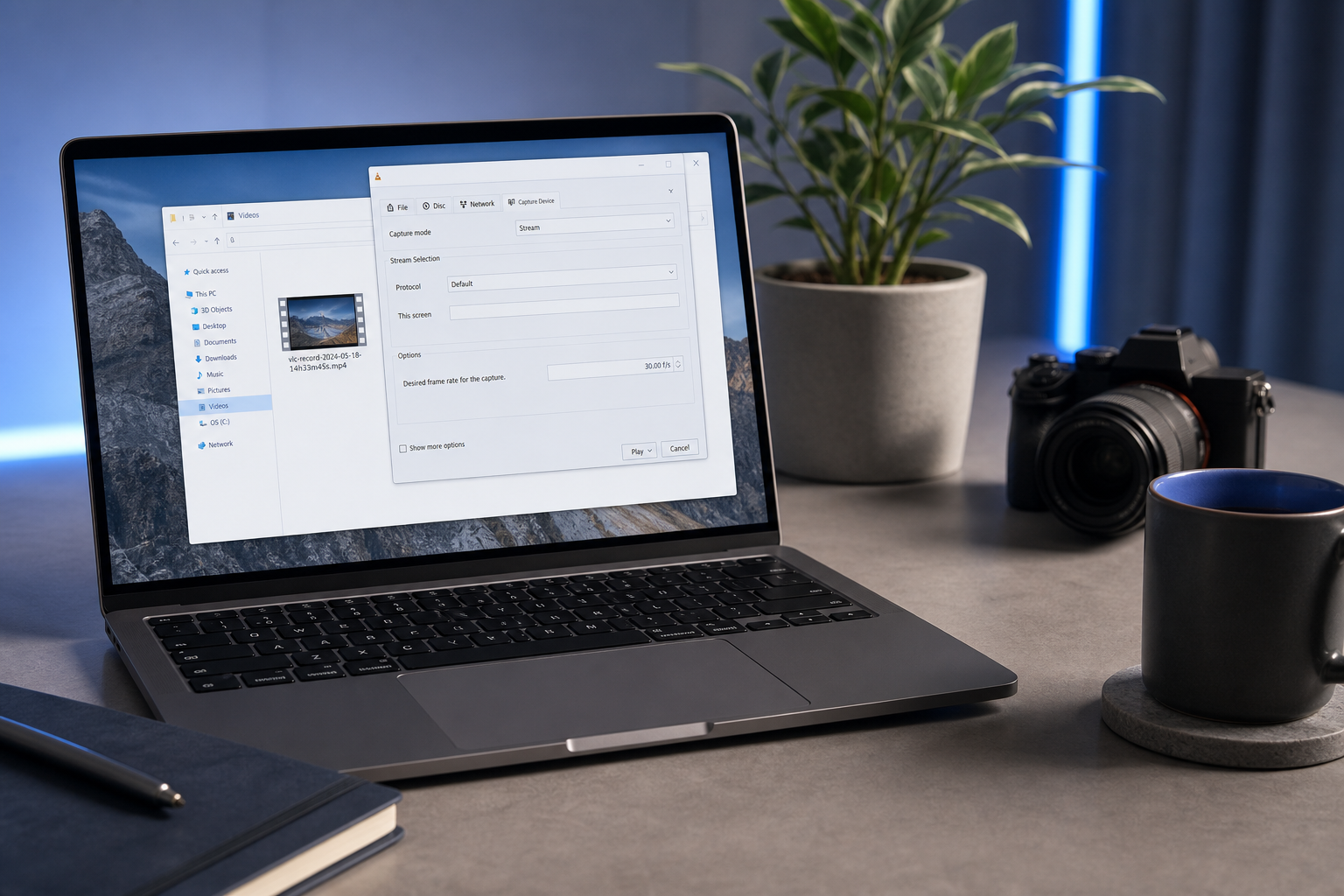
You shouldn't have to wait ten minutes — or re-encode your footage twice — just to cut ten seconds out of a clip.
The Browser-Based Alternative: Trim Locally, Without Re-Encoding or Uploads
Every pain point above traces back to one root cause: VLC re-records instead of slicing. A browser-based trimmer built on FFmpeg fixes that at the source, and it does it without sending your file anywhere. Media Tools Suite's Online Video Trimmer runs entirely in your browser using WebAssembly with FFmpeg — meaning the trimming logic executes locally on your own device. Browser editors built on ffmpeg.wasm advertise exactly this: "no uploads, no servers — all processing happens locally in your browser using WebAssembly," per the ffmpeg-webCLI GitHub README.
Map that against the six VLC pains and the contrast is direct.
Speed. WebAssembly/FFmpeg trimmers process cuts in seconds because they operate at data-stream speed, not real-time playback. That 10-minute wait simply disappears — the cut completes nearly instantly, as the ffmpeg-webCLI project demonstrates.
Quality. Stream-copy at container timestamps preserves the original codec, resolution, and bitrate. There's no second-generation encode, because there's no encode at all when the source codec is supported. The FFmpeg documentation describes this copy-mode behavior as the standard way to cut without quality loss.
Precision. Browser trimmers expose explicit in/out timestamps and draggable handles, so you can mark a selection to the millisecond instead of stabbing at a Record button while you watch. Alexsandro Souza, the engineer behind Smart Web Video Editor, notes that modern WebAssembly and WebCodecs make this kind of frame-accurate, client-side selection entirely feasible.
Format clarity and output. You choose your result and download it directly. No record profile guessing, no hunting through OS default folders, no auto-generated filenames you can't find.
The privacy angle deserves a clear-eyed note, because it's where the comparison shifts. Both VLC desktop and local-processing browser tools keep your media on your machine — so privacy isn't what separates them from each other. The meaningful distinction is versus cloud editors in the mold of clideo.com or veed.io, many of which upload your raw file to a server before they touch it. A WebAssembly trimmer explicitly guarantees no server-side processing, a point underscored in the r/ffmpeg discussion of browser editors. For sensitive footage — legal, medical, internal corporate, anything you can't risk on someone else's server — that guarantee matters.
The engineer's own framing makes the design intent explicit. Tejaswi Gowda describes his ffmpeg.wasm browser editor as "a browser-based video editor powered by ffmpeg.wasm. No uploads, no servers — all processing happens locally," naming privacy and local performance as the core design goals rather than afterthoughts.
An honest counter-note, because overselling helps no one: browser performance varies by device, and heavy multi-track workloads can be uneven on lower-end hardware. Video engineers on r/ffmpeg openly question whether browser editing can handle the heaviest jobs, and the Show HN WebCodecs/WebAssembly thread observes that browser support is uneven across devices. But for the specific task at hand — trimming a single clip — local FFmpeg/WASM is fast and reliable on any modern machine. The same logic applies if you only need the audio: extracting a podcast segment or a soundbite has its own dedicated local tool in the Online Audio Cutter.
The practical specifics: it's free, requires no registration, adds no watermark, and installs nothing. It handles MP4, MOV, MKV, and more, and the interface is available in 20+ languages.
Trim a Video in Your Browser: Step-by-Step
Here's the same job VLC just took six steps and ten minutes to do — compressed into five steps and a few seconds. Compare the effort directly.
- Open the Online Video Trimmer. No install, no signup, no account. It's a web page that loads and is ready.
- Drag-and-drop or select your file. It loads into the browser and stays on your device — nothing uploads to a server, consistent with the local-processing guarantee documented in the ffmpeg-webCLI README.
- Set your in and out points. Drag the timeline handles or type exact timestamps for frame-accurate, millisecond-level selection — the precision VLC makes you frame-step toward by hand.
- Preview the selection. Confirm your start and end before you export, so there's no guesswork and no second attempt.
- Trim and download instantly. The output preserves your original quality through stream-copy where supported, and downloads straight to your device. No folder hunting, no auto-named mystery file.
Supported inputs include MP4, MOV, MKV, and more. There's no real-time wait at any point — because the cut runs at data-stream speed rather than playback speed, per the FFmpeg documentation on copy-mode trimming, the whole thing finishes in seconds.
VLC vs. Browser-Based Trimming: Which Should You Use?
Neither tool wins on every axis. Here's the honest breakdown, factor by factor.
| Factor | VLC Record Trim | Browser (FFmpeg/WASM) Trim |
|---|---|---|
| Speed | Real-time (10-min clip = 10 min) | Seconds (data-stream speed) |
| Output quality | Re-encoded, 2nd-generation | Stream-copy, original preserved |
| Precision | Manual record/stop + frame-step | Exact timestamps + handles |
| Install required | Yes (desktop app) | No (runs in browser) |
| Processing location | Local (on device) | Local (no upload) |
A second view, covering format control and batch work:
| Factor | VLC Record Trim | Browser (FFmpeg/WASM) Trim |
|---|---|---|
| Format/codec control | Set by profile, ambiguous | Choose/preserve, explicit |
| Multi-segment / batch | One segment per pass | Repeatable, exact selections |
Source attribution for the comparison: speed from the VLC trim tutorial and ffmpeg-webCLI; quality and stream-copy from the Movavi guide and FFmpeg docs; precision from Movavi and ffmpeg-webCLI; local processing from ffmpeg-webCLI; format control from the GuideRealm walkthrough.
Frame it honestly. VLC is a perfectly reasonable choice when it's already open, the clip is short, and quality genuinely doesn't matter — a rough preview cut to send a colleague, for instance. And because both VLC and the browser tool keep your media local, privacy isn't the tiebreaker between them; it's only the tiebreaker against cloud uploaders.
The real differentiators are speed, precision, and quality preservation. For anything where the timing has to land exactly — a social clip cut to the beat, an ad spot trimmed to a hard duration — or where you can't afford a second encode degrading your footage, the browser trimmer does the same job faster and cleaner. There's a counter-point worth respecting: native tools like VLC and desktop FFmpeg still hold an edge for very heavy or multi-track workloads on lower-end hardware, a limitation that practicing engineers on r/ffmpeg raise candidly. But trimming one clip is not a heavy workload. For that job, the Online Video Trimmer does it faster.
If VLC is already running and you only need a rough cut, use it. For anything where precision or quality matters, the browser does it faster.
VLC Trimming FAQ: Quality, Save Locations, and Multi-Clip Limits
Does VLC reduce video quality when trimming?
Yes. The record-based trim re-encodes the captured segment, producing a second-generation copy. The quality loss is most noticeable on already-compressed H.264 footage, where re-encoding compounds existing compression artifacts. Practicing video engineers across r/VLC and r/ffmpeg consistently flag this as the trade-off of any re-encode workflow.
Where does VLC save trimmed videos?
To your operating system's default media folder: Videos on Windows, Movies on macOS, and the home or default media directory on Linux. It does not use a Save As dialog, and it assigns an auto-generated filename, which is why so many users think the trim failed. The VideoHelp forum thread on VLC's recorder behavior documents this, and the VLC trim tutorials confirm the folder conventions.
Can I trim a video in VLC without re-encoding?
No. VLC has no lossless stream-copy cut — its trim always re-encodes through the record and transcode pipeline, as the Movavi guide describes. For a true no-re-encode trim, you need an FFmpeg-based tool that stream-copies at container timestamps, the method outlined in the FFmpeg documentation. The browser-based Online Video Trimmer does exactly that where the source codec supports it.
Is browser-based trimming safe for private or sensitive videos?
Yes, when the tool processes locally via WebAssembly. The file never leaves your device and nothing uploads to a server — unlike many cloud editors that transfer your raw file first. The ffmpeg-webCLI README makes the no-server guarantee explicit, and the r/ffmpeg discussion of browser editors reinforces the local-processing distinction.
Can I trim multiple sections from one video in VLC?
Not in a single pass. VLC captures one segment per record session, so pulling multiple cuts means repeating the full real-time record process each time — three clips, three separate waits. The cut/split/trim tutorial spells out this multi-segment limitation. A browser trimmer with exact timestamp entry makes repeated, precise cuts far less tedious, which is the cleaner path once VLC's record workaround starts costing you more time than it saves.