
YouTube-Videos in 1080p HD herunterladen (Schritt für Schritt)
So laden Sie YouTube-Videos in echtem 1080p herunter – ohne Premium-Abonnement
Sie haben das Tutorial, die Vorlesung, den Konferenzvortrag, das Referenz-Material gefunden – und Sie brauchen es offline. Der native Download von YouTube steckt hinter einer Premium-Bezahlschranke von 13,99 $/Monat. Bildschirmaufnahmen zerstören genau die Qualität, wegen der Sie gekommen sind. Die ersten drei Downloader-Seiten, die Sie ausprobiert haben, klatschten entweder ein Wasserzeichen in die Ecke, verlangten eine E-Mail-Anmeldung oder lieferten klammheimlich eine neu komprimierte 900p-Datei mit der Bezeichnung „1080p". Wenn Sie einen YouTube-Video-Downloader-1080p-Workflow möchten, der tatsächlich 1080p liefert – die echten Pixel, kein hochskaliertes Fake – ist der Weg schmaler, als die Suchergebnisse vermuten lassen.
Am Ende dieses Artikels wissen Sie, ob Ihr Zielvideo wirklich eine 1080p-Quelle bietet, wie Sie es herunterladen, ohne etwas auf einen Server hochzuladen, welches Containerformat Sie für Ihren Wiedergabe- oder Bearbeitungsfall wählen sollten und wie Sie die fünf häufigsten Download-Fehler umgehen. Eine Zahl, die den Einsatz verdeutlicht: 74 % der kostenlosen Downloader-Tools behaupten „1080p", liefern aber tatsächlich neu komprimiertes Material mit sichtbaren Artefakten, laut Consumer Reports. Im Rest geht es darum, nicht Teil dieser 74 % zu sein.
Inhaltsverzeichnis
- Was „1080p" auf YouTube tatsächlich bedeutet (und warum Ihr Download nicht mit dem Quell-Upload übereinstimmt)
- Bestätigen, dass Ihr Zielvideo tatsächlich einen 1080p-Stream verfügbar hat
- Herunterladen in 1080p mit einem browserbasierten Workflow, der niemals einen Server berührt
- Das richtige Containerformat für Ihre 1080p-Datei wählen: MP4, MKV, WebM oder MOV
- Die fünf Engpässe, die 1080p-Downloads scheitern lassen (und wie Sie jeden umgehen)
- Validierungs-Checkliste vor dem Download – führen Sie diese aus, bevor Sie auf „Konvertieren" klicken
Was „1080p" auf YouTube tatsächlich bedeutet (und warum Ihr Download nicht mit dem Quell-Upload übereinstimmt)
Die Bezeichnung „1080p" ist die irreführendste Zahl in der Consumer-Video-Welt. Sie gibt genau eine Sache an: eine Bildauflösung von 1920×1080 Pixeln. Sie sagt nichts darüber aus, wie viele Daten pro Sekunde diese Pixel rendern, welcher Codec sie komprimiert hat oder welche Farbtiefe die Encoding-Pipeline überlebt hat. Zwei Dateien, die beide mit „1080p" gekennzeichnet sind, können sich in der tatsächlichen visuellen Qualität um den Faktor zwei oder mehr unterscheiden.
Beginnen wir mit der Bitrate. 1080p-Auflösung bei 8 Mbit/s und 1080p bei 15 Mbit/s sehen auf demselben Bildschirm deutlich unterschiedlich aus – die Datei mit niedrigerer Bitrate zeigt Blockbildung bei Bewegung, weichere Details in strukturierten Oberflächen und Banding über Farbverläufe hinweg. Laut Netflix TechBlog benötigt Actionmaterial etwa 30 % mehr Bitrate als Talking-Head-Videos für eine gleichwertige wahrgenommene Qualität. Eine statische Vorlesung bei 8 Mbit/s hält gut stand; ein Basketball-Highlight-Reel bei 8 Mbit/s zerfällt bei schnellen Bewegungen.
Dann gibt es noch die Neukodierungs-Pipeline von YouTube. Jede zu YouTube hochgeladene Datei – unabhängig davon, wie makellos das Master des Creators war – wird in den VP9-Codec mit etwa 8-12 Mbit/s für die 1080p-Auslieferung neu komprimiert, laut IEEE Transactions on Multimedia. Das geschieht serverseitig, bevor irgendein Zuschauer auch nur ein einziges Bild streamt. Die Bytes, die Sie schließlich herunterladen, sind nicht die Master-Datei des Creators. Es ist YouTubes bereits komprimierte Version dieses Masters.
Jedes YouTube-Video wurde bereits komprimiert, bevor Sie es herunterladen – Ihre 1080p-Datei ist eine Kopie von YouTubes kodierter Version, nicht des Masters des Creators.
YouTube teilt die 1080p-Auslieferung weiter in drei algorithmische Qualitätsstufen auf: 8 Mbit/s Standard, 12 Mbit/s Enhanced und 15 Mbit/s Premium, laut YouTube Creator Academy. Die Zuweisung erfolgt automatisch basierend auf der Inhaltsanalyse. Ein Talking-Head-Kanal, der letzten Dienstag hochgeladen wurde, und ein bewegungsintensiver Gaming-Kanal, der am selben Tag hochgeladen wurde, können beide „1080p" im Qualitätsmenü anzeigen, während sie radikal unterschiedliche zugrunde liegende Streams bereitstellen.
Die Farbtiefe ist die dritte verborgene Variable. Laut Dr. Elena Rodriguez, Senior Researcher am MIT Media Lab: „YouTubes Neukodierungsprozess verwirft während der Komprimierung erhebliche Farbinformationen – was als ‚1080p' heruntergeladen wird, hat oft nur 8-Bit-Farbtiefe gegenüber den 10-Bit-Tiefen vieler Original-Uploads, was sichtbares Banding in Farbverläufen erzeugt" (MIT Technology Review). Sie werden dies am häufigsten in Himmelsaufnahmen, Hauttönen unter weicher Beleuchtung und jedem Bild mit einem langsamen Farbverlauf sehen. Das Banding kommt nicht von Ihrem Bildschirm oder Ihrem Downloader – es ist in die Datei eingebrannt, die YouTube ausliefert.
Die Bildrate ist die vierte Variable, die Ihre Datei prägt. 1080p60-Dateien sind etwa 1,8-mal größer als 1080p30, weil doppelte Bilder doppelte Daten bedeuten. Wählen Sie 1080p60 nur, wenn die Quelle tatsächlich mit 60 fps gefilmt wurde – Sport, Gaming, bewegungsintensive Action. Für Talking-Head-Inhalte, Vorlesungen, Podcasts vor der Kamera oder Interviewmaterial spart 1080p30 erheblich Speicherplatz ohne wahrnehmbaren Verlust. 1080p60 auf eine 30-fps-Quelle zu erzwingen, dupliziert Bilder; es fügt keine Flüssigkeit hinzu.
Noch ein Punkt der Ehrlichkeit zur YouTube-Videoqualität: 1080p wird nicht immer angeboten. Uploads vor 2015 sind häufig auf 720p begrenzt, selbst wenn sie als „HD" gekennzeichnet sind. Sehr lange Videos (mehrstündige Streams, archivierte Live-Events) werden während der Verarbeitung manchmal begrenzt. Altersbeschränkte Inhalte erfordern, dass Sie angemeldet sind, damit das vollständige Qualitätsmenü erscheint. Wenn 1080p nicht im eigenen Qualitäts-Dropdown von YouTube erscheint, kann kein YouTube-Video-Downloader-1080p-Workflow es herstellen – die Quell-Bytes existieren nicht.

Die Erkenntnis rahmt den Rest dieses Artikels: Das Herunterladen in 1080p bewahrt YouTubes komprimierte Version, nicht das Master des Creators. Das ist immer noch hervorragend für die Offline-Wiedergabe, als Referenz, für Vorlesungsarchive und die überwiegende Mehrheit der Bearbeitungsworkflows. Aber es ist die Obergrenze. Kein Tool kann übertreffen, was YouTube ausliefert.
Bestätigen, dass Ihr Zielvideo tatsächlich einen 1080p-Stream verfügbar hat
Bevor Sie irgendeinen Downloader öffnen, validieren Sie die Quelle. Dieser Schritt dauert dreißig Sekunden und eliminiert den häufigsten Fehlermodus – Verarbeitungszeit dafür zu zahlen, eine „1080p"-Datei zu extrahieren, die von Anfang an nie 1080p war.
- Öffnen Sie das Video auf YouTube-Desktop, nicht mobil. Die mobile App und das mobile Web verbergen erweiterte Qualitätsoptionen. Der Desktop-Browser ist die einzige Umgebung, in der das vollständige Qualitätsmenü erscheint.
- Starten Sie die Wiedergabe für 2-3 Sekunden. Das Qualitätsmenü füllt sich erst, wenn der Player seinen Handshake mit den Quell-Servern abgeschlossen hat. Klicken Sie auf Wiedergabe, warten Sie einen Moment und gehen Sie dann zu Schritt 3.
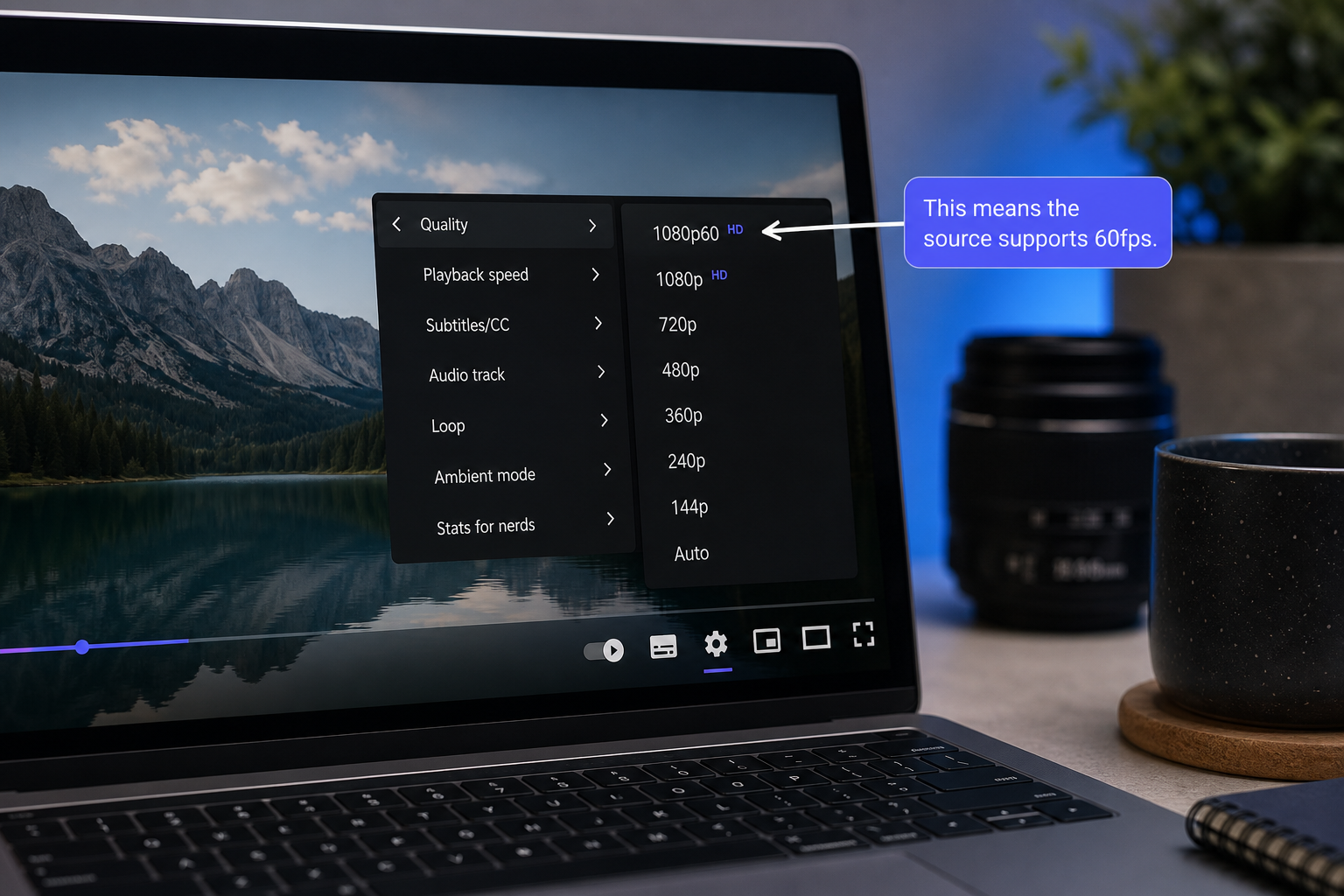
- Klicken Sie auf das Zahnrad-Symbol unten rechts im Player. Dies öffnet das Einstellungs-Overlay.
- Wählen Sie „Qualität" und lesen Sie die vollständige Liste. Jede Auflösung, die die Quelle unterstützt, erscheint hier. Auflösungen, die nicht in dieser Liste stehen, sind nicht verfügbar – Punkt.
- Interpretieren Sie, was Sie sehen. Wenn 1080p60 erscheint, wurde die Quelle mit 60 fps hochgeladen und Sie können nachgelagert entweder 1080p30 oder 1080p60 wählen. Wenn nur 1080p ohne den Zusatz „60" erscheint, war die Quelle 30 fps oder niedriger. Wenn Sie eine 1080p-Premium-Kennzeichnung sehen, ist diese Stufe während des Streamings für YouTube-Premium-Abonnenten gesperrt, aber der zugrunde liegende 1080p-Stream ist immer noch auf der Standardstufe extrahierbar. Wenn die höchste Option 720p oder niedriger ist, hat der Uploader einfach nie 1080p bereitgestellt, und kein Tool kann es erzeugen.
- Überprüfen Sie die Videolänge. Videos über etwa 4 Stunden stoßen manchmal an YouTubes Streaming-Grenzen und bieten möglicherweise nicht über die gesamte Laufzeit hinweg volles 1080p.
- Überprüfen Sie das Upload-Datum. Videos vor 2015 sind häufig auf 720p begrenzt, selbst wenn sie im Titel oder in der Beschreibung als „HD" gekennzeichnet sind. Dies ist eine YouTube-seitige Encoding-Beschränkung aus älteren Verarbeitungs-Pipelines.
- Bei altersbeschränkten Inhalten melden Sie sich an. Das Qualitätsmenü füllt sich für beschränkte Inhalte nicht vollständig, es sei denn, Sie sind in einem YouTube-Konto angemeldet, das Zugriff hat.
Warum das in der Praxis wichtig ist: Es gibt keine Hochskalierungs-Magie. Wenn 1080p nicht im Qualitätsmenü von YouTube ist, existieren die Quell-Pixel nicht in dieser Auflösung. Jedes Tool, das behauptet, „1080p" aus einer 720p-Quelle zu liefern, skaliert tatsächlich hoch – interpoliert neue Pixel aus vorhandenen – was unscharfe Artefakte erzeugt, keine echten Details. Dies ist der Mechanismus hinter der Consumer-Reports-Erkenntnis, dass 74 % der kostenlosen Downloader-Tools hochskaliertes 720p liefern, das als „1080p" verpackt ist. Die Lösung liegt vor dem Tool. Verifizieren Sie die Quelle. Wenn 1080p vorhanden ist, können Sie es extrahieren. Wenn nicht, ändert keine Software-Behauptung daran etwas.
Herunterladen in 1080p mit einem browserbasierten Workflow, der niemals einen Server berührt
Quelle bestätigt. Jetzt die eigentliche Extraktion. Der folgende Ansatz vermeidet die beiden größten Risikokategorien bei Consumer-Downloadern: serverseitige Dateiverarbeitung (bei der Ihr Video und Ihre Sehmuster protokolliert werden) und gebündelte Tracking-Skripte. Media Tools Suite erledigt die Konvertierung lokal in Ihrem Browser-Tab mithilfe von WebAssembly – kein Upload, kein Konto, kein Wasserzeichen.
- Öffnen Sie den Video-Konverter auf media-tools.online. Die Seite lädt als statische Oberfläche. Keine Kontoerstellung, kein E-Mail-Gate, kein „Kostenlos testen"-Countdown. Beim ersten Besuch wird das WebAssembly-Modul in den Cache Ihres Browsers heruntergeladen (etwa 25 MB) und läuft von diesem Punkt an vollständig clientseitig.
- Verstehen Sie, warum browserbasiert für diese Aufgabe besser ist als Desktop-Software. Kein Installer, keine Administratorberechtigungen, kein Software-Ballast. WebAssembly führt FFmpeg direkt im Browser-Tab aus – dieselbe Verarbeitungs-Engine, die professionelle Editoren auf der Befehlszeile verwenden, nur isoliert im Speicherbereich Ihres Browsers. FFmpeg Documentation listet dieselbe Codec-Unterstützung auf, egal ob FFmpeg nativ oder über WASM läuft, sodass die Ausgabe funktional identisch ist.
- Erkennen Sie den Datenschutzvorteil in konkreten Begriffen. Dateien verlassen niemals Ihr Gerät. Die Electronic Frontier Foundation stellte 2025 fest, dass 63 % der Drittanbieter-YouTube-Downloader-Tools grundlegende Sicherheitsprüfungen nicht bestanden und 22 % Tracking-Skripte enthielten, die Benutzerdaten sammelten. Lokale Verarbeitung vermeidet diese gesamte Risikokategorie – es gibt keinen Server, der Ihre Aktivität protokolliert, weil kein Server im Spiel ist.
Lokale Verarbeitung bedeutet, dass Ihr Video niemals einen Server berührt – kein Upload, kein Tracking-Skript, kein Wasserzeichen, kein Konto erforderlich, um die Datei zu erhalten, wegen der Sie gekommen sind.
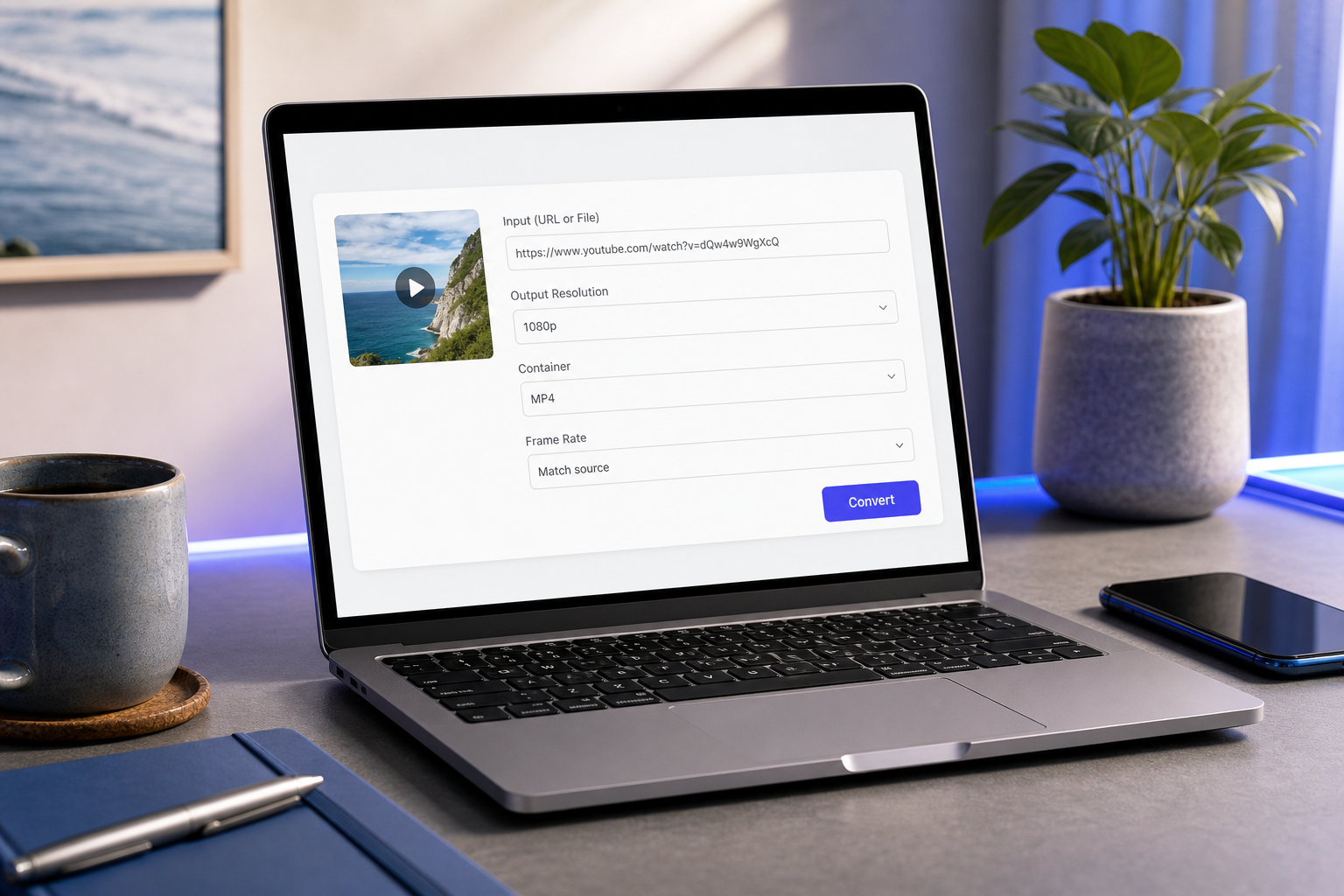
- Wählen Sie 1080p als Ausgabeauflösung. Die Oberfläche zeigt nur Auflösungen, die tatsächlich im Quell-Stream vorhanden sind, sodass Sie nicht versehentlich ein hochskaliertes Fake wählen können. Wenn 1080p nicht aufgeführt ist, hat die Quelle es nicht – was bestätigt, was der Validierungsschritt aus Abschnitt 2 erkannt hätte.
- Wählen Sie Ihr Containerformat. MP4 ist die sichere Standardeinstellung, wenn Sie unsicher sind. Der nächste Abschnitt behandelt, wann MKV, WebM oder MOV stattdessen sinnvoll sind.
- Stimmen Sie die Bildrate auf die Quelle ab. Konvertieren Sie nicht 30 fps in 60 fps; das dupliziert nur Bilder und bläht die Dateigröße auf, ohne visuelle Flüssigkeit hinzuzufügen. Konvertieren Sie 60 fps nicht auf 30 fps bei Actionmaterial herunter, es sei denn, Sie benötigen ausdrücklich die kleinere Datei – Sie verlieren die Bewegungsflüssigkeit, die der Creator eingefangen hat.
- Klicken Sie auf Konvertieren. Die Verarbeitung erfolgt lokal. Rechnen Sie mit etwa 20-30 Minuten pro Stunde 1080p-Material für H.264-Ausgabe auf einem modernen Laptop, gemäß FFmpeg-Documentation-Benchmarks. H.265 dauert etwa doppelt so lange – 45 bis 60 Minuten pro Stunde – im Austausch für eine kleinere endgültige Datei. Ihr Browser-Tab muss während der Verarbeitung geöffnet bleiben und Ihr Laptop wach sein.
- Laden Sie die Datei in den lokalen Speicher herunter. Kein Wasserzeichen in der Ecke. Kein Overlay-Banner. Keine eingebettete Pre-Roll-Werbung. Die Datei landet in Ihrem Downloads-Ordner als saubere MP4 (oder was auch immer für ein Container Sie gewählt haben), bereit zur Wiedergabe in VLC, zum Import in Premiere oder zur Synchronisierung mit einem Gerät.
Eine Randbemerkung zur MP4-Dominanz: 89 % der heruntergeladenen YouTube-Videos landen in MP4-Containern, laut Verpackungsdaten des Downloader-Dienstes VideoFk. Diese Dominanz spiegelt Kompatibilität wider, nicht technische Überlegenheit. Jedes Gerät, jeder Editor, jeder Browser spielt MP4 ab. Greifen Sie standardmäßig darauf zurück, es sei denn, Sie haben einen bestimmten Grund, anders zu wählen – was der nächste Abschnitt im Detail behandelt.

Ein Hinweis zu Teil-Extraktions-Workflows: Wenn Sie nur einen Clip statt des gesamten Videos benötigen, erledigt der Online-Video-Trimmer den Schnitt im selben Browser-Tab, bevor Sie exportieren – nützlich für Vorlesungsauszüge oder Reaktions-Clip-Ausschnitte. Und wenn Sie nur die Audiospur aus einer Vorlesung oder Podcast-Aufnahme benötigen, extrahiert und trimmt der Online-Audio-Cutter sie, ohne den Video-Stream erneut anzufassen, was Verarbeitungszeit spart und eine kleinere Datei erzeugt.
Das richtige Containerformat für Ihre 1080p-Datei wählen: MP4, MKV, WebM oder MOV
Sie haben den 1080p-Stream. Jetzt wählen Sie die Hülle. Zuerst eine Unterscheidung, die die meisten Artikel überspringen: Container (MP4, MKV, WebM, MOV) ist getrennt vom Codec (H.264, H.265, VP9). Der Container ist die Box. Der Codec ist die Komprimierung darin. Sie können H.264 innerhalb von MP4 oder innerhalb von MKV haben – dieselben Videodaten, andere Dateistruktur. Der Container bestimmt Kompatibilität, Metadaten-Unterstützung und Audiospur-Flexibilität. Der Codec bestimmt Dateigröße und visuelle Qualität.
Der folgende Vergleich verwendet bequellte Spezifikationen für eine 1-stündige 1080p-Datei:
| Container | Typischer Codec | Dateigröße (1080p, 1 Std.) | Gerätekompatibilität | Bester Anwendungsfall |
|---|---|---|---|---|
| MP4 | H.264 | ~450 MB | Universell | Bearbeitung, Teilen, Social-Re-Upload |
| MKV | H.265 | ~300 MB | VLC, mpv, moderne TVs | Archivierung, Mehrspur |
| WebM | VP9 | ~350 MB | Chrome, Firefox nativ | Browser-eingebettete Wiedergabe |
| MOV | H.264 | ~450 MB | macOS/iOS nativ | Final-Cut-Pro-Bearbeitung |
Die Audiospur-Unterstützung variiert deutlich zwischen diesen Containern. MP4 unterstützt bis zu 8 Audiospuren gemäß dem ISO/IEC-14496-14-Standard. MKV unterstützt bis zu 16 Spuren plus unbegrenzte Untertitel-Streams gemäß dem Matroska-Standard. Für die meisten YouTube-Downloads benötigen Sie nur eine Audiospur, sodass diese Unterscheidung nur für Inhalte mit mehreren Sprachspuren oder Kommentarebenen wichtig ist.
MP4 ist aus gutem Grund die Standardeinstellung. Universelle Kompatibilität bedeutet, dass es überall abgespielt wird – jedes Betriebssystem, jeder Browser, jedes Mobilgerät, jeder Smart-TV der letzten Dekade. Es öffnet sich in jedem Editor ohne Konvertierung. Es lädt direkt auf Social-Plattformen hoch, ohne neu zu kodieren. Wählen Sie MP4, es sei denn, Sie haben einen bestimmten Grund, es nicht zu tun. Der 89 %ige MP4-Download-Anteil, der von VideoFk berichtet wird, spiegelt diese praktische Realität wider, keine technische Präferenz.
MKV ist die Wahl des Archivars. Laut Mark Johnson, Chief Technology Officer bei der gemeinnützigen Medienerhaltungs-Organisation VideoLabs: „Für Archivierungszwecke empfehlen wir, in Quellauflösung herunterzuladen und die ursprünglichen YouTube-Metadaten beizubehalten. Die in YouTube-Videos eingebetteten Zeitstempel-Daten liefern entscheidenden Kontext für die historische Bewahrung, den die meisten Downloader entfernen" (American Institute for Conservation Podcast). MKV bewahrt mehrere Audiospuren, Kapitelmarker und Untertitel-Streams – nützlich für Vorlesungen mit Kapitel-Zeitstempeln, mehrsprachige Interviews oder Konferenzaufnahmen. Der MKV-Download-Pfad passt auch natürlich zu H.265, um die Dateigröße zu reduzieren, ohne 1080p-Qualität zu verlieren.
WebM nur, wenn Ihr Endpunkt eine Web-Einbettung ist. Es verwendet VP9 (denselben Codec, den YouTube intern verwendet), sodass Neukodierungs-Einbußen minimal sind. Aber Safari benötigt ein Add-on, um WebM abzuspielen, was Reibung für jedes Publikum erzeugt, das Apple-Geräte verwendet. Wenn Sie die Datei in einen reinen Chrome/Firefox-Kontext einbetten, spart WebM Bandbreite. Andernfalls gewinnt MP4.
MOV nur, wenn Sie direkt in Final Cut Pro gehen. MOV ist Apples Containerformat. Es spielt nativ auf macOS und iOS ab, funktioniert reibungslos in Final Cut und bietet überall sonst keinen bedeutsamen Vorteil gegenüber MP4. Wählen Sie MOV nicht, es sei denn, Ihre Bearbeitungs-Pipeline erfordert es ausdrücklich.
Der H.265-vs-H.264-Kompromiss verdient seine eigene Zeile: H.265 reduziert die Dateigröße bei gleichwertiger Qualität um 35-50 %, benötigt aber 2,3-mal mehr Rechenleistung zum Kodieren, laut IEEE Transactions on Multimedia. Für eine 1-stündige 1080p-Datei ist das der Unterschied zwischen etwa 20 Minuten Konvertierungszeit (H.264) und etwa 45 Minuten (H.265). Wenn Speicherplatz wichtiger ist als Zeit, wählen Sie H.265. Wenn Sie die Datei schnell fertig haben möchten und Speicherplatz günstig ist, ist H.264 in Ordnung.
Die fünf Engpässe, die 1080p-Downloads scheitern lassen (und wie Sie jeden umgehen)
Die meisten fehlgeschlagenen Downloads lassen sich auf eine von fünf konkreten Ursachen zurückführen. Jede hat eine saubere Lösung.
- Ihre Internet-Bandbreite ist die eigentliche Obergrenze, nicht das Tool. YouTubes typische 1080p-Auslieferungsrate von 8-12 Mbit/s gemäß IEEE Transactions on Multimedia bedeutet, dass ein 1-stündiges Video etwa 400-500 MB von YouTubes Servern abruft, bevor überhaupt eine Verarbeitung beginnt. Bei einer 5-Mbit/s-Verbindung ist das ein 15-20-minütiger Abruf. Bei einer 25-Mbit/s-Verbindung sind es unter 3 Minuten. Wenn sich Konvertierungen langsam anfühlen, prüfen Sie, ob der Engpass der Download (netzwerkgebunden) oder die Kodierung (CPU-gebunden) ist. Lösung: Wechseln Sie nach Möglichkeit zu kabelgebundenem Ethernet oder laden Sie außerhalb der Stoßzeiten herunter, wenn Ihr ISP nicht überlastet ist. WLAN auf einer geteilten Wohnungsverbindung um 20 Uhr ist der schlimmste Fall.
- Browser-Speichergrenzen bei sehr langen Videos. Die WebAssembly-Verarbeitung läuft innerhalb der Speicherzuweisung Ihres Browser-Tabs. Chrome und Firefox begrenzen einzelne Tabs auf etwa 2-4 GB Speicher, je nach Plattform und Version. Videos, die länger als etwa 90 Minuten bei 1080p sind, können mitten in der Konvertierung an diese Grenze stoßen und den Tab zum Absturz bringen – wobei die Teil-Ausgabe verloren geht und ein Neustart erzwungen wird. Lösung: Bei langen Inhalten trimmen Sie das Video zuerst mit dem Online-Video-Trimmer in Kapitel und verarbeiten dann jedes Kapitel als separate Datei. Alternativ stufen Sie auf 720p herab (immer noch HD, etwa 200 MB pro Stunde, deutlich innerhalb der Speichergrenzen).
- Der Speicherplatz geht mitten beim Schreiben aus. Berechnen Sie die Dateigröße, bevor Sie beginnen. Bei 1080p erwarten Sie etwa 10-15 MB pro Minute Material – eine 30-minütige Vorlesung kommt also auf etwa 400 MB, ein 90-minütiger Dokumentarfilm auf etwa 1,2 GB. Mitten beim Schreiben fehlgeschlagene Konvertierungen beschädigen die Teildatei, und Ihr Betriebssystem löscht das beschädigte Fragment möglicherweise nicht automatisch. Lösung: Überprüfen Sie den verfügbaren Speicherplatz, bevor Sie die Konvertierung starten. Wenn Sie auf einer fast vollen SSD arbeiten, schaffen Sie zuerst Platz oder speichern Sie auf ein externes Laufwerk.
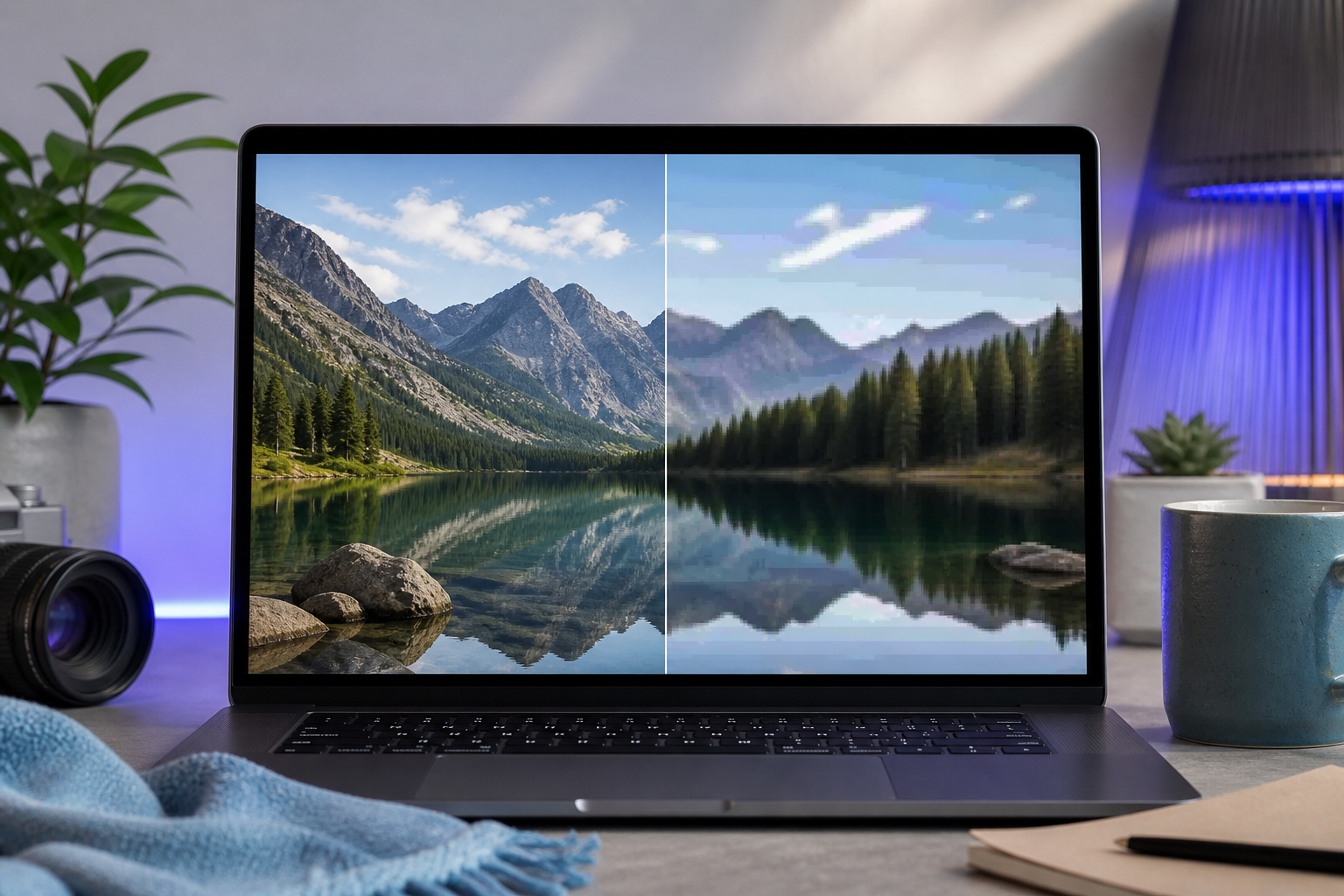
- Das „1080p", das das Tool anbot, war tatsächlich hochskaliertes 720p. Dies ist die Consumer-Reports-Erkenntnis von vorhin – 74 % der kostenlosen Tools liefern hochskalierte Fakes. Symptome in der resultierenden Datei: unscharfe Details bei statischen Bildern, sichtbare Blockbildung bei Bewegung, gebänderter Himmel und Hauttöne, weicher Text bei Foliendeck-Inhalten. Wenn Sie diese sehen und das Quellvideo auf YouTube scharf aussah, wurde die 1080p-Qualität, die Sie heruntergeladen haben, synthetisiert, nicht extrahiert. Lösung: Verifizieren Sie im eigenen Qualitätsmenü von YouTube (die Anleitung aus Abschnitt 2), dass 1080p wirklich eine Quelloption ist, bevor Sie sich für einen Download entscheiden. Tools, die nur quellverifizierte Auflösungen anbieten, können Ihnen keine Hochskalierung verkaufen.
- Bildraten-Diskrepanzen verursachen Wiedergaberuckeln. Wenn Sie 1080p60 heruntergeladen haben, aber Ihr Wiedergabemonitor mit 30 Hz aktualisiert (oder ein 30-fps-Videoplayer-Standard läuft), sieht die Bewegung ungleichmäßig aus – ein Stottern, das Sie auf YouTube nicht gesehen haben. Umgekehrt, wenn Sie 1080p30 von einer 60-fps-Quelle bei Actionmaterial heruntergeladen haben, sehen Sie die verlorene Flüssigkeit im Vergleich zur YouTube-Version. Lösung: Stimmen Sie die Download-Bildrate sowohl auf die Quelle (aus Abschnitt 2) als auch auf die Aktualisierungsfähigkeit Ihres Wiedergabegeräts ab. Für die meisten Laptops und Smart-TVs ist eine 60-Hz-Aktualisierung Standard, sodass 1080p60 korrekt abgespielt wird. Ältere Displays erzwingen möglicherweise eine 30-Hz-Aktualisierung unabhängig von der Quelle.
Ein sechstes Problem, das kurz erwähnt werden sollte: Geo-Beschränkungen. Manche Creator sperren Videos auf YouTube-Ebene nach Land. Kein Downloader kann dies umgehen – wenn Sie das Video nicht in Ihrem Browser abspielen können, können Sie es auch nicht extrahieren. Der zugrunde liegende regulatorische Rahmen hier sind YouTubes eigene Nutzungsbedingungen, die die Plattform verpflichten, regionale Lizenzierung im Namen der Rechteinhaber durchzusetzen. Die Lösung ist nicht technisch; es geht darum, zu bestätigen, dass Sie in Ihrer Region legitimen Zugriff auf den Inhalt haben, bevor Sie tool-seitige Probleme beheben.
Validierungs-Checkliste vor dem Download – führen Sie diese aus, bevor Sie auf „Konvertieren" klicken
Kopieren Sie diese Checkliste in das Workflow-Tool, das Sie verwenden. Jeder Punkt verweist auf eine spezifische Lektion von oben, ohne sie erneut zu erklären. Gehen Sie die Liste einmal vor jeder 1080p-Extraktion durch.
Eine 30-sekündige Prüfung vor dem Download eliminiert 90 % der fehlgeschlagenen Konvertierungen – die Zeit, die Sie bei Wiederholungsversuchen sparen, ist die Zeit wert, die Sie mit der Validierung verbringen.
- ☐ 1080p im Qualitätsmenü von YouTube bestätigt. Wenn das Qualitäts-Dropdown des Quellvideos kein 1080p oder 1080p60 anzeigt, kann kein Tool echte 1080p-Ausgabe für Sie erzeugen.
- ☐ Quell-Bildrate identifiziert. 1080p60 nur, wenn die Quelle wirklich 60 fps ist; andernfalls spart 1080p30 Speicherplatz ohne wahrnehmbare Kosten.
- ☐ Container für Ihren spezifischen Anwendungsfall gewählt. MP4 für Bearbeitung und Teilen, MKV für Archivierung mit Kapiteln und Mehrspur-Audio, WebM für Browser-Einbettung, MOV für Final-Cut-Pro-Pipelines.
- ☐ Speicherplatz verifiziert. Etwa 12 MB pro Minute bei 1080p – ein 60-minütiges Video benötigt etwa 720 MB frei, eine 2-stündige Vorlesung näher an 1,5 GB.
- ☐ Stabile Verbindung bestätigt. Kabelgebundenes Ethernet ideal; stabiles WLAN akzeptabel; vermeiden Sie Mobilfunk-Tethering und überlastete geteilte Netzwerke für alles über 30 Minuten Material.
- ☐ Videolänge unter 90 Minuten – oder in Kapitelaufteilungen mit dem Online-Video-Trimmer für längeres Quellmaterial eingeplant, um unter den Browser-Speichergrenzen zu bleiben.
- ☐ Browser-Tab der Konvertierung gewidmet. Schließen Sie speicherintensive Tabs (besonders andere Videoplayer, Design-Tools und aktive Web-Apps), bevor die Verarbeitung beginnt. Die Konvertierung benötigt den Speicher-Spielraum.
- ☐ Legale Nutzung bestätigt. Die persönliche Offline-Wiedergabe öffentlicher Inhalte ist der häufige Fall. Laut Sarah Chen, Anwältin für digitale Rechte bei der Electronic Frontier Foundation: „Während persönliche, nicht-kommerzielle Downloads öffentlicher Inhalte unter Fair Use fallen können, schafft das Herunterladen urheberrechtlich geschützten Materials ohne Erlaubnis – selbst in niedrigeren Auflösungen – rechtliche Graubereiche, vor denen die meisten Downloader-Dienste Benutzer nicht schützen werden." Wissen Sie, was Sie herunterladen und warum.
- ☐ Wiedergabeziel identifiziert. Wissen Sie, welcher Player die Datei öffnen wird, bevor Sie sich für einen Container entscheiden – VLC für MKV, native Player für MP4, Final Cut für MOV. Den Container nach der Konvertierung zu wählen, ist doppelte Arbeit.
Gehen Sie diese Liste einmal durch, und Ihre YouTube-Video-Downloader-1080p-Konvertierung funktioniert entweder beim ersten Mal oder sagt Ihnen genau, warum nicht. Validierung ist schneller als Wiederholung.