
How to Download YouTube Videos to Your iPhone (No App Required)
Download YouTube Video to iPhone Without an App: What Actually Works in 2025
You're holding your iPhone, looking at a YouTube video you want offline — a workout routine you're trying to memorize, a recipe walkthrough you'll cook from later, a tutorial you keep rewatching, or a clip you uploaded yourself. You've already tried two things. Neither worked. You hit the YouTube Premium paywall, downloaded an App Store "video saver" that demanded a subscription before showing you anything, and maybe even pasted the URL into a free site that asked for your email and then watermarked the output.
The goal here is straightforward: download YouTube video to iPhone without an app, without an account, and without sending the file through somebody else's server. The method below uses mobile Safari and a browser-based tool that processes the video locally on your phone. With mobile devices accounting for over 70% of YouTube watch time according to Statista, the iPhone-specific version of this problem is the dominant one — and the fixes that get recommended for it are mostly broken.
Here's why every method you've already tried failed — and what to do instead.
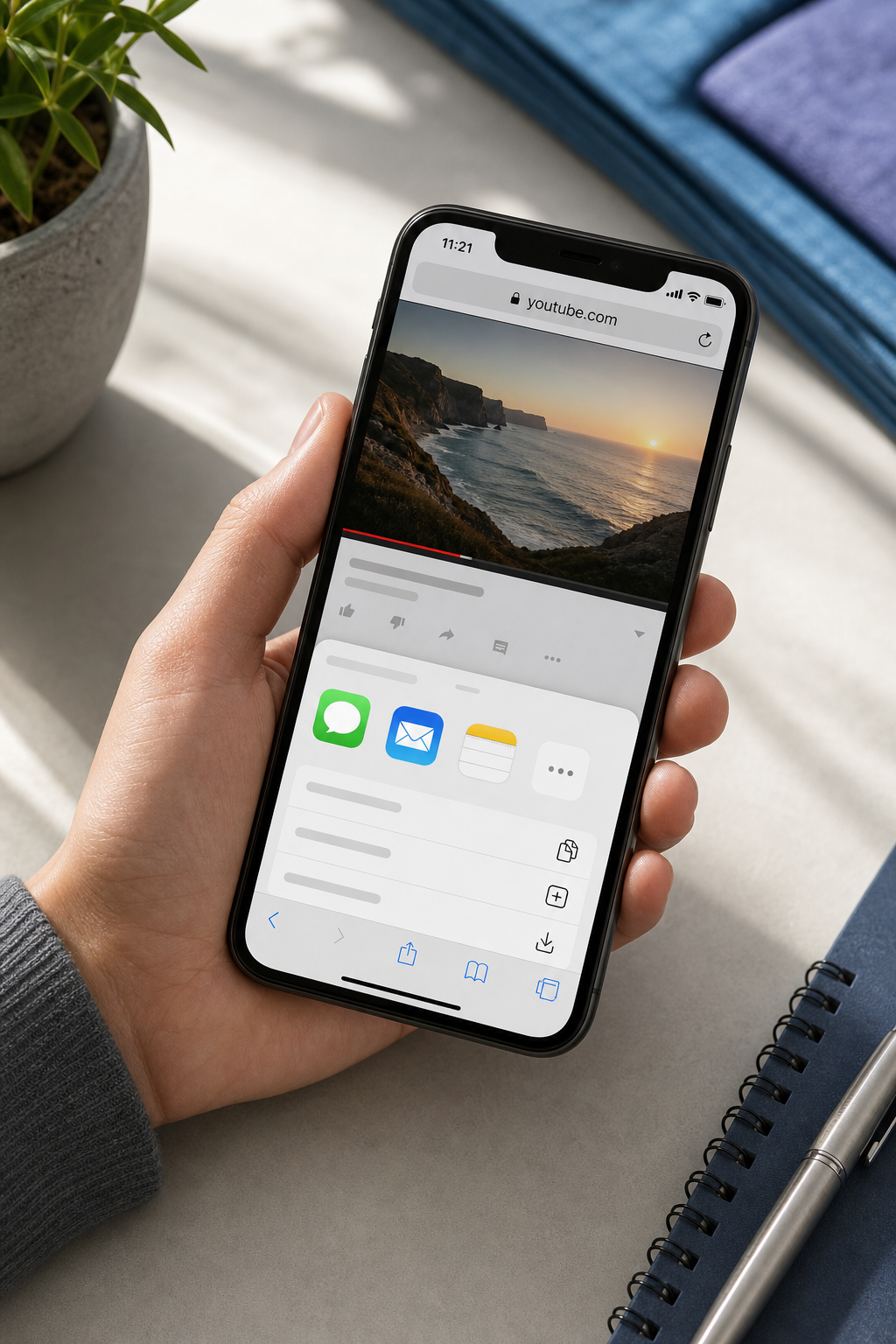
Table of Contents
- Why Every 'Easy' Method You've Tried Has Already Stopped Working
- What Your iPhone Can Actually Do Natively (And Where Apple's Tools Hit a Wall)
- The Safari Workflow: Download a YouTube Video to Your iPhone Locally, Start to Finish
- MP4, MOV, or Something Else? Choosing the Right Format So Your iPhone Actually Plays the File
- Keeping Downloaded Videos Private: iCloud, Hidden Albums, and Why Server-Side Converters Are a Privacy Tax
- When the Safari Method Won't Work: Edge Cases and Honest Workarounds
- Before You Tap Download: A 60-Second iPhone Readiness Check
- Frequently Asked Questions: Downloading YouTube Videos to iPhone
Why Every 'Easy' Method You've Tried Has Already Stopped Working
Five paths look obvious the first time you try to save a YouTube video to your iPhone. All five have a structural reason they fail — not bad luck, not your fault. Here they are, with the actual reason each one breaks.
- YouTube Premium offline downloads. Costs $13.99/month in the US, and per Google's official letter from the Global Head of Music, YouTube counted 80+ million paid Premium and Music subscribers worldwide as of late 2022. The catch nobody mentions: those downloads are DRM-locked inside the YouTube app. They expire if you cancel, can't be moved to Files, can't be AirDropped, can't be opened in iMovie. This isn't downloading a video — it's renting cached playback that disappears the moment you stop paying.
- App Store downloader apps. Apple's App Store Review Guidelines — specifically sections 2.5.2 and 3.2.1 — explicitly restrict apps that download third-party content without authorization. Apps that survive review tend to pivot to aggressive subscription dark patterns; Malwarebytes Labs documented iOS "video downloader" scam apps using exactly this model. They get removed, then resurface under new names. You install one, it works for a week, then it asks for $9.99/week or vanishes from the App Store.
- Browser-based upload converters. You paste a URL, the site downloads the video to its server, transcodes it, and sends it back. Comparitech's investigation into online video converters found many use unencrypted HTTP, multiple tracking scripts, and have no clear retention policies on uploaded media. The Princeton/Stanford 1-million-site web privacy study showed free media-conversion sites disproportionately integrate third-party trackers and browser fingerprinting. Your URL, your IP, and a timestamp end up logged somewhere you can't audit.
- Screen recording the playback. Built into iOS, but the audio is often missing because YouTube's audio routing blocks the screen recorder's mic source. Quality degrades to whatever your screen renders — not source resolution. A notification pops up and the recording is ruined. And a 30-minute video means 30 minutes of staring at your phone while it plays in real time, which is not what "downloading" means.
- Shortcuts-based downloaders. Shortcuts can call URLs, but it cannot legitimately reverse YouTube's signature and token system, which YouTube-DL's documentation describes as deliberately rotated signature encryption. Federico Viticci at MacStories has documented the pattern: community shortcuts "break whenever the site changes its video URLs or token logic. They're clever, but not stable tools."
The problem isn't that downloading YouTube videos is technically hard — it's that most tools are designed to fail you just after you've committed to them.
If you're trying to download a YouTube video to your iPhone, those five options are off the table. Here's what isn't.
What Your iPhone Can Actually Do Natively (And Where Apple's Tools Hit a Wall)
Before reaching for any third-party tool, it's worth understanding what Safari, Files, and Shortcuts can already do on their own — and the specific technical reason they can't quite finish the job for YouTube.
Safari's download manager was introduced in iOS 13 and accepts standard file types including MP4, MOV, ZIP, and most common formats. Per Apple Support's documentation, it saves by default to iCloud Drive > Downloads, but the location is configurable in Settings > Safari > Downloads. When a download is active, a blue arrow appears next to the address bar. According to Apple's developer support data, over 90% of active iPhones run iOS 15 or later as of early 2025 — so the download manager is available to nearly everyone reading this.
The Files app supports "On My iPhone" local storage that doesn't sync to iCloud, plus folder creation and full share-sheet integration including "Save Video" to Photos (Apple Support). That local-only behavior is central to the privacy workflow covered later.
The Shortcuts app can fetch the contents of a URL using its "Get Contents of URL" action (Apple Shortcuts User Guide), but it cannot follow YouTube's signed, time-limited URLs without a brittle reverse-engineered script that breaks on every YouTube update.
The hard wall isn't Apple — it's what YouTube serves. YouTube delivers most modern videos as DASH or HLS adaptive streams: segmented MP4 or WebM fragments with time-limited tokenized URLs, plus a separate audio pipeline that must be muxed back together with the video. This is specified in IETF RFC 8216 (HTTP Live Streaming) and explained in detail by the MPEG-DASH Industry Forum. Safari and Shortcuts cannot reassemble these segments into a single playable file on their own.
| Capability | Safari Downloads | Files App | Shortcuts | What YouTube Serves |
|---|---|---|---|---|
| Direct MP4 download | ✓ | ✓ | ✓ | ✗ — segmented HLS/DASH |
| Saves locally without iCloud | ✓ | ✓ | ✓ | — |
| Handles .m3u8 / .mpd manifests | ✗ | ✗ | ✗ | Required |
| Muxes separate audio + video | ✗ | ✗ | ✗ | Required |
| Works on a live YouTube URL | ✗ | ✗ | ✗ | — |
| Requires third-party app install | ✗ | ✗ | ✗ | — |
Native iPhone tools are excellent at saving a file when the URL points to an actual file. They're not designed to parse adaptive streaming manifests, fetch dozens of timed segments in parallel, and remux them into a single MP4. That's a different category of work — closer to what a video editor does internally than what a browser does.
The iphone youtube video download problem, then, is really one missing piece: an intermediate step that fetches the segments, decodes them, and hands Safari a single MP4 ready to save. The question is where that intermediate step happens. On someone else's server (privacy tax, see Section 5), or inside the same Safari tab you already have open. The Safari workflow below uses the second option. Here's how it runs end to end when you want to download youtube video to iphone in a single mobile session.
The Safari Workflow: Download a YouTube Video to Your iPhone Locally, Start to Finish
This is the method that works on iOS 13 or later in mobile Safari — no app, no account, no upload. The tool below (Media Tools Suite) processes files locally via WebAssembly, specifically FFmpeg compiled to WASM, meaning the video bytes never leave your phone. That's the only reason to prefer this over the upload-based converters covered earlier.
Step 1. Copy the YouTube URL. From the YouTube app: tap Share → Copy Link. From Safari on the YouTube watch page: tap the address bar → Copy. The link should start with youtube.com/watch?v= or youtu.be/. If it starts with anything else (a Google redirect, a shortened third-party URL), open it once first so it resolves to the canonical form.
Step 2. Open Safari and go directly to media-tools.online. Type the URL into the address bar — do not search for it. Search-result ad cards routinely mimic legitimate browser tools, and one wrong tap lands you on a clone site that does upload your file. There is no account flow, no email gate, and no install prompt on the real site. If you see one of those, you're on the wrong page.
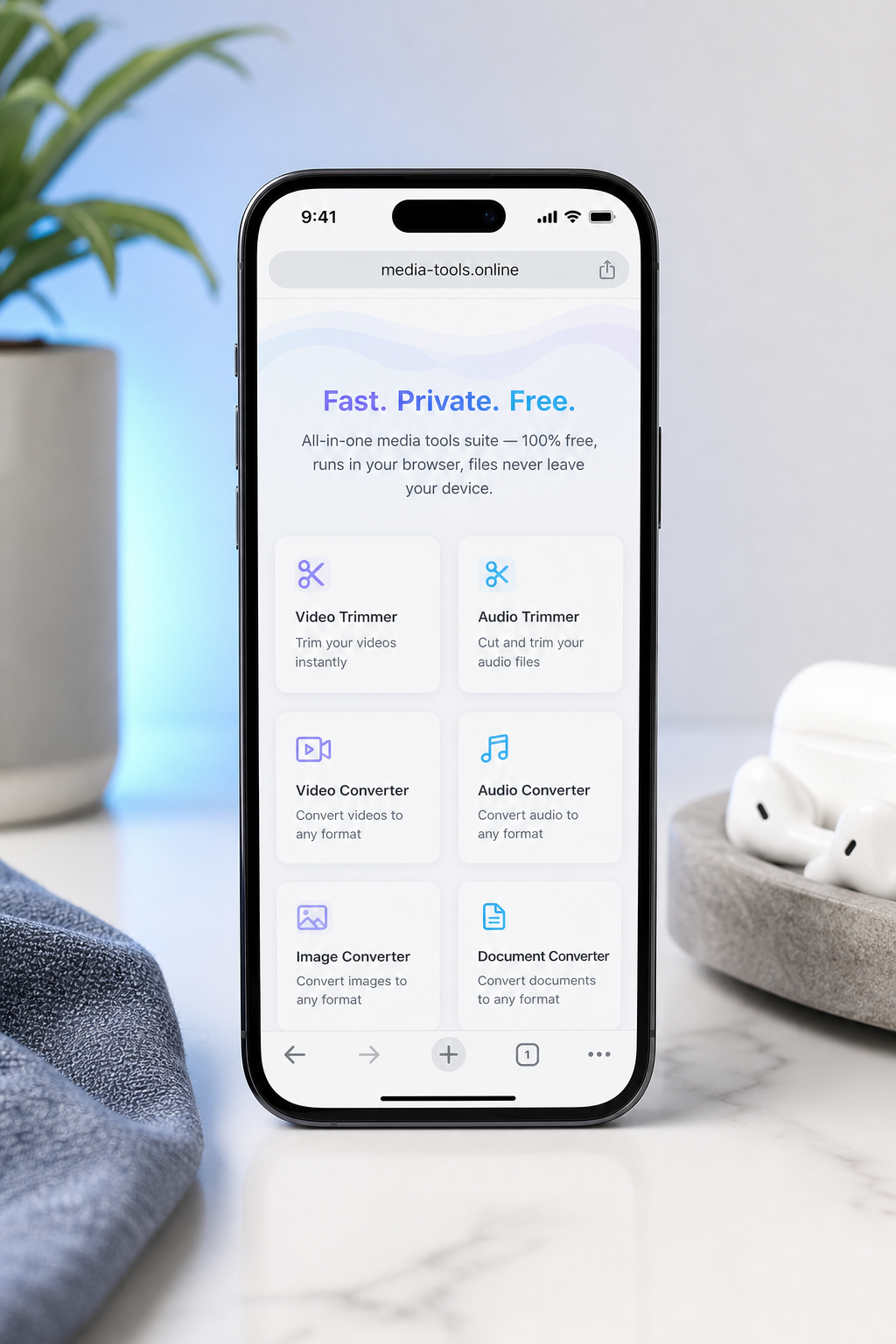
Step 3. Choose the video conversion tool from the homepage. On mobile Safari the tools appear as a vertical card list. Tap "Video Conversion." If you only need a clip rather than the full video, the Online Video Trimmer lets you cut before exporting — useful for grabbing a 30-second segment of a long lecture or a single move from a workout routine.
Step 4. Paste the YouTube URL into the input field. Long-press the input field → Paste. The tool fetches and parses the video manifest in-browser. You'll see the title and a thumbnail appear once parsing finishes. If nothing appears after ten seconds, the URL is likely age-restricted or unlisted — see Section 6 for what to do.
Step 5. Select your output format and quality. Default to MP4 (H.264) at 720p or 1080p — Section 4 explains the reasoning. Tap the format dropdown, select MP4, then choose your resolution. Higher resolution means a larger file; for phone-screen playback, 720p is almost always indistinguishable from 1080p and saves around 40% of storage.
Step 6. Tap Convert. Processing happens on your device. The conversion runs in a WebAssembly sandbox inside your Safari tab. Mozilla's benchmarks and V8's WebAssembly performance documentation put WASM execution within roughly 1.3–1.5× of native speed for CPU-bound tasks like media transcoding. For a 5-minute 1080p clip, expect about 30–60 seconds of processing on a modern iPhone. The raw video bytes never leave your phone — they're fetched, decoded, and remuxed inside the tab you're looking at.
Local browser processing isn't a technical footnote — it's the difference between a tool you can trust with private footage and one you're hoping doesn't store it.
Step 7. When the download arrow appears in Safari, tap it → tap the file → choose "Save Video" (to Photos) or "Save to Files." Per Apple Support, a long-press on the completed item in the Safari download tray reveals Move and Share options. If you want this file kept off iCloud, choose "Save to Files" and pick a folder under "On My iPhone." If you want it in the camera roll for normal viewing, "Save Video" sends it straight to Photos.
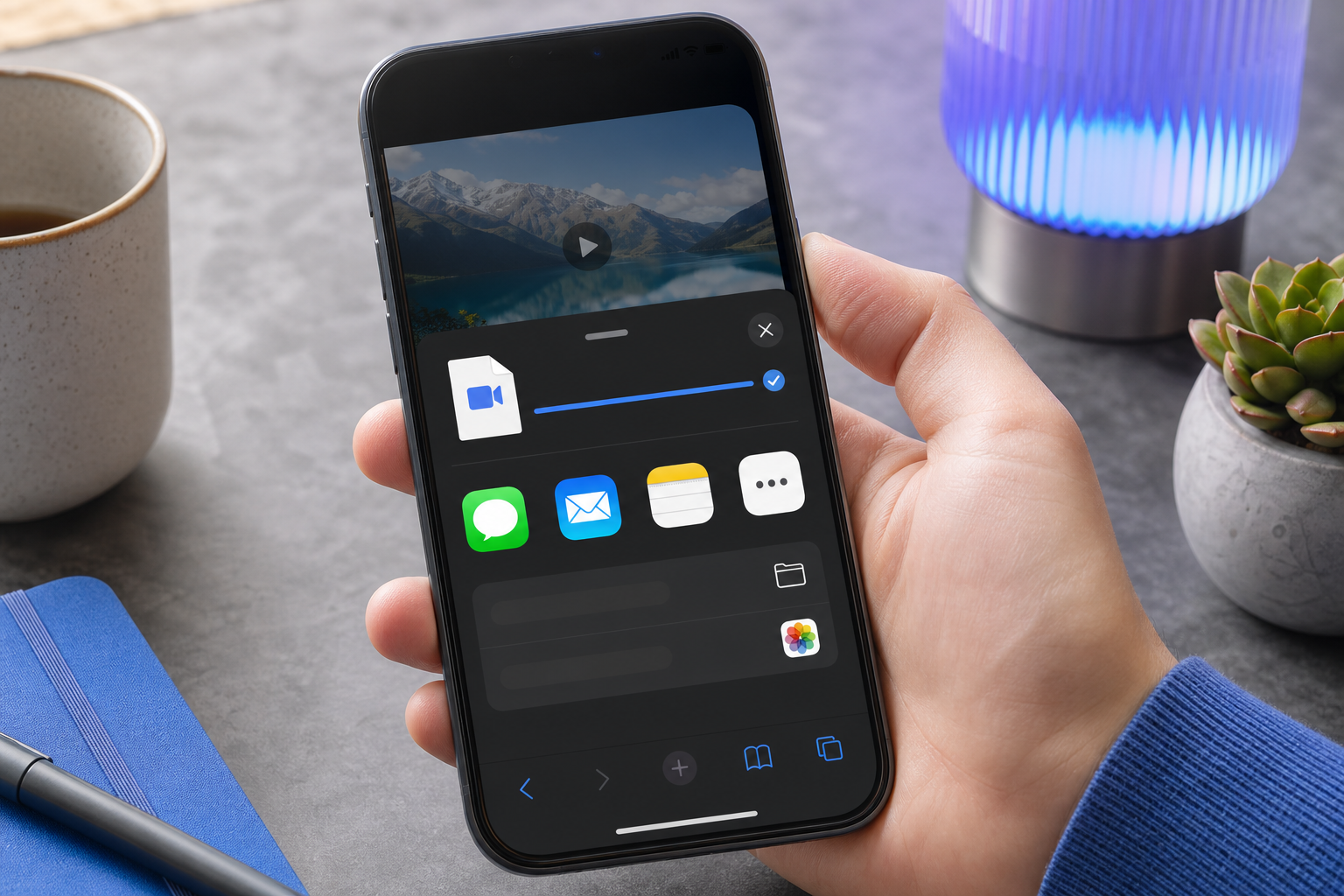
Verification: open Photos (or Files), play the video, and confirm the audio is present. If audio is missing, the format selection was likely set to a video-only stream — re-run step 5 with MP4 explicitly selected and convert again. That's the entire workflow to save youtube video to iphone in one mobile session.
MP4, MOV, or Something Else? Choosing the Right Format So Your iPhone Actually Plays the File
The most common post-download failure isn't the download — it's tapping the file afterward and seeing "Cannot play this video." That happens when the format you chose isn't natively supported by Photos or the TV app. iOS is strict here, and the rules are stable enough to memorize.
MP4 (H.264 or H.265) plays natively in Photos, TV, the Files preview, and iMessage. Per the iPhone 15 technical specifications, H.264 and HEVC in .mp4 or .mov containers are the baseline supported formats across every current iPhone. This is the right choice for 90% of users.
MOV is Apple's own container. Slightly larger overhead for the same codec, but smoother handoff to iMovie and Final Cut Pro on iOS. Use this only if you plan to edit the clip.
MKV will not play in Photos or TV. It requires VLC for Mobile or Infuse — per the VLC for Mobile FAQ, the app handles MKV cleanly, but you've now added an app dependency you were trying to avoid. Skip MKV unless you specifically use those players.
WebM has no native iOS playback support and is the single most common cause of "why won't this play?" complaints from people using web-focused converters. Never pick WebM if the goal is offline viewing on the phone.
Storage planning matters too. Per Apple's video storage guidance, 1 minute of 1080p H.264 at 30fps lands at roughly 60–90 MB, and 4K at 60fps can exceed 400 MB per minute. Web-bitrate sources at 4–6 Mbps come in lower — around 30–45 MB/min per Apple's HLS encoding tech note and HandBrake's video compression documentation. When the bitrate is unknown, "1 minute ≈ 100–150 MB" is a safe upper bound for planning.
| Use Case | Recommended Format | Recommended Resolution | Approx. Storage / Min |
|---|---|---|---|
| Watch in Photos app | MP4 (H.264) | 1080p | 60–90 MB |
| Edit in iMovie | MOV | 1080p | 70–100 MB |
| Share to Instagram / TikTok | MP4 (H.264) | 1080p | 60–90 MB |
| Archive long content | MP4 (H.264) | 720p | 30–45 MB |
| Play through VLC / Infuse | MKV or MP4 | Source | Varies |
| Audio only (lecture, podcast) | Extract MP3 | — | 1–2 MB |
The practical decision plays out like this. On a 64GB iPhone that's already mostly full, the difference between downloading at 720p and 1080p is roughly a 40–50% storage swing for visually similar phone-screen playback. For a 60-minute lecture, that's about 1.8 GB saved by choosing 720p — meaningful when you're cleaning up before a trip. For anything you'll edit later in iMovie, choose MOV upfront; transcoding from MP4 to MOV after the fact wastes time and adds a quality-loss step.
For anything you'll re-share to Instagram or TikTok, choose youtube to mp4 iphone-style — plain H.264 MP4 at 1080p. Both platforms re-encode whatever you upload, so giving them a clean MP4 minimizes quality loss from double conversion. And if all you actually want is the audio — a podcast clip, a lecture, a song you'll listen to during a commute — the Online Audio Cutter handles that directly, either from the original URL or from the MP4 you just saved. Audio-only files run 1–2 MB per minute, which is a fraction of the video equivalent.
Keeping Downloaded Videos Private: iCloud, Hidden Albums, and Why Server-Side Converters Are a Privacy Tax
Saving a video privately isn't paranoia — it's the reasonable expectation that what you download on your device stays on your device.
Most guides stop at "the file is on your phone, you're done." But the privacy posture of the conversion step and the storage destination both matter — and they're where competitor tools quietly fail.
Why server-based converters are a privacy liability. When you paste a URL into a typical online converter, the converter downloads the video to its server, transcodes it there, and serves it back to you. Your IP address, the video URL, and a timestamp end up logged. The Princeton/Stanford 1-million-site web privacy study found that free media-conversion sites disproportionately host third-party trackers, fingerprinting scripts, and opaque data-collection pipelines. As Prof. Arvind Narayanan, one of the study's authors, put it: "Free media conversion sites often make their money not from you as a customer, but from your data and your device—through invasive tracking, cryptomining scripts, or drive-by downloads."
What local/WebAssembly processing means in plain language. With a WebAssembly-based tool, the video bytes are fetched by your browser and processed by a WASM module running inside your Safari tab. There is no upload step. There's no server that has a copy. Lin Clark, formerly of Mozilla and one of the most-cited explainers of WebAssembly, summarized the privacy implications directly in Mozilla's WebAssembly intro: "Running video and audio processing in WebAssembly on the client keeps raw media off remote servers, which can substantially reduce privacy and security concerns compared to server-side transcoding."
That's the structural reason the workflow in Section 3 is a category apart from clideo.com, online-video-cutter.com, or mp3cut.net — not a marketing claim, an architectural one.
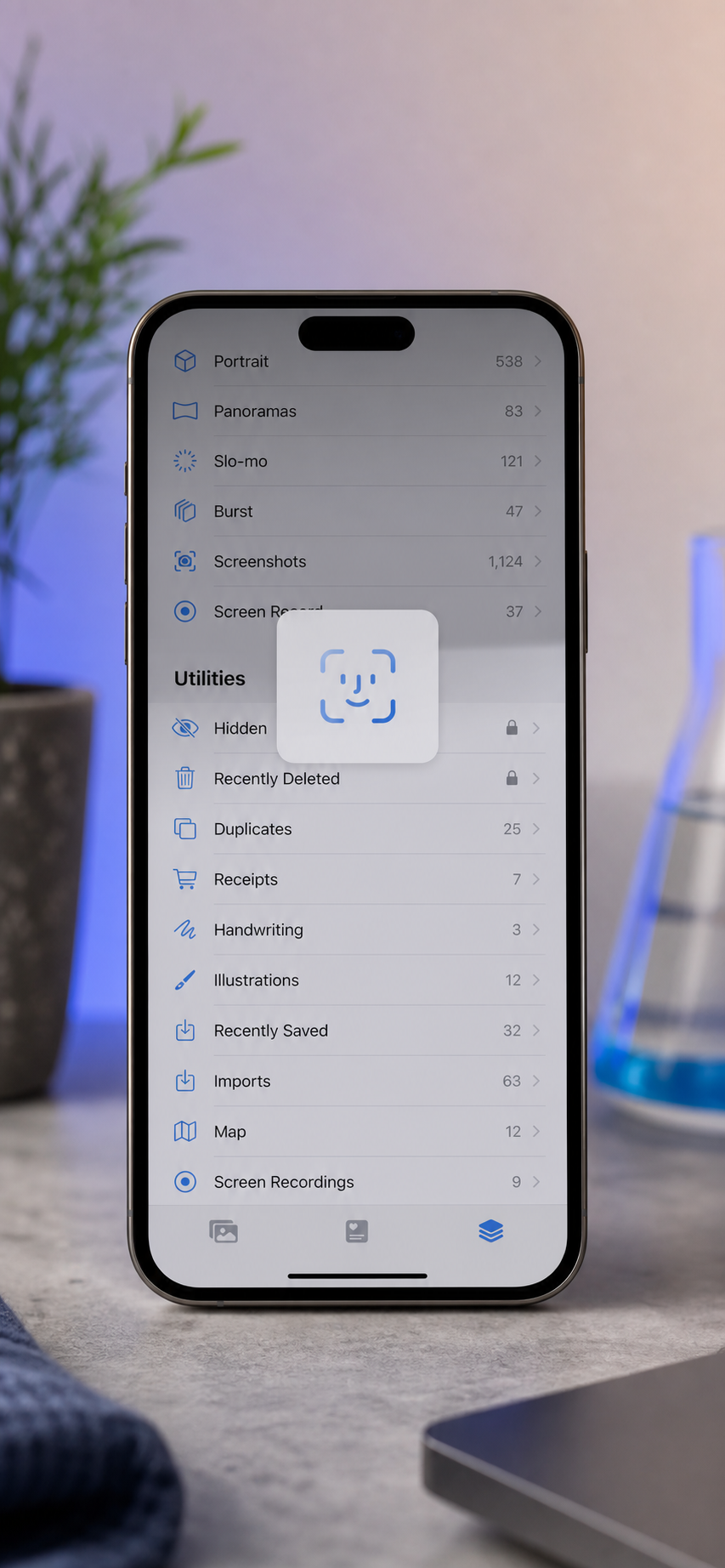
iPhone-side privacy: setting up the Hidden album. Since iOS 16, the Hidden album in Photos is Face ID / Touch ID / passcode protected by default, per Apple Support's documentation. To find it: Photos → Albums → scroll to Utilities → Hidden. To hide a video: open it → tap the share icon → Hide. To make the Hidden album itself invisible from the Albums tab altogether: Settings → Photos → toggle "Show Hidden Album" off. Glenn Fleishman, contributing editor at Macworld, described the practical effect this way: "With iOS 16, sensitive photos and videos can be placed into a Hidden album that requires Face ID, making it much harder for casual device users to stumble onto private content."
The Files app alternative. Saving to "On My iPhone" in the Files app does not sync to iCloud unless you manually move the file to iCloud Drive, per Apple Support. For videos you specifically want excluded from cloud backup — say, raw footage you're editing with the Online Video Trimmer, sensitive content, or anything you don't want syndicated to a family member's shared Apple account — Files > On My iPhone is a cleaner destination than the Camera Roll.
iCloud Photos sync consideration. When iCloud Photos is enabled, anything saved to the Camera Roll uploads automatically and counts against your iCloud quota (Apple Support). To save youtube video to iphone without burning through your free 5GB iCloud tier on a single 4GB download, you have two options: save to Files > On My iPhone instead, or temporarily toggle iCloud Photos off before saving to Camera Roll, then re-enable it after the file is in place. The first option is cleaner and reversible without affecting any other syncing.
A short, practical note on copyright context. This isn't legal advice. The cases where downloading is unambiguous in personal-use terms are: videos you uploaded yourself, Creative Commons-licensed content (which YouTube lets you filter for), and content where the uploader has explicitly granted download rights. YouTube's Terms of Service, section 5B, states that users shall not download content unless a download link is provided by YouTube for that content. EFF Legal Director Corynne McSherry has noted that "Downloading videos from YouTube is against YouTube's terms of service except where the service itself provides a download button, like with YouTube Premium." The honest position: this rule applies even for personal use, and the framing in this article presents that fact transparently so you can make an informed call rather than being told the question doesn't exist.
When the Safari Method Won't Work: Edge Cases and Honest Workarounds
Most of the time, you can download a YouTube video to your iPhone in under a minute. Six specific situations break the workflow — and recognizing them in advance saves an hour of debugging.
- Age-restricted videos. YouTube gates these behind account authentication; a browser-based tool fetching a public URL cannot present credentials on your behalf. There's no workaround within this method — you'll need to watch the video in the YouTube app while signed in. No tool fixes this without lying about it.
- Live streams and premieres. Live content is an ongoing HLS session with no final file yet, per YouTube's documentation on live stream recordings. The VOD recording only appears after the stream ends and YouTube processes it — usually within a few hours. The fix: wait for the replay to finish processing, then run the normal workflow on the VOD URL.
- Private or unlisted videos you don't own. Same authentication wall as age-restricted content. If you have a share link from the owner, you can watch it in the YouTube app while signed in, but you can't download it without an authenticated session — which a browser tool fetching a public URL doesn't have. If the owner is willing, ask them to send you the source file directly.
- Region-blocked content. If YouTube blocks the video in your country, the conversion tool fetching from your IP gets blocked too. The fix isn't downstream — it's upstream. Connect to a VPN in an allowed region before opening Safari, then run the normal workflow. The conversion step itself is region-neutral; it's the initial fetch that fails.
- Very long videos (90+ minutes). Mobile Safari enforces tighter memory and execution-time limits than desktop browsers — the WebKit blog on WebAssembly on Safari and Google Developers' notes on WASM memory limits both document this constraint. Practical rule: under about 60 minutes is reliable on iPhone Safari, 60–90 minutes is mixed, and over 90 minutes you should run the same tool in desktop Safari or Chrome and AirDrop the resulting MP4 to your iPhone afterward. The desktop version of the tool is the same code; only the browser's resource ceiling differs.
- iOS 12 or earlier. Safari's download manager doesn't exist below iOS 13, which was a headline iOS 13 feature. With over 90% of active iPhones now on iOS 15 or later per Apple's developer support data, this is genuinely an edge case — but for the small number affected, the workaround is to upgrade iOS (free, takes about 15 minutes) or to run the workflow on a desktop browser and AirDrop the result. There's no way to retrofit a download manager into iOS 12 Safari.
With those out of the way, the pre-flight checklist below is what makes the workflow repeatable.
Before You Tap Download: A 60-Second iPhone Readiness Check
Run this once. Bookmark it. Future-you doesn't need to re-read the whole article.
- Is the video publicly available and not age-restricted? If no, the Safari method won't reach it — watch in the YouTube app instead.
- Are you on iOS 13 or later? If no, upgrade in Settings > General > Software Update; below iOS 13, Safari can't manage downloads.
- Have you decided your format? Default to MP4 (H.264) for watching, MOV for editing in iMovie, MP4 720p for archiving long content.
- Do you have enough free storage? Rule of thumb: roughly 100–150 MB per minute at 1080p worst case. Check Settings > General > iPhone Storage before you start.
- Is the video under 60 minutes? If longer, expect mobile Safari to struggle past 90 minutes — run the workflow on desktop and AirDrop the result.
- Do you want this kept off iCloud? If yes, either save to Files > On My iPhone or turn iCloud Photos off before saving to Camera Roll.
- Do you want it hidden from anyone who picks up your phone? If yes, set up the Hidden album (Photos > Albums > Utilities > Hidden) and verify Face ID is required before continuing. Then: open the converter in Safari → paste the URL → choose MP4 → tap Convert → save to Files or Photos.
That's the workflow to download youtube video to iphone end to end. No app, no upload, no account — and a file that's actually yours.
Frequently Asked Questions: Downloading YouTube Videos to iPhone
Will downloaded videos count against my iCloud storage?
Only if they're saved to the Camera Roll and iCloud Photos is enabled, per Apple Support. To avoid this, save to Files > On My iPhone instead — that location doesn't sync to iCloud unless you manually move the file to iCloud Drive (Apple Support). For occasional downloads, the cleanest workflow is to save to Files locally, watch from there, and delete when done. That keeps your iCloud quota free for actual photos and backups.
Can I download YouTube Shorts to my iPhone the same way?
Yes. The only difference is how you copy the URL: in the Shorts player, tap the three-dot menu (not the share icon at the bottom) → Copy Link. Paste into the browser-based converter the same way as a regular video. Shorts are usually under 60 seconds, so file size and processing time are negligible — typically under 10 MB and under 5 seconds of conversion. Aspect ratio (9:16 vertical) carries through to the saved MP4 automatically.
Does this work on iPad as well as iPhone?
Yes. Safari on iPadOS supports the same download manager introduced in iOS 13 (Apple Support), and the Files app behaves identically. The only visible difference is layout — tool cards display in a wider grid on iPad rather than a vertical list. The practical advantage of iPad is larger memory headroom, which makes processing 90+ minute videos more reliable than on iPhone. If you're frequently downloading long lectures or full conference talks, the iPad is the better device.
How do I convert a downloaded video to audio (MP3) afterward?
Open the same browser-based tool and use the audio conversion option. Upload the saved MP4, choose MP3 as the output, and the conversion runs locally — same privacy model as the video step, no upload to a server. For trimming just a clip of audio (a quote from a podcast, a music section from a longer video), the Online Audio Cutter handles that directly, letting you set start and end points before exporting. Audio-only files are typically 1–2 MB per minute, so storage cost is negligible.