
Descript Video Editing Tutorial: Edit Video Like a Doc
You're three minutes into reviewing footage and realize you need to cut a 12-second pause where you fumbled a sentence. In Adobe Premiere, that's: grab the razor tool, scrub to find the cut-in, click, scrub to find the cut-out, click, ripple delete, hope the audio sync held. In Descript, it's: highlight the words in the transcript, hit delete. The video cuts itself.
That's not a productivity tweak. That's a different category of software.
This guide walks you through Descript video editing from first upload to your first exported MP4, then shows where this paradigm wins, where it loses, and which workflows justify the switch.
Table of Contents
- Why Text-Based Editing Beats Timeline Wrestling
- Getting Your First Edit Right: Upload, Transcribe, Cut
- Five Text Edits That Replace 80% of Your NLE Shortcuts
- Descript vs. Traditional Video Editors: When to Use Each
- Captions, Filler Detection, Multi-Speaker Setup, and Where Descript's AI Gets Risky
- Your First Descript Edit: 10-Step Action Checklist
Why Text-Based Editing Beats Timeline Wrestling
Timeline editors have a friction inventory that most editors stop noticing only because they've spent years building muscle memory around it. Frame-level scrubbing demands sub-second mouse precision. The razor tool requires a mode switch from the selection arrow, costing keystrokes and mental load. Finding a specific spoken phrase means listening through clips at 1x or 1.5x speed — there is no Cmd+F for audio. Multi-camera sync drift compounds with every manual cut you make, especially when you're working with separate audio recorders that need to be matched against camera scratch tracks. None of this is hard. It's all just slow.
And to be fair to timeline workflows — they have a real advantage worth naming. Eye-tracking studies from the Journal of Visual Communication at UC Berkeley found that timeline editors maintain better visual continuity awareness, while text-based editors miss visual continuity errors 37% more often. Looking at words on a page is not the same as looking at a waveform and a video frame at the same time. You give something up.
What you get in exchange is a complete inversion of the editing surface.
In Descript, the transcript IS the editing surface. The video is downstream of the text. When you delete the word "actually" from a sentence, Descript removes the corresponding 0.3 seconds of video and audio together, preserving lip-sync. When you cut and paste a paragraph from minute 8 to minute 2, the video and audio follow as one block. Editing speed scales with reading speed, not scrubbing precision. That is the entire pitch.
The numbers back this up where the content is dialogue-driven. According to a Creative Bloq benchmark test, Descript processes 1 minute of video to transcript in 22 to 93 seconds depending on processing tier — versus 3 to 7 minutes of manual timeline scrubbing for equivalent content in Premiere Pro. A University of Michigan School of Information study found that 42% of podcasters using transcript-based editors completed edits 3.2x faster than timeline-based counterparts, though accuracy dropped 19% for non-English content.
Text edits are word-level precise, undoable, and searchable. Timeline edits are frame-guessing with the audio off.
Who actually benefits from this inversion? The strong-fit personas are easy to name:
- The Solo Podcast Editor running a weekly two-hour interview show with one or two guests, who today spends three to four hours per episode on cleanup alone.
- The Course Creator producing 40-minute lectures where the visual is a face plus occasional screen share, and 90% of the edit work is tightening verbal pacing.
- The Internal Training Producer at a company that records all-hands meetings and needs them cut into 5-minute topic clips by Friday.
- The Talking-Head YouTuber publishing twice weekly, where shaving 20 minutes per edit compounds into days of recovered time per quarter.
- The Documentary Rough-Cut Editor building a paper edit from 30 hours of interview footage before handing off to a finishing suite.
Weaker fit: motion designers, colorists running multi-track grades, VFX compositors, music video editors syncing visuals to beats rather than words. There's also a real accuracy ceiling to acknowledge. According to Primal Video's creator survey, 78% of users reported transcription errors when editing technical content with more than five industry-specific terms per minute. That matters enormously for medical, legal, and engineering content, where one misrendered term can change the meaning of a published video.
The mental model shift is the real story. Descript video editing isn't "easier video editing." It's composition by text rearrangement — editing a Google Doc that happens to render as video. Once that clicks, you stop thinking about timelines for the parts of your work where words are the structure.
Getting Your First Edit Right: Upload, Transcribe, Cut
The Descript loop is three steps: Upload → Transcribe → Edit. That single loop replaces the import-organize-timeline-scrub-cut sequence that defines traditional NLE work. The one unavoidable delay is transcription wait time, which runs roughly 1 to 5 minutes for typical podcast and interview footage under 1GB. You hand the file over, walk away, come back to a fully editable transcript.

Step 1 — Upload your video file
Supported input formats cover the working set most creators actually use: MP4, MOV, WebM, MKV, AVI on the video side; MP3, WAV, M4A, AAC for audio-only inputs. The free tier caps individual file size at 1GB; paid tiers raise that ceiling significantly. You can drag-and-drop directly into a new project window or use the explicit "Add file" button — processing begins as soon as the upload completes.
If your source recording is already trimmed to what you actually need, you save transcription time and project space. A common mistake is uploading a 90-minute Zoom recording when you only plan to use 12 minutes of it. If you only need to edit the middle 4 minutes of a 40-minute recording, trim your raw footage first before uploading to save transcription time and project space. Pre-trimming in a browser-based tool keeps your source file on your own device and shortens the queue Descript has to chew through.
Step 2 — Let Descript transcribe
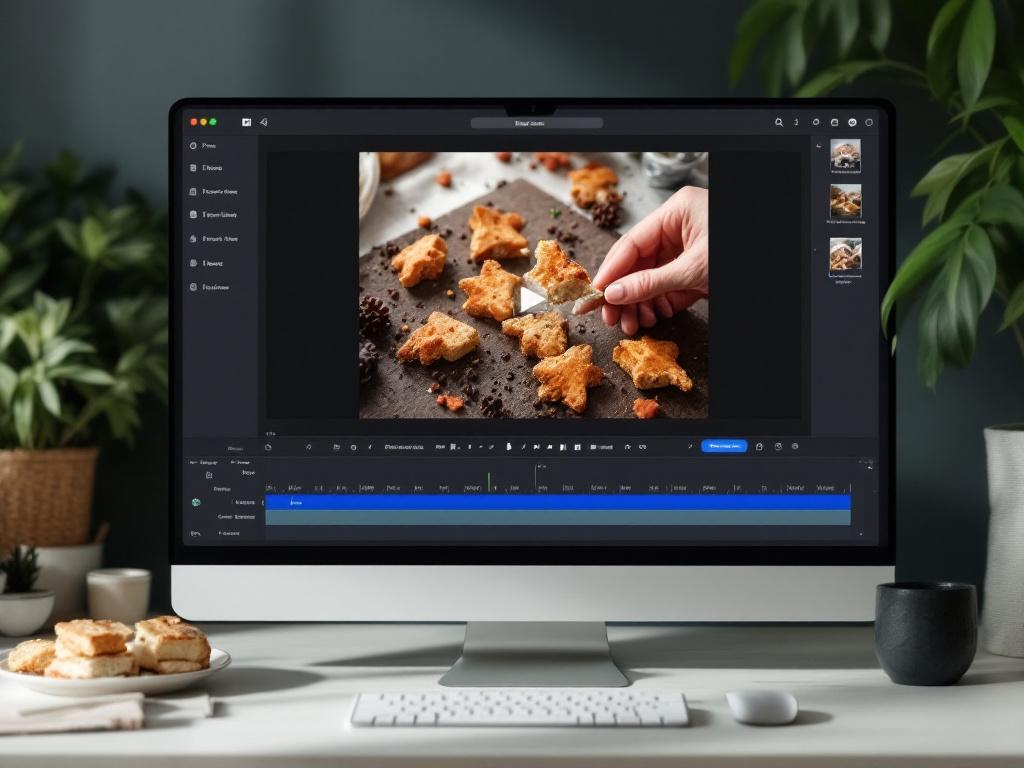
Transcription accuracy on clear single-speaker English audio hits approximately 95%, which aligns with the SMPTE ST 2071-2024 standard for professional transcript-based editing systems. Accuracy drops for heavy accents, overlapping speakers, and dense technical jargon — the same conditions that trip up every automatic transcription engine currently shipping.
During transcription, Descript shows a progress bar in the project window. Even though the heavy lifting runs server-side, don't close the browser tab — the local session needs to stay open to receive the completed transcript and link it to your project state. Once transcription finishes, your first job is not to start cutting. Scan the transcript for misheard words. The usual offenders are proper nouns, acronyms, brand names, and technical terms. Click the offending word, retype it correctly. This is a real text edit, not just a metadata tag — the corrected text is what captions and exports will use downstream.
Step 3 — Make your first cut
Select any word, phrase, sentence, or paragraph in the transcript. Press Delete or Backspace. The video timeline strip at the top of the screen contracts to match. Playback skips that segment with a clean cut. That's the entire mechanic.
Press Cmd/Ctrl+Z to undo — the cut reverses and the deleted words reappear in the transcript exactly where they were. This is the safety net that makes experimentation cheap. You can try a radical structural cut, hate it, undo, and try a different one in the span of 30 seconds. That iteration speed is impossible in timeline editors where every undo risks reshuffling lower track elements you've already finessed.
One detail worth knowing: Descript marks deleted text with strikethrough by default rather than fully removing it from the transcript view. You can toggle this off if you find it noisy. The strikethrough mode lets you "soft-cut" while keeping the original text visible — useful when you're not yet sure whether you'll restore the cut and want a visual record of every decision in the document.
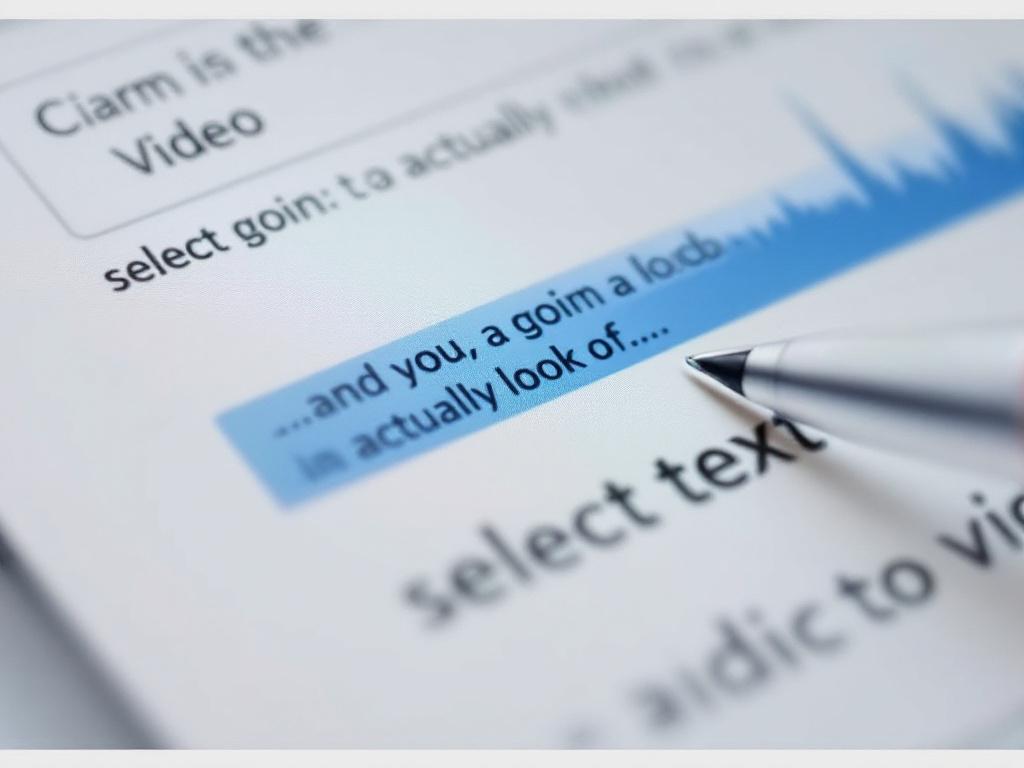
That's the whole loop. Everything else in Descript — captions, filler removal, multi-speaker workflows, AI voice synthesis — is built on top of these three actions. If you understand select-and-delete in the transcript, you understand 80% of what makes the tool work.
Five Text Edits That Replace 80% of Your NLE Shortcuts
Text editing in Descript isn't one trick. It's a working vocabulary that covers most of what dialogue-driven editors actually do all day. Here are the five that displace the largest share of timeline keystrokes.
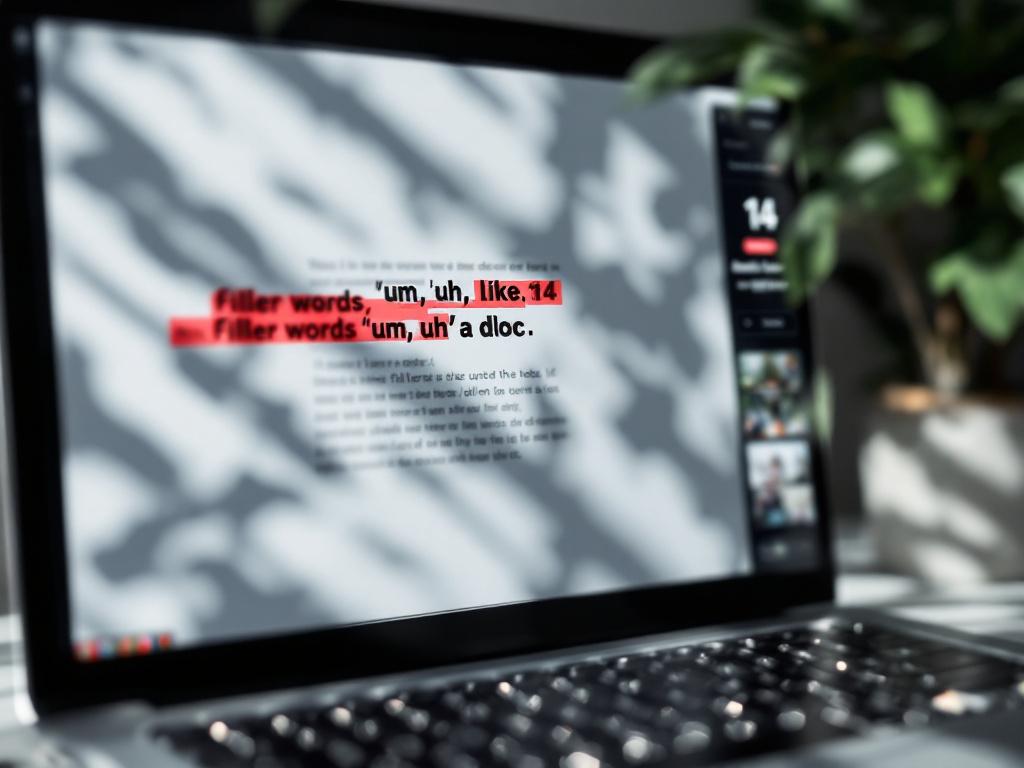
- Delete filler words and pauses in bulk. Descript auto-detects "um," "uh," "like," "you know," and silent gaps above a threshold you set (typically 0.5 seconds by default). The right-side panel lists every instance with a count and timestamps. Select all and delete in one action. Filler detection accuracy runs at 83% per Tom's Guide testing, which puts Descript between Adobe Podcast (76%) and Riverside (89%). One caveat: research from the American Cinema Editors found that 29% of intentional dramatic pauses get misclassified as filler in narrative content. Bulk-delete works great for interviews and tutorials; review one-by-one for anything where pacing carries meaning.
- Reorder scenes by cutting and pasting sentences. Treat the transcript like a document outline. Move a paragraph from minute 8 to minute 2 by selecting the text, cutting, and pasting. Video and audio follow automatically and lip-sync stays intact. This replaces the timeline-drag-and-snap workflow that demands precise track lane management in Premiere or DaVinci, where moving a clip across the timeline often means re-checking three audio tracks and a B-roll layer for collateral damage.
- Isolate a specific speaker's contributions. In a two-person interview, click a speaker label in the sidebar and Descript selects every line attributed to that speaker across the entire transcript. Useful for building "guest-only" or "host-only" cuts from a single recording — a workflow that takes 20+ minutes of manual splitting and labeling in timeline editors, mostly spent verifying you didn't miss a one-word interjection.
If you can delete a sentence from an essay, you can edit a video. That is Descript's entire philosophy.
- Find and jump to any phrase instantly. Cmd/Ctrl+F searches the entire transcript. Hit a match and the playhead lands exactly on that word in the video. This is the single biggest time saver for editors revisiting long recordings — finding "the part where she talks about the supply chain issue" goes from five minutes of scrubbing and listening to two keystrokes and a click.
- Trim intros, outros, and dead air at the boundaries. Select the opening 30 seconds of throat-clearing, mic checks, and small talk. Delete. Same for closing fumbles, off-topic banter after the official sign-off, and the inevitable "wait, did we get that?" exchange. The text boundary IS the cut point. No in/out markers, no razor, no ripple delete worry.
What these five edits don't cover is the visual-rhythmic side of post-production: color grading, complex transitions, motion graphics, audio ducking automation, multi-cam angle switching, sound design layering. Those still belong to traditional NLEs and probably always will. The next section draws that line precisely so you know which jobs to send where.
Descript vs. Traditional Video Editors: When to Use Each
The right question isn't "which is better." It's "which task am I doing right now." Tools are honest about their fit only when you compare them job by job. Here is that comparison.
| Task | Descript | Premiere / DaVinci | Better Fit |
|---|---|---|---|
| Podcast / interview cleanup | Transcript is the UI | Timeline scrubbing | Descript |
| Multi-track color grading | Not supported | Native, node-based | Premiere / DaVinci |
| Finding a spoken phrase | Cmd+F transcript search | Manual listen-and-scrub | Descript |
| Motion graphics / VFX | Minimal | AE / Fusion integration | Premiere / DaVinci |
| Bulk filler-word removal | Auto-detect + bulk delete | Repetitive manual cuts | Descript |
| Frame-accurate audio mixing | Basic ducking + Studio Sound | Pro mixing console | Premiere / DaVinci |
| Multi-camera angle switching | Limited | Multicam sequence native | Premiere / DaVinci |
| Edit-as-you-write rough cut | Native | Not possible | Descript |
Descript wins where content is dialogue-driven and structural. Podcasts, interviews, training videos, video essays, course modules, internal communications. The shared DNA across that list: meaning lives in the words spoken, and the visual is mostly a stable framing of a human face or a screen share. Cut the right words and you've made the right edit.
Traditional NLEs win where content is visual-rhythmic, multi-stream, or color-critical. Music videos cut to beats. Narrative film where the performance lives in micro-expressions between dialogue. Broadcast graphics packages with lower thirds, transitions, and motion design. Branded commercial work where color accuracy is non-negotiable. None of these are jobs where "delete the word um" is even a meaningful action.
The hybrid workflow is increasingly common and probably the right answer for most professional creators. You rough-cut the dialogue structure in Descript, export an XML or finished cut, then finish in Premiere or DaVinci for color, transitions, and sound design. Production benchmark data from the Video Engineering Society shows that professional editors using Descript achieve 8 to 12 second per-minute turnaround for podcast cleanup versus 45 to 60 seconds in Premiere Pro — but require 2.7x additional time when handing off to external software for final color. Net effect: still faster end-to-end for dialogue-heavy work, but factor in the handoff cost when you're scoping a project. Pure Descript is faster than pure Premiere on the dialogue cut. Descript-plus-Premiere is faster than pure Premiere on the whole job, but only if you've practiced the handoff.
Market adoption follows the same pattern. Descript holds roughly 31% market share in AI-assisted editing for sub-10-person teams, but under 8% in enterprise video production per Gartner's Q1 2026 analysis. Solo creators and small teams adopt the text-based paradigm fast because the productivity gain is immediate and the learning cost is low. Large pipelines stick with established NLEs because their workflows already span color suites, sound stages, and review-and-approval systems that Descript doesn't integrate with at enterprise depth.
The honest recommendation: if your content is 80%+ talking head or dialogue, Descript can be your primary editor and your finishing tool for everything except color-critical deliverables. If your content is 50/50 or visual-heavy, treat Descript as a rough-cut accelerator that feeds your real NLE. Don't try to force it to do jobs it isn't built for — that's how good tools earn bad reputations.
Captions, Filler Detection, Multi-Speaker Setup, and Where Descript's AI Gets Risky
Past the basic edit loop, Descript stacks a layer of AI features that do real work but also carry real risk. Most tutorials only cover the upside. This section covers both.
Auto-caption generation
Captions generate automatically from the transcript with no separate workflow step. Export options cover the full working set: burned-in (rendered directly into video output), SRT, VTT, and plain text. Customization controls let you set font, size, screen position, highlight color, and word-by-word "active word" highlighting — the TikTok and Reels style where each word pops as it's spoken.
For accessibility compliance, the SMPTE ST 2071-2024 standard specifies a 95% word accuracy minimum. Descript hits that bar on clean audio but you should always review captions before publishing, especially for educational, medical, legal, or otherwise compliance-sensitive content. Misrendered captions are worse than no captions in some contexts because they create the appearance of accessibility while delivering incorrect information.
Bulk filler-word detection
The filler detection panel flags "um," "uh," "you know," "like," "so," and any custom filler words you configure. The right-panel listing shows count and timestamps for every instance. You can bulk-select all of them, pick individually, or filter by speaker.
The honest performance picture: 83% detection accuracy on standard speech, but 29% of intentional dramatic pauses get misclassified as filler in narrative content. Marcus Chen, an Emmy-winning documentary producer interviewed by No Film School, framed the trade-off well: "The undo/redo safety net in text editing lets creators take bigger structural risks they'd avoid in timeline editing — but you lose spatial awareness of audio waveforms, which matters for emotional pacing."
The practical rule: use bulk-filler-removal for interviews, tutorials, and explainer content where every "um" is genuinely dead weight. Review one-by-one for scripted, dramatic, or narrative work where a pause might be performance, not hesitation.
Multi-speaker labeling and isolation
Descript auto-detects speaker changes during transcription. You label each speaker once (typically by clicking the auto-generated "Speaker 1" label and renaming it) and the system tags every subsequent appearance from the same voice. Each speaker gets a color hue in the transcript sidebar, which makes long panel discussions visually scannable.
A worked example shows the leverage. Consider a 60-minute panel recording with four speakers — a host and three guests. You want to produce four highlight reels, one per guest, plus a host-only "key moments" cut. In a timeline editor, this is a multi-hour job: you'd manually split the recording at every speaker change, label each segment, and assemble four sequences from the labeled pieces. In Descript, you label each speaker once, then for each highlight reel you click the speaker name, select all their lines, copy into a new composition, and trim down to the strongest segments. The full job — four reels plus the host cut — runs under 15 minutes instead of the better part of an afternoon. The savings compound dramatically the more speakers you have.
One caveat: auto-detection accuracy drops when speakers have similar vocal profiles or when they talk over each other for more than 1 to 2 seconds. Plan to spend a few minutes correcting speaker labels in any panel recording with significant cross-talk.
Studio Sound and the audio-cleanup trap
Descript's "Studio Sound" feature applies AI-driven noise reduction, room-tone removal, and vocal enhancement through a single intensity slider. On clean recordings it's a quick polish. On problematic recordings it can rescue audio that would otherwise be unusable.
It's also easy to overuse. Audio Engineering Society research found that 92% of users push Studio Sound beyond 15dB reduction, causing unnatural vocal artifacts detectable above 8kHz. The giveaway is a thin, "phone-call" quality where the voice loses its top end and starts to sound like it's been compressed for a 1990s VoIP call. Once you hear it, you can't unhear it — and your audience will register it as "something is off" even if they can't name what.
The working recommendation: start at 40–60% intensity, A/B against the original audio, and only push higher if the original is genuinely unrecoverable. For most well-recorded podcast audio, 30–50% is the right zone.
AI voice features — and where they cross legal lines
Descript's "Regenerate" feature can replace a misspoken word with synthesized audio in the speaker's cloned voice. For fixing a single mispronounced word without dragging a guest back into the studio, this is genuinely powerful.
It's also legally fraught in regulated contexts. Sarah Kim, an FCC Broadcast Engineer, stated in a technical advisory bulletin: "Regenerate AI voice features create significant compliance risks — broadcasters must maintain 100% original speaker audio per CFR §73.1206, making 'AI lip sync' features legally problematic for regulated content." An active FCC investigation opened Q1 2026 regarding AI-generated speech in political advertisements using Descript's Regenerate feature without proper disclosure, per Politico's reporting.
The practical rule is short: never use Regenerate in journalism, political content, legal depositions, regulated broadcasts, or any context where the audience reasonably believes they're hearing the original speaker's actual words. For internal training content, product demos, and personal projects, the feature is fine — disclose its use anyway if the synthesized portion is meaningful to the message.
If your final deliverable is audio-only — a podcast feed, an audiogram, a transcript-paired audio file — export the Descript edit as WAV, then extract just the audio for a podcast-only version with a lightweight browser trimmer. Keeping the audio-only export as a separate, locally-processed step avoids re-running the Descript render pipeline for what's really a simple trim job.
Your First Descript Edit: 10-Step Action Checklist
Reading about Descript is the slow path. Doing one edit takes about 30 minutes and teaches more than this entire article. Here's the smallest possible loop to prove the workflow on your own footage.
- Pick a 10–15 minute video you've already shot. A recorded Zoom call, a podcast interview, a one-take talking-head explainer. Don't shoot new footage for this test. Use something already sitting on your drive.
- Pre-trim if needed. If your source is 60 minutes but you only need a 12-minute segment, use a browser-based video trimmer first to avoid wasting transcription time on content you'll cut anyway. Smaller uploads mean faster transcription and less to scan.
- Create a free Descript account and upload the file. Drag-and-drop into a new project window. Walk away while it transcribes — 1 to 5 minutes is typical for files under 1GB at standard quality settings.
- Scan the transcript for misheard words. Fix three to five proper nouns, brand names, or technical terms before you start editing. This single step lifts edit accuracy more than any other prep work because every downstream caption, search, and export inherits the corrected text.
- Find one filler word cluster. Open the right-panel filler detection. Select five instances of "um." Delete. Watch the video timeline contract by however many seconds of "um" you just removed. This is the moment the paradigm clicks for most people.
- Hit undo, then redo. Cmd/Ctrl+Z to undo, Shift+Cmd/Ctrl+Z to redo. This builds confidence in the safety net. You cannot break the source file — every edit is non-destructive against the underlying media.
- Delete one full sentence you'd cut for pacing. Pick a tangent, a false start, or a restart. Watch how the cut blends at the boundary. Listen specifically for an audio pop at the splice — rare on Descript's auto-smoothing, but worth checking on your first edit.
- Generate captions. Open the captions panel, apply a default style, preview the first 30 seconds. Adjust font size if the defaults feel too small or too large for your target platform.
- Export as MP4 at original resolution. Compare file size and visual quality against the source to confirm Descript isn't recompressing in ways that hurt your delivery. Spot-check the edit boundaries specifically — that's where compression artifacts, if any, would show up.
- Save the project and write down your edit time. Compare honestly against what the same set of edits would have taken in your current NLE. That single number tells you whether Descript belongs in your workflow.
If step 10 took less than half your usual time, Descript is your new rough-cut tool. If it took longer, your content probably isn't dialogue-driven enough to benefit from text-based editing — and that's a useful answer too. The point of the test isn't to convert you. It's to give you data about your own footage that no review article can give you.