
How to Download YouTube Videos Safely in Your Browser (No Software Needed)
You paused a video you actually have the right to keep — maybe your own upload you need to re-edit, a tutorial the creator explicitly lets you save, or a clip you're licensed to use. Then the trouble started. Every so-called youtube video downloader you clicked turned into a gauntlet: three fake green buttons stacked on one page, a forced notification prompt, a redirect chain that bounced you across four domains, and finally a suspicious.exe waiting to be run. Two fears sit underneath all of that. First, malware and quiet data harvesting from sites you can't audit. Second, genuine uncertainty about what you're even allowed to do. This guide handles both. You'll get the legitimate, browser-only ways to put a YouTube video on your device, plus what to do with the file safely once it lands. Here's the honest line up front: some downloads are permitted, most aren't, and this page marks that boundary instead of pretending it doesn't exist.
Table of Contents
- When You're Actually Allowed to Download a YouTube Video
- Why Most "Free Downloader" Sites Are a Security Trap
- The Legitimate Ways to Get a YouTube Video in Your Browser
- What to Do After You Download — Trim, Convert & Compress in Your Browser
- Downloader Red Flags vs. Green Flags — A Quick Safety Check
- FAQ — Quick Answers to the Questions People Actually Ask
- Your Safe-Download Checklist
When You're Actually Allowed to Download a YouTube Video
Before any tool or trick, settle the rights question — it determines whether you can download YouTube videos safely or whether you're quietly breaching a contract. YouTube's Terms of Service prohibit downloading videos without explicit permission, with a handful of specific carve-outs. Those carve-outs are where legitimate downloading lives, and each one has its own mechanism.
- Your own uploads. Always retrievable. YouTube gives creators a direct download of their own content through YouTube Studio, usually as an MP4 at 720p or 360p depending on the original file size. No third-party site enters the picture. This is the cleanest case there is, because the file is already yours.
- Videos with an official download button. Some creators enable downloads directly on their videos. Where that button exists, saving the file is sanctioned by the platform itself — you're using a feature YouTube built, not routing around one.
- Creative Commons and public-domain videos. These are downloadable under their license terms, but the license comes with obligations. Most Creative Commons licenses require attribution, and some restrict commercial reuse or modification. Check the specific CC license on the video before you treat it as free to use — "Creative Commons" is a family of licenses, not a single blanket permission.
- YouTube Premium offline. Legitimate, but narrow. Premium lets subscribers save videos for offline viewing, but those files are encrypted and tied to your account. They play only inside YouTube's app or site. You cannot move them, edit them, or treat them as a normal MP4. It's offline playback, not a portable file — a distinction that matters enormously once you want to actually work with the video.
- Everything else — the gray zone. Saving another creator's regular upload "just for personal offline use" still violates YouTube's Terms of Service, even if a third-party youtube video downloader makes it technically possible. There's no soft version of this. The tool working doesn't mean the download is permitted.
According to YouTube's own Help documentation and Terms of Service, the official routes above are the sanctioned ones — the rest sit outside what the platform allows. It's worth separating two ideas that often get blurred. Lawrence Lessig, professor of law at Harvard and a leading scholar on digital copyright, has argued that personal copying can fall under fair use in some contexts — but he's careful to note that platform Terms of Service and technical controls still define what users are contractually allowed to do. "Legal in theory" and "permitted on YouTube" are not the same thing. You can hold a defensible fair-use argument and still be breaking the agreement you accepted when you signed up.
The safest download is the one you already have the right to make — everything else trades a small convenience for a real risk.
Why Most "Free Downloader" Sites Are a Security Trap
Type "youtube video downloader" into any search engine and you'll land on a page engineered less to serve you and more to monetize you. Understanding how these sites make money explains why they're structurally unsafe — no matter how clean the homepage looks.
Start with the fake buttons. A typical ripper page carries multiple large green "DOWNLOAD" buttons of different sizes, and the biggest, most obvious one is almost always an ad. The real link — if it exists — is smaller, lower, or hidden behind a second click. This isn't sloppiness. It's design. The fake buttons out-rank the real one visually because every misdirected click pays the operator. Layer on the forced browser-notification prompt ("Click Allow to continue"), which hijacks your notification channel for future spam, and the multi-hop redirect chain that bounces you through affiliate trackers before anything downloads.
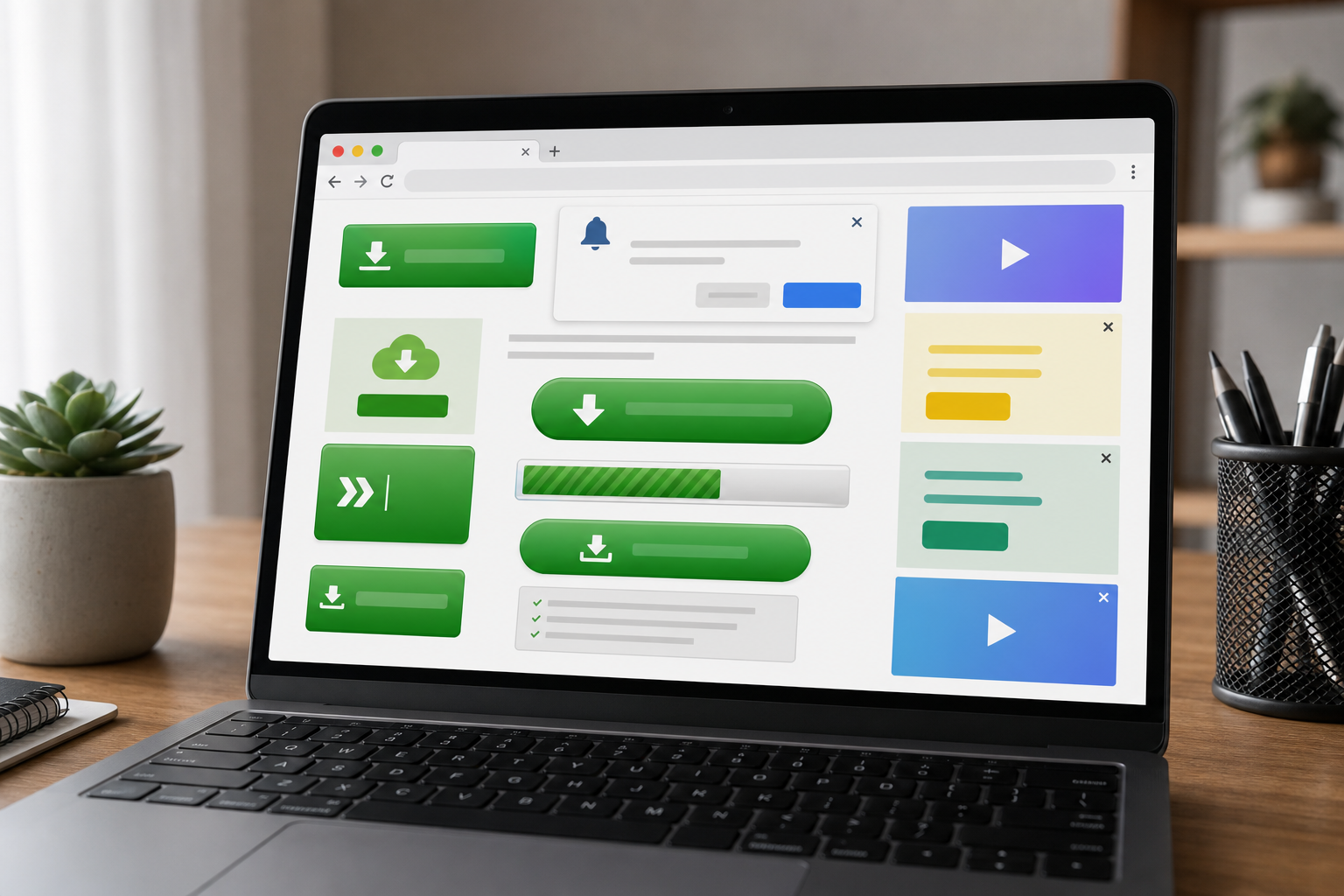
The deception often escalates into a full-page overlay that mimics a system dialog, a phony progress bar that fills to 99% before demanding a "codec update," and bundled adware quietly attached to whatever finally lands on your disk. Eva Galperin, Director of Cybersecurity at the Electronic Frontier Foundation, has repeatedly flagged how malicious advertising networks and deceptive "download" buttons are a common vector for malware. That pattern maps almost perfectly onto the ad-heavy free-downloader page. According to the Electronic Frontier Foundation, the advertising ecosystem itself — not just the occasional bad file — is where a large share of this risk originates. The site doesn't have to be overtly malicious; the ad network embedded in it can do the damage on its own.
Then there's the part that gets less attention and matters more: the privacy core. Most of these services require you to paste your video URL, or upload your file, so their servers can process it. That means your request — what you're watching, what you're saving, when, and from which IP — travels to infrastructure you cannot see, audit, or trust. Cory Doctorow, the digital-rights author associated with the EFF, has made this point about opaque third-party tools for years: users routinely trade away privacy and security for convenience the moment they route their viewing habits and URLs through untrusted servers. The convenience is real. So is the cost, and you never get an itemized bill.
If a free tool needs your file on its server to work, your file is the product.
Here's the technical nuance that trips up even careful users. "Browser-based" does not automatically mean private. A tool can render a polished web-page interface and still ship your file straight to a remote server the instant you drop it in. Security researchers who audit online converters keep making this point: many server-side converters wear a web-page costume while doing all the real work on infrastructure you'll never see. The interface being in your browser tells you nothing about where the processing happens.
That distinction — where processing happens — is the entire game. There are only two answers. Either the work runs on their server, in which case they can see your activity and your file, or it runs locally in your own browser, in which case they see nothing because nothing ever leaves your machine. A safe YouTube downloader workflow and a browser-based downloader that genuinely protects you both come down to that single question: does my file stay on my device, or not? Hold onto that test. It's the one that separates a real privacy guarantee from marketing copy, and it decides which tools deserve your file after you've legitimately obtained it.
The Legitimate Ways to Get a YouTube Video in Your Browser
You don't need a third-party youtube video downloader for content you have the right to save. There are three clean, browser-only routes, and every one of them keeps processing inside Google's own infrastructure — no software installed, no unknown servers touched.

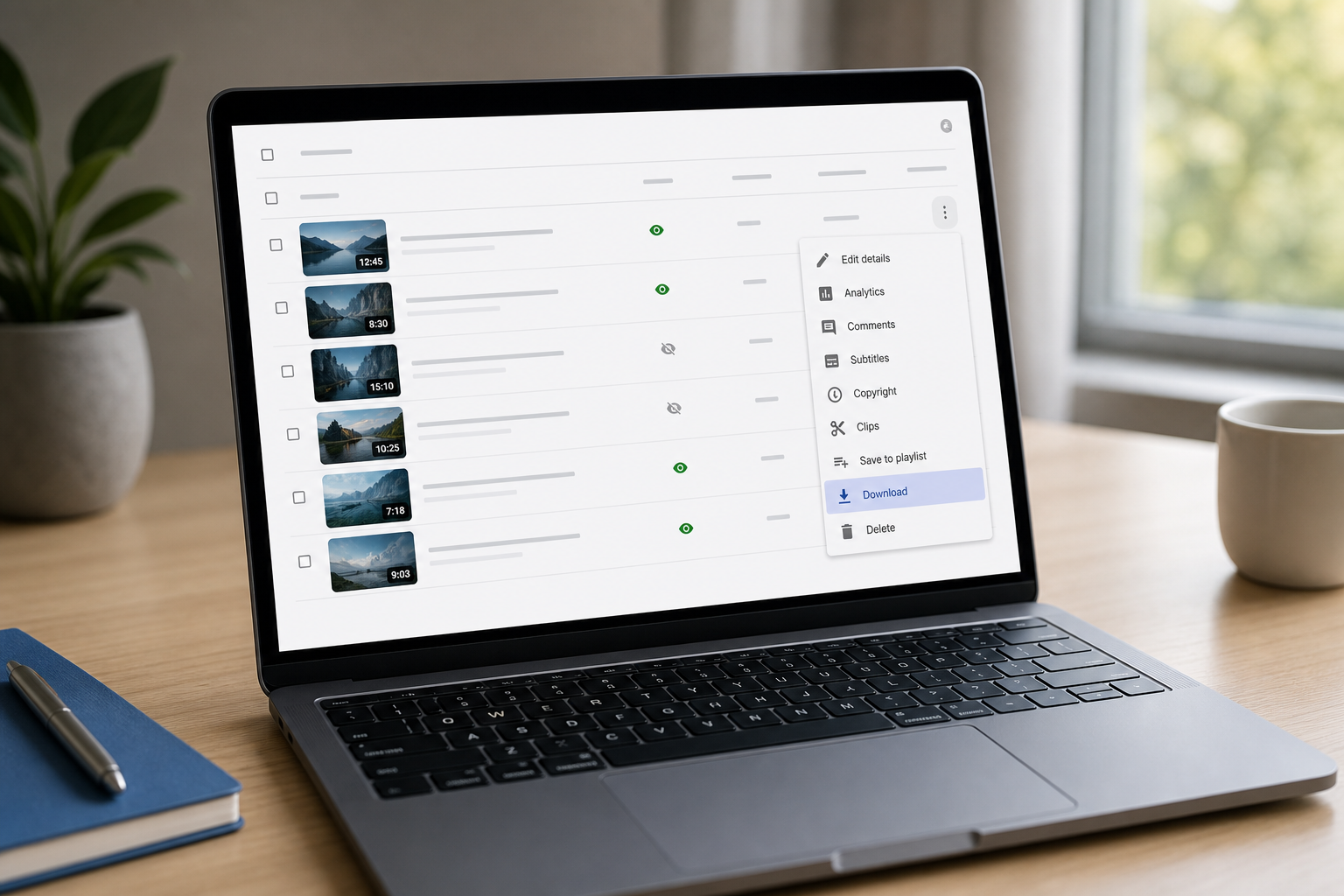
Route 1 — Download your own upload via YouTube Studio
This is the direct path for creators, and it's the one most people overlook while chasing sketchy sites. Sign in, then:
- Open YouTube Studio.
- Go to Content in the left menu.
- Find your target video and click the three-dot Options menu on that row.
- Select Download.
The output is a standard MP4, typically 720p or 360p depending on the original file size. According to PCMag's guide to downloading YouTube videos, this is the consistent, documented flow for retrieving your own uploads — and because the result is a normal MP4, you can freely edit, trim, or convert it afterward.
Route 2 — Use a creator's official download button
Where a creator has enabled downloads, a download button appears under the player. Click it. That's the whole process. No third-party site, no URL pasting, no risk — you're using a feature the platform built, and the permission is baked in. If the button isn't there, the creator hasn't granted it, and that answer is meaningful.
Route 3 — Google Takeout for bulk channel export
When you own an entire channel and want to archive or repurpose everything at once, Google Takeout is the tool:
- Go to Google Takeout.
- Select YouTube as the service to export.
- Choose your export frequency and preferred file type.
- Wait for the export to build — large channels take time.
- Download the archive through your browser once it's ready.
This is the workhorse route for a full-channel backup or a migration project. Everything owned, packaged, retrievable in the browser, with no external download service involved.
A word on where YouTube Premium offline fits, since people constantly file it in the wrong drawer. Premium is legitimate, but it produces offline playback inside the app — not a standalone, editable file. As TechSmith's guide to legal downloads notes, those files are encrypted and account-locked. You cannot open them in an editor or move them to another device. So Premium belongs in a different mental bucket than the three routes above: it's for watching on a plane, not for working with the footage. If your goal is to actually use the video — trim it, convert it, pull audio — Premium won't get you there, and the three legitimate routes will.
What to Do After You Download — Trim, Convert & Compress in Your Browser
The file is now legally on your device. The download was never the goal — using the footage is. This is where a specific, honest workflow beats another download from a random site. Four tasks cover the overwhelming majority of what people actually need to do with a saved video, and each one can run entirely inside your browser.
Trim a long recording to the exact clip you need. You pulled a 20-minute Studio export but only want a 45-second highlight. Loading it into an online video trimmer lets you drop in/out points on a timeline and export just that segment. There's no re-encode penalty when you cut on keyframes, and no need to install a desktop editor for a task that takes under a minute.
Convert MOV or MKV to MP4. If your source or edit lands in a container that a target platform chokes on, MP4 with H.264 is the near-universal answer — it plays everywhere, from mobile browsers to social platforms to older editors. Converting YouTube video files to MP4/H.264 removes almost every compatibility headache before an upload or a client handoff.
Compress large files to fit upload or attachment limits. Email ceilings and platform caps are unforgiving. A 500 MB export won't clear a 25 MB attachment limit. Browser-based compression lets you dial down bitrate or resolution to hit a target size without wrestling a full desktop encoder through a multi-step re-encode you don't understand.
Extract audio — MP4 to MP3. Need just the sound for a podcast reference clip, a transcription pass, or a reusable snippet? An online audio cutter can pull the audio track and export it as MP3, dropping the video weight entirely. This is the fastest route to a clean audio file from footage you have the rights to.
Here's the part that ties back to the security section. These tasks can run 100% inside your browser using WebAssembly-compiled FFmpeg — the same open-source engine that powers professional media pipelines, recompiled to run client-side. According to engineering write-ups on WebAssembly-based FFmpeg implementations, the processing happens on your own machine's CPU, in the browser tab, with the file never uploaded to any server. That's not a marketing framing. It's an architectural fact about where the computation runs.
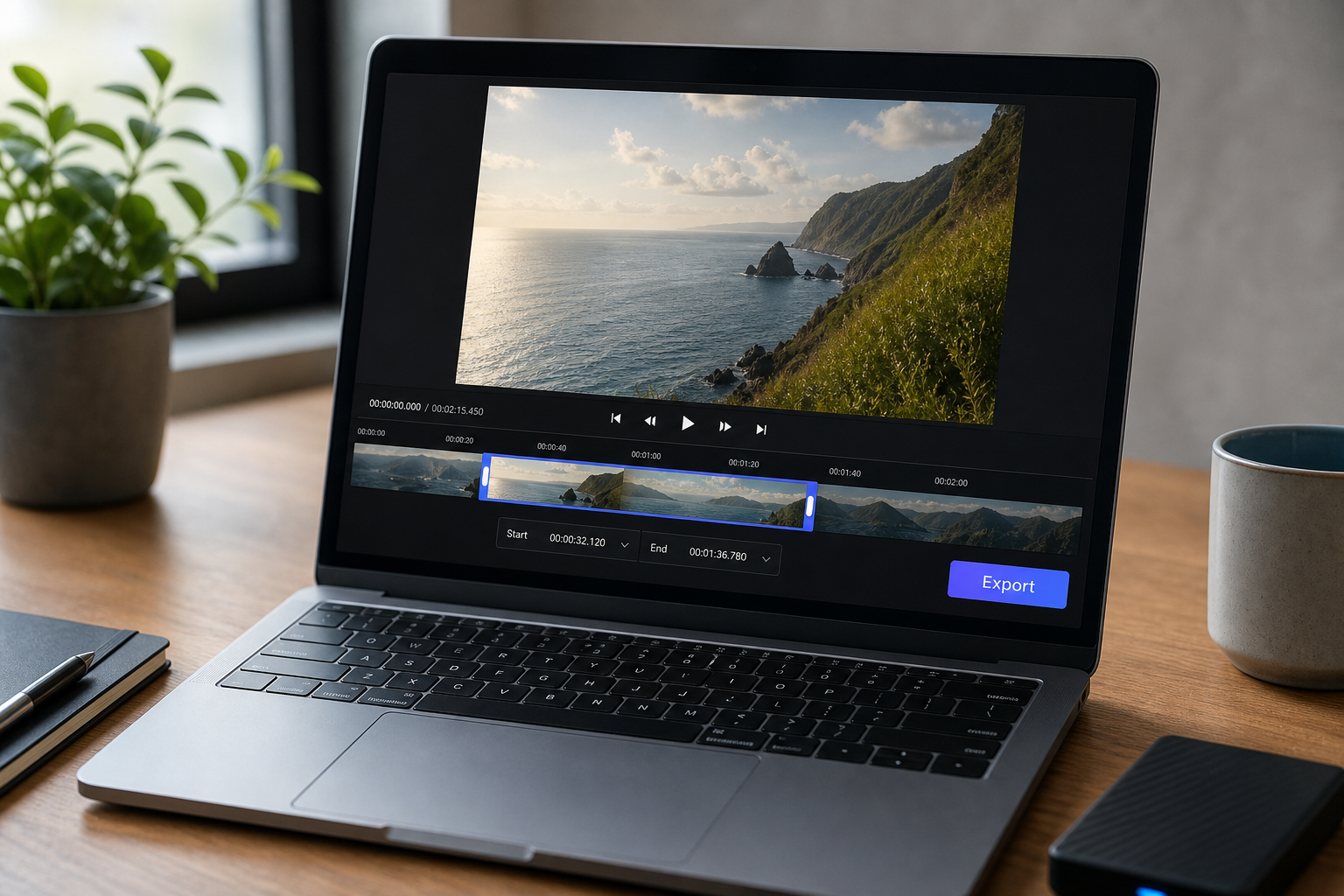
The consequence is direct. Because nothing leaves the device, there's no watermark stamped on your export, no registration wall, no upload wait, and no privacy trade-off. This is the practical answer to the "browser ≠ private" caution from earlier — genuine local processing versus a server-side converter wearing a web-page costume. The workflow itself is simple: load the file, set your in/out points or target format, export. The file that comes out the other end never touched an outside server, which means there's no log of your footage sitting on infrastructure you can't audit.
The moment your file leaves your device, you lose control of it — the whole point of local processing is that it never has to.
Media Tools Suite was built around exactly this model — video trimming, conversion, compression, and audio extraction, all running client-side through WebAssembly so your files stay put. If you can answer "my browser" to the where does the processing happen question, you've eliminated the entire category of risk covered in the previous section.
Downloader Red Flags vs. Green Flags — A Quick Safety Check
Use this as a fast diagnostic on any tool or route before you trust it with a file or a URL. The table states factual traits — no scores, no rankings, just what each approach actually does.
| Safety criterion | Red-flag tool | Trustworthy approach |
|---|---|---|
| Processing location | Their unknown server | Your browser / Google infra |
| File or URL sent off-device | Yes | No |
| Account or email required | Often | No (own uploads / local tools) |
| Watermarks added | Common | None |
| Pop-ups & redirect chains | Frequent | None |
| Malware / adware exposure | Elevated | Minimal |
| Format & quality control | Limited / forced | Full (choose target format) |
Read the two columns as a single decision. A safe online video tool shares one trait above all others: it doesn't need your file or your URL to leave your device to do its job. The moment a service requires an upload, every row below it tilts toward risk — because once your file is on their server, you've lost the ability to control watermarks, formats, data collection, and what happens to the copy they now hold. A private video converter flips that entirely by keeping the work local.
The two pillars of this whole guide come together right here. First, use a legitimate route to obtain the file — your own upload through Studio, a creator's official button, or Google Takeout. That handles the rights question and keeps the download inside Google's infrastructure. Second, use local processing to edit it — a tool that runs client-side so your footage never uploads anywhere. Get both right and you've closed the loop: the file was lawfully obtained and it never left your hands. The red-flag column isn't a warning about one bad site; it's the shape of an entire economy built to profit from the click, the notification opt-in, and the file you didn't realize you were handing over. Recognize the pattern once and you'll spot it every time.
FAQ — Quick Answers to the Questions People Actually Ask
Is it illegal to download a YouTube video?
It's less about "illegal" and more about YouTube's Terms of Service. Downloading your own uploads, Creative Commons content, or officially downloadable videos is fine. Using a third-party youtube video downloader on someone else's regular upload breaches the ToS even for personal use. Copyright scholarship — Lessig among others — distinguishes "legal in theory" from "permitted on the platform." Enforcement is uneven, but real account and legal risk still exist.
Can I download a video that isn't mine for personal offline use?
Honestly, no — not without permission. Saving another creator's regular upload is a ToS breach unless they've enabled downloads or the video is Creative Commons or public domain. YouTube Premium offline is the sanctioned way to watch someone else's video offline, but that file stays locked inside the app and can't be moved or edited. Convenience doesn't convert a breach into a permission.
What's the best format to save a YouTube video in?
MP4 with H.264. It offers near-universal compatibility across devices, editors, and social platforms, and it's the default export format when you download your own uploads through YouTube Studio. If you have a choice of container or codec anywhere in your workflow, MP4/H.264 is the target that causes the fewest playback and upload problems downstream.
How do I extract just the audio from a video I have the rights to?
Load the legally obtained file into a browser-based tool that runs locally, then export MP4 to MP3. With genuine client-side processing there's no upload and no account required — the audio track is pulled and written to a new file entirely on your machine. This works well for transcription source files, podcast reference clips, or reusable audio snippets.
Will editing in my browser upload my file anywhere?
With genuine WebAssembly and FFmpeg local processing, no. The file stays on your device the entire time — the computation runs in your browser tab, not on a remote server. This is the opposite of server-side converters that require an upload to function. The test is always the same: ask where the processing happens, and only trust "on my device."
Your Safe-Download Checklist
Run through this before you save anything. Each step is one action with one reason.
- Confirm you have the right. Is it your own upload, a Creative Commons or public-domain video, or a creator-enabled official download? If none of those apply, stop — you're in the gray zone.
- Choose the legitimate route. YouTube Studio for your own uploads, the official download button where a creator offers it, or Google Takeout for a bulk export of your channel. Each keeps processing inside Google's infrastructure.
- Save the original file to your device as a standard MP4. A normal file is one you can actually edit later — unlike a Premium offline copy, which stays locked in the app.
- Open it in a browser tool that processes locally. Pick one that runs client-side so nothing uploads. That single trait eliminates the malware, tracking, and data-collection risks tied to server-based rippers.
- Trim, convert, or compress — and confirm the file never left your device. If the tool needed an upload to work, you chose the wrong tool.
- Done. No installed software, no watermark, no privacy trade-off.
When you've legitimately obtained the file, run the final step in your browser with the online video trimmer — trim it to the clip you need, convert it to MP4, or compress it to a target size, all client-side and all without your footage ever leaving your machine.